The member profile
Tap any member card on the Members tab and their profile opens — the front desk's single view of one person: plan, money, visits, access credentials, family links and referrals, with the right action buttons for their current state.
What you'll do
Tour the profile's tabs, learn what lives on each, and see which actions appear when — a member who is expired, expiring soon or frozen each gets a different button set.
You'll need: a staff account; some actions (freeze, renew, cancel, delete, device enrolment) also need their specific permission.
Steps
-
Open a member from the Members tab. The tabs across the top read Overview, Payments and Attendance — plus Checkup if your account can view kiosk checkups.
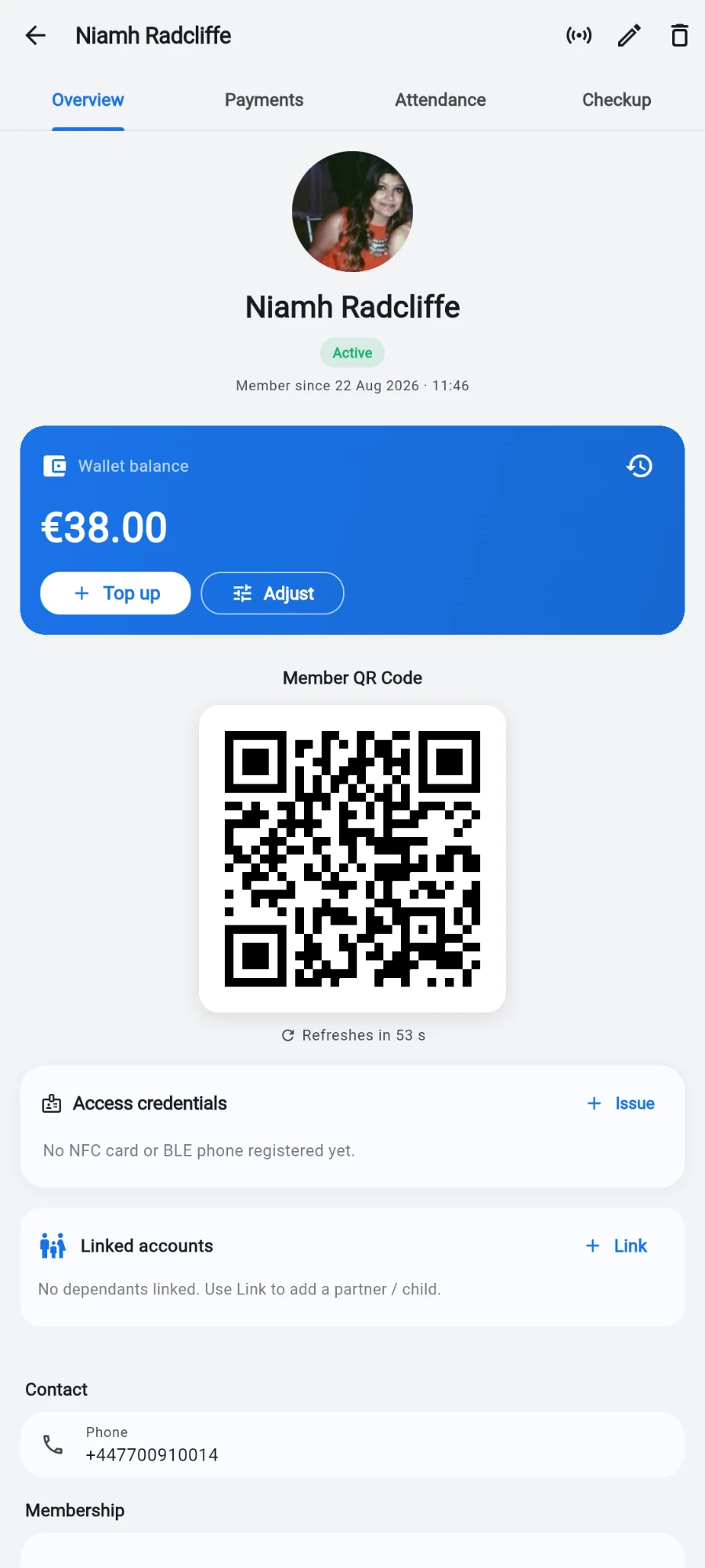
The Overview tab — photo, status badge, wallet card and check-in QR. -
On Overview, check the top block: photo (tap it for a full-size zoomable preview), name, status badge, and a "Member since" line with the exact join date and time.
-
Scroll the Overview cards in order: the Wallet balance card (with Top up and Adjust), the member's check-in QR code, Access credentials (NFC cards and phone keys, with an Issue button), Linked accounts for family members, and Referrals — who referred them and who they brought in.
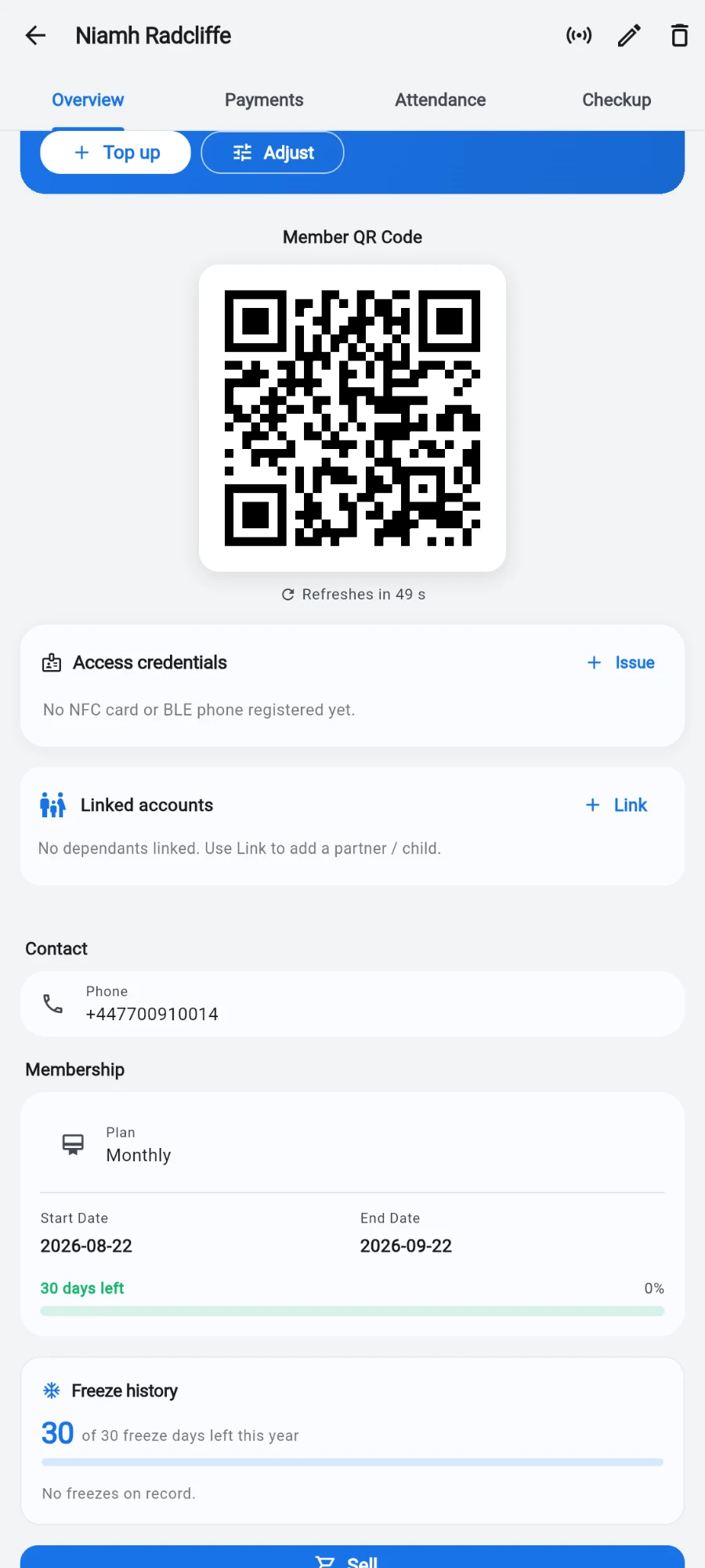
Access credentials and Linked accounts, above the contact and membership cards. -
Below the contact card, read the membership card: plan name, Start Date, End Date, days remaining with a progress bar — or a freeze banner with the freeze window when the member is frozen. A Freeze history card lists past freezes and the remaining allowance.
-
Use the action stack at the bottom. Sell… is always there — it opens the sale chooser for plans, classes, packs and more. The rest adapt: an expired member shows Renew, an expiring-soon member shows Freeze and Renew, a frozen member shows Unfreeze.
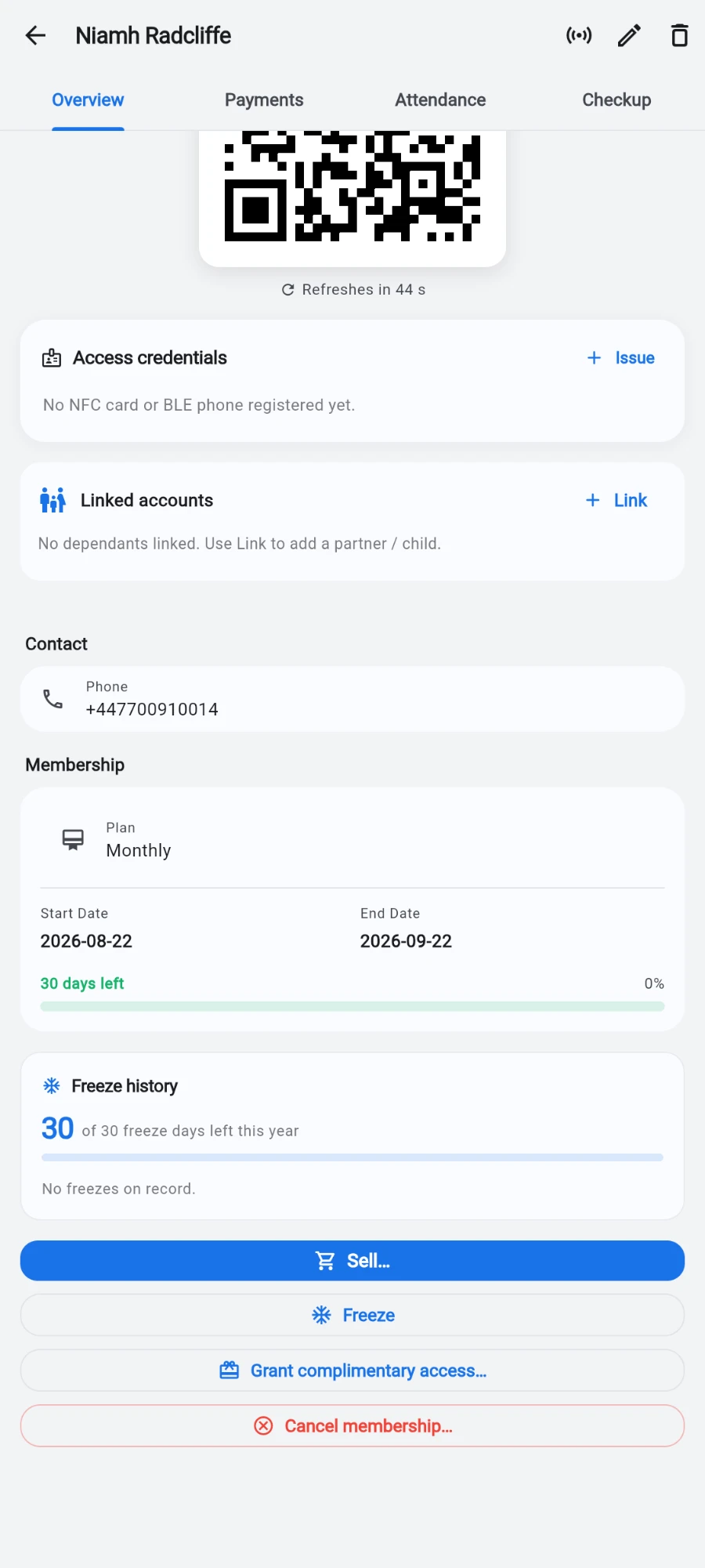
The action stack. Sell is always there; the rest adapt to the member's state. -
Open the Payments tab for the member's complete money story — plan payments, wallet top-ups, wallet adjustments and shop purchases merged into one timeline, newest first.
-
Open the Attendance tab for their visit history.
-
Open the Checkup tab (when visible) for a read-only view of their latest kiosk body checkup — wellness score, fitness-domain bars and individual test results.
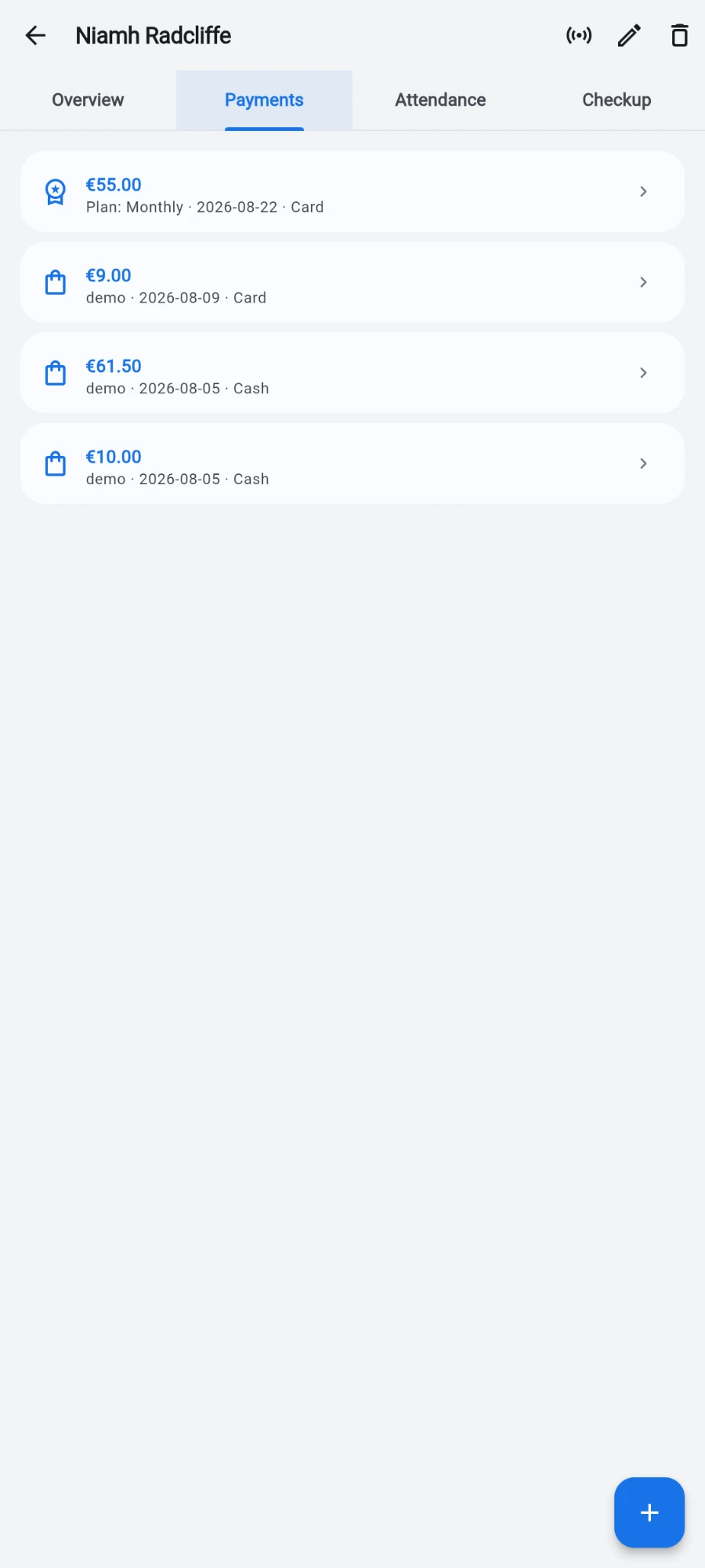
Payments — plan payments, top-ups and shop purchases in one timeline, newest first. -
Use the top-bar icons for the rest: the sensor icon enrols the member onto a face terminal (Enroll on Device), the pencil opens Edit Member, and the bin starts the delete flow.
What you should see
One profile that answers the common desk questions without leaving it: is the membership valid, what did they pay, when were they last in, and what should I offer them next — with the matching action one tap away.
If something goes wrong
- The Checkup tab is missing — your staff role doesn't include the checkup-view permission; the owner can grant it in staff settings.
- You froze someone but a warning says some terminals did not update — the door device was unreachable, so that door may still open for them. Retry once the terminal is back online, or power-cycle it.
- Enrolling on a device fails — the app queues the member for automatic retry and shows you what to check (usually the terminal's power or network). They'll sync when it's back.
- You deleted a member and a warning mentions face removal failing — the record is deleted, but an offline terminal may still recognise them until it reconnects and syncs.
Still stuck? Email hello@prismgym.com — include your gym name, the device, and a photo of what you see.