Create a membership plan
Plans are the product you sell, and Prism's plan form is deep: one plan carries its price and currency, a joining fee, freeze policy, access rules and member-app presentation. This chapter covers the money basics; the next three chapters cover the rest of the form.
What you'll do
Create a plan with a name, duration and price, choose which currency the price is anchored in, and set joining fees — per plan or gym-wide.
You'll need: an account with the plan-management permission (owners have it).
Steps
-
Go to Settings → Membership plans. The screen lists every plan with its duration and price.
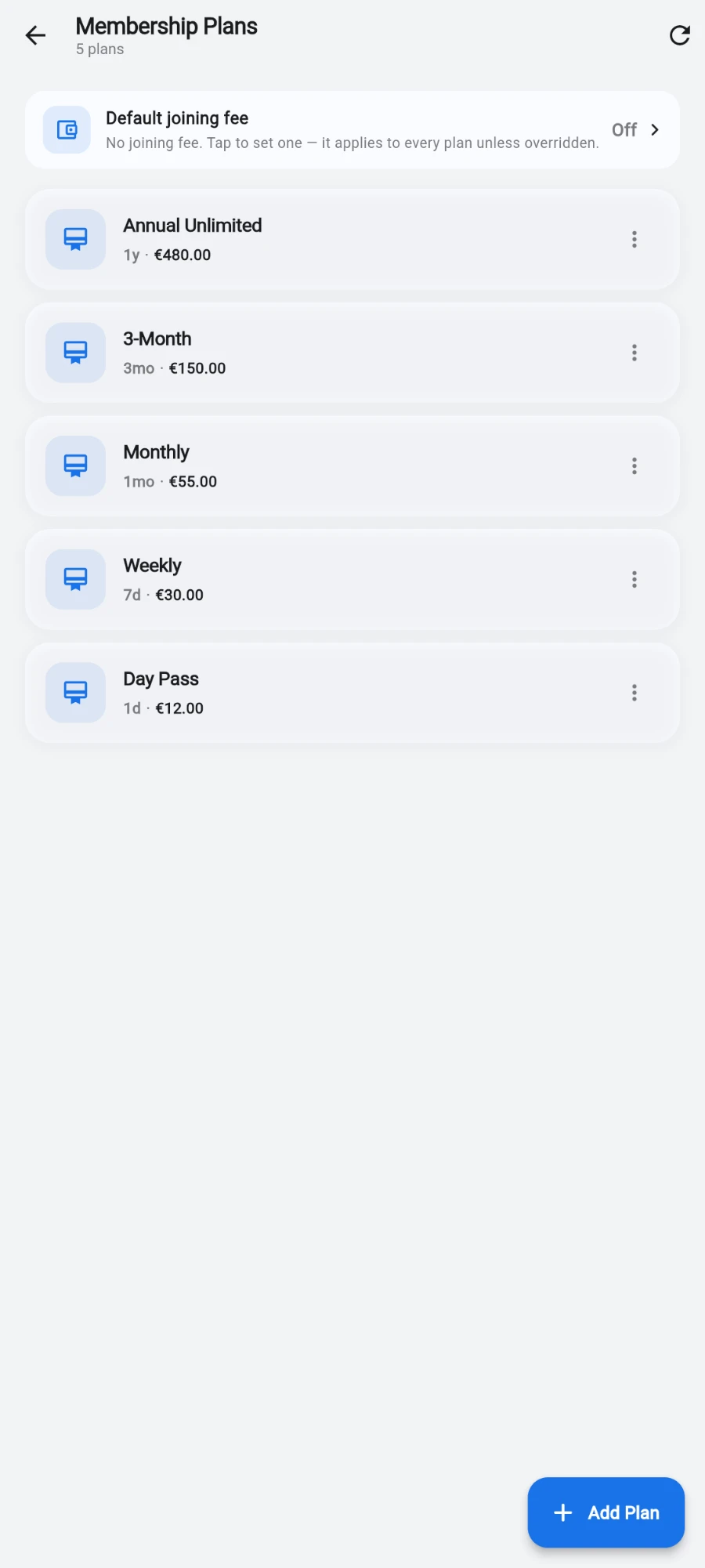
Every plan with its duration and price, the gym-wide joining fee on top. -
Before your first plan, check the Default joining fee card at the top. Tap it to set a gym-wide one-off fee that applies to every membership sale unless a plan sets its own. Leave the Amount blank to turn it off.
-
Tap Add Plan.
-
Fill in Plan name (for example Platinum, Annual, Student), Duration (days) — monthly is 30, yearly is 365 — and Price. Use 0 for free or legacy plans.
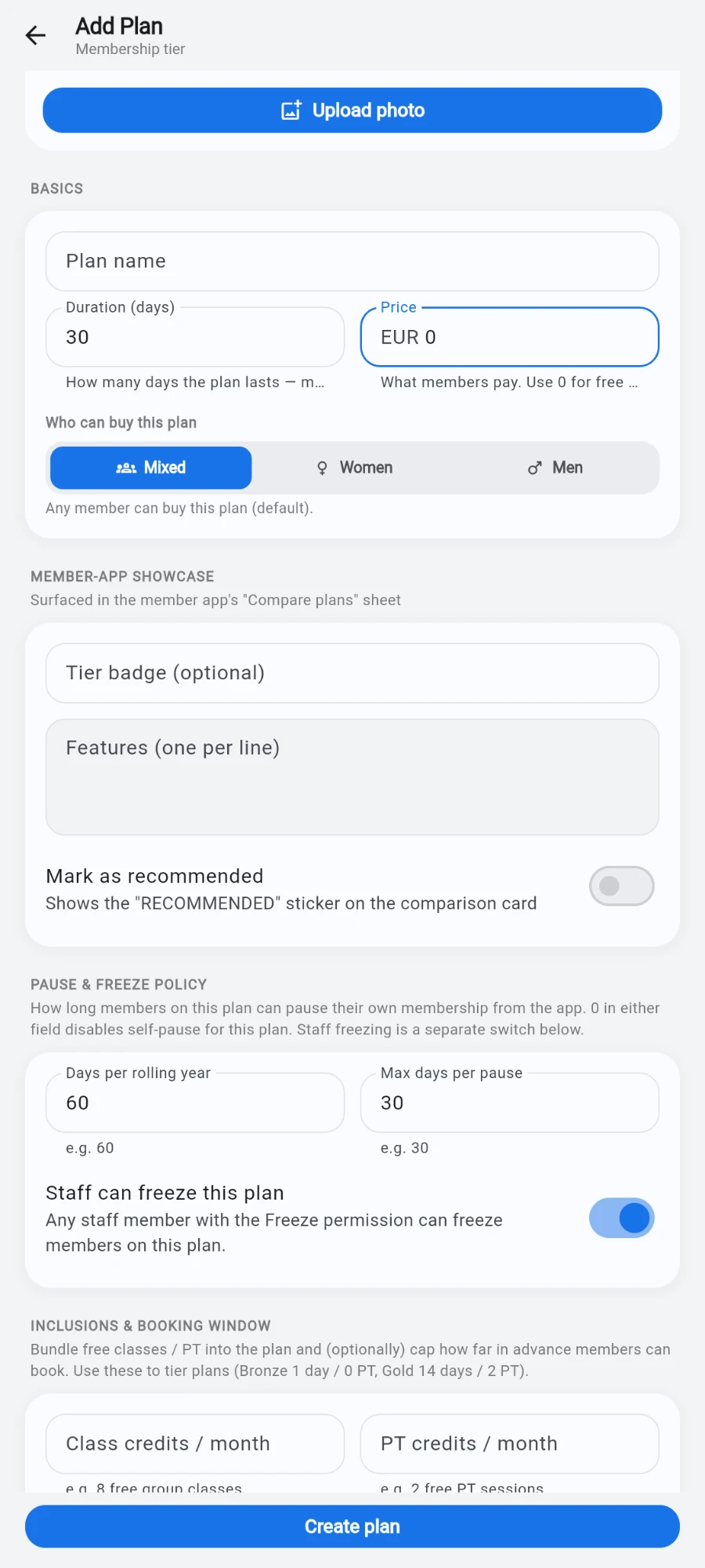
The Basics card: plan name, duration, price and the currency dropdown -
On multi-currency gyms, pick the Price anchored in currency. A plan anchored in a foreign currency keeps its price fixed in that currency — the register converts to your books currency at the live rate each time it's sold.
-
Scroll to the Joining fee field if this plan should charge its own one-off fee on top of the recurring price. Empty or 0 means no plan-specific fee (the gym-wide default still applies if you set one).
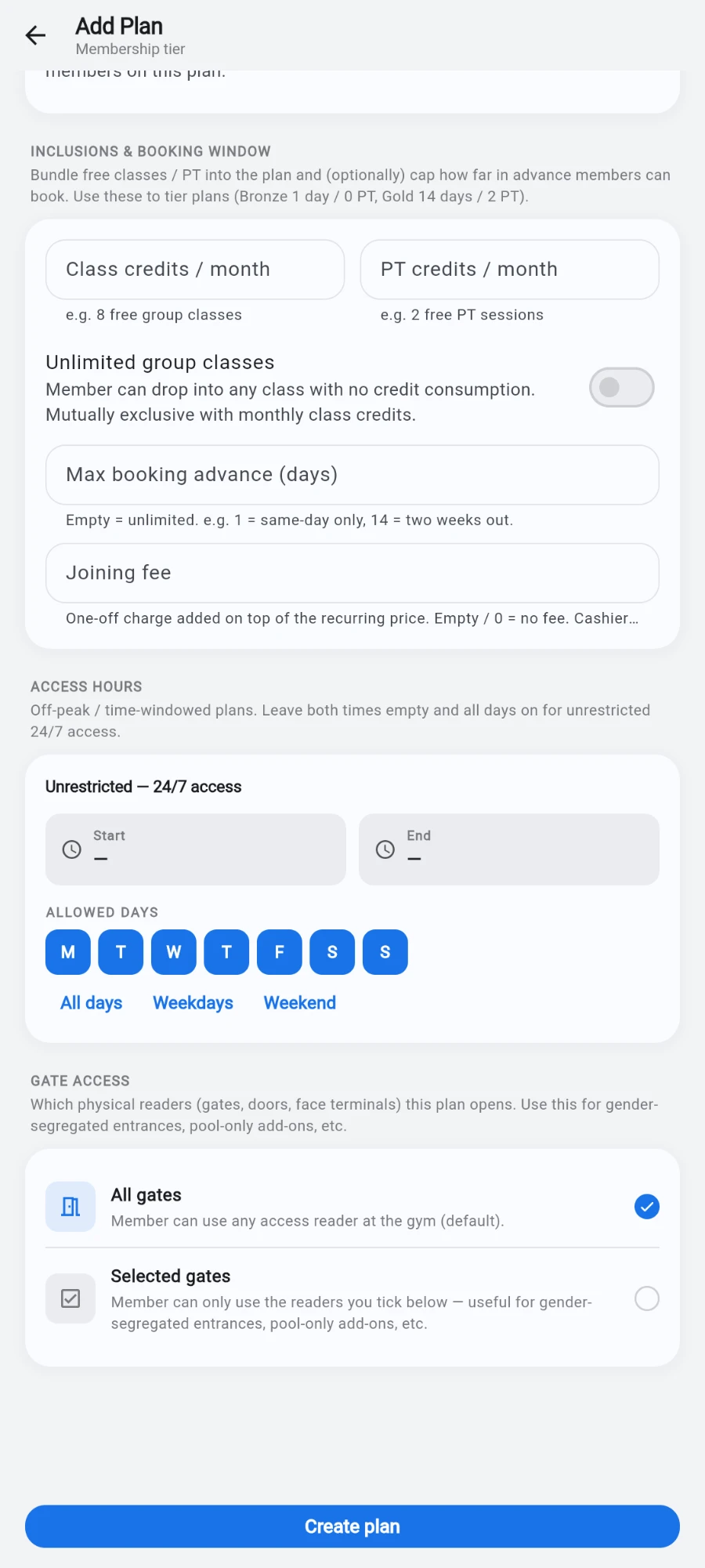
The joining fee field with its helper text -
Tap Create plan.
What you should see
The new plan appears in the list with a smart duration label (a 365-day plan reads as one year) and its price in the anchor currency. It's immediately sellable from any member's profile via the sell flow.
If something goes wrong
- Save flags "Some fields need attention" — a highlighted field failed validation; the inline message under it names the problem (duration must be 1 to 3650 days, price can't be negative).
- The currency dropdown doesn't appear — your gym has only one active currency; the price is in your books currency and there is nothing to pick.
- A foreign-anchored plan shows a strange books amount at sale — check the currency's configured exchange rate in your currency settings; the conversion uses the live rate at sale time.
- The joining fee didn't charge at sale — the cashier's waive toggle was on for that sale; the waiver is in the audit log with the seller's name.
Still stuck? Email hello@prismgym.com — include your gym name, the device, and a photo of what you see.