Track your progress
The Progress tab is your training life on one screen: a THIS WEEK hero with your day streak, then tiles for your Checkup, body stats, nutrition, recovery and achievements. Each tile opens a full tracker, and at the bottom your whole year gets summed up.
What you'll do
Tour the dashboard, log a weight, a photo, a lift, a meal and water, read your sleep summary, and open your Year in Review.
You'll need: a linked membership; a connected wearable if you want sleep and recovery data.
Steps
-
Open Progress. The THIS WEEK hero counts sessions, active minutes and calories, with your live day-streak badge beside it.
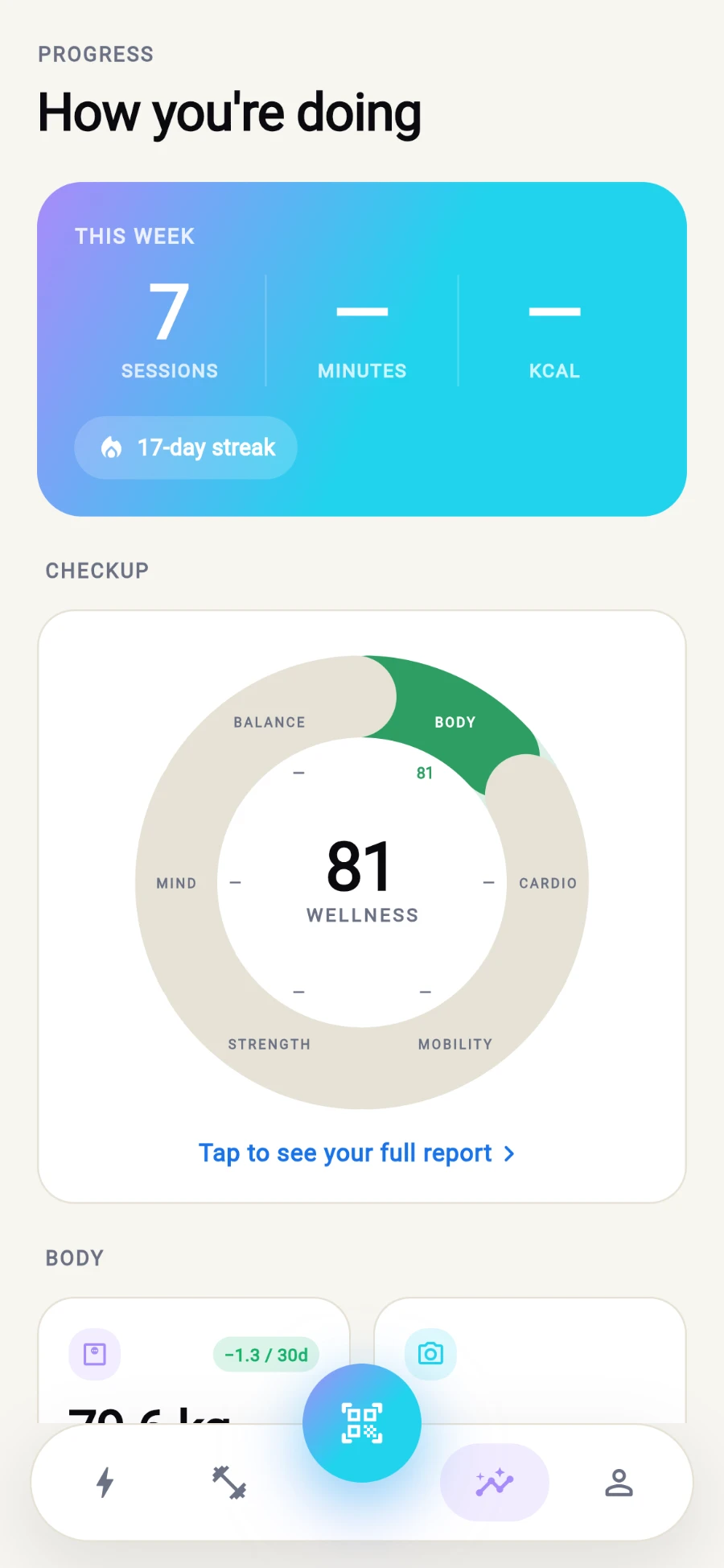
The weekly hero, your Checkup wheel, then the tile grid. -
The Body tile shows your latest weight with a 30-day trend pill, body-fat percentage, photo count and top personal record. Tap through and open Body measurements: tap Log measurement, enter your weight and optionally Body fat % (optional), and Save. The app converts between kg and lb to match your gym's unit system.
-
For photos, open Progress photos and tap Add photo — Take photo or Choose from gallery. Photos are stored privately and only you see them.
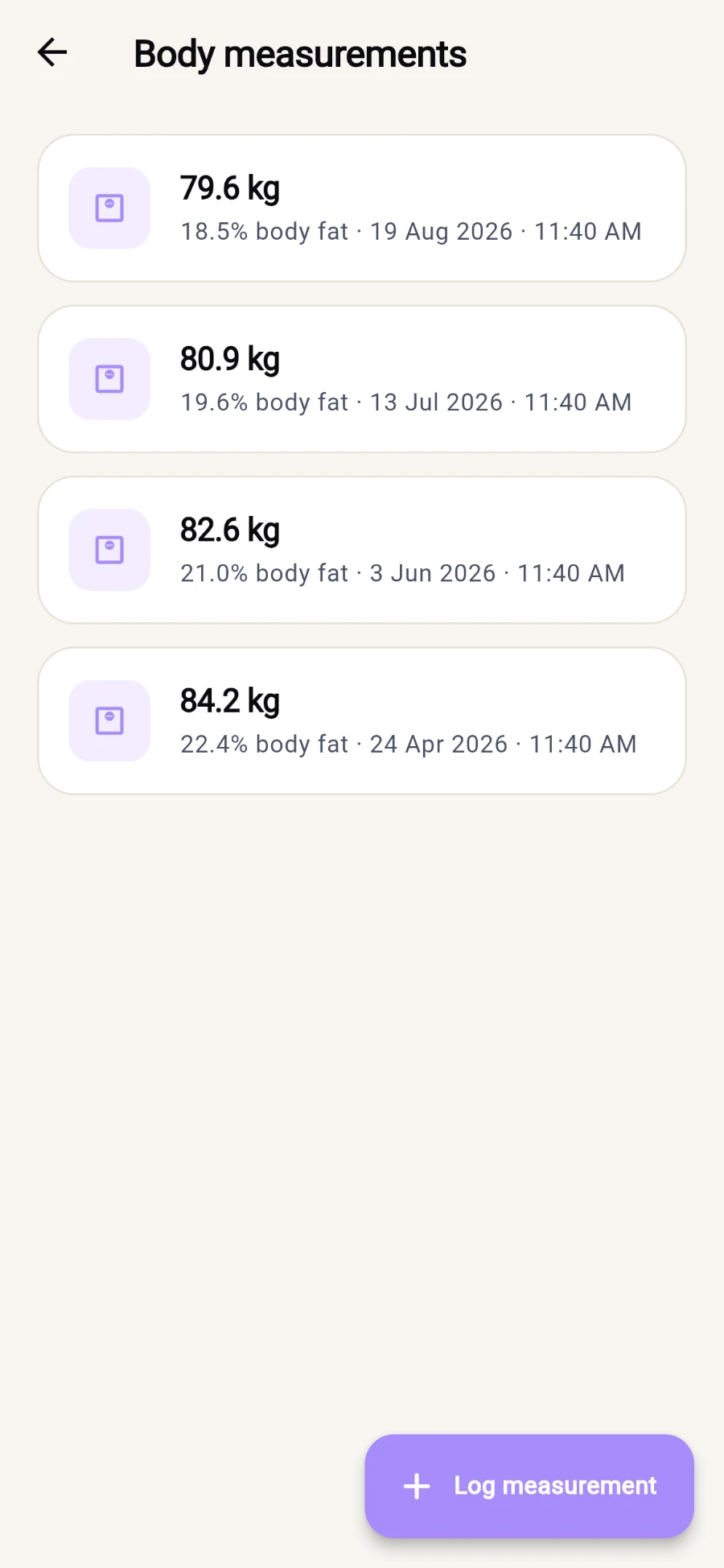
Every reading you have logged, newest first. -
For strength, open Personal records and tap Log set: pick the Exercise, enter the weight and Reps, then Save set. Your best estimated one-rep max per exercise builds from these.
-
The Nutrition tile tracks today's calories and water. In the Food diary, tap Log food and answer What did you eat? with calories and macros. In Water, the LOG WATER quick buttons add a glass in one tap.
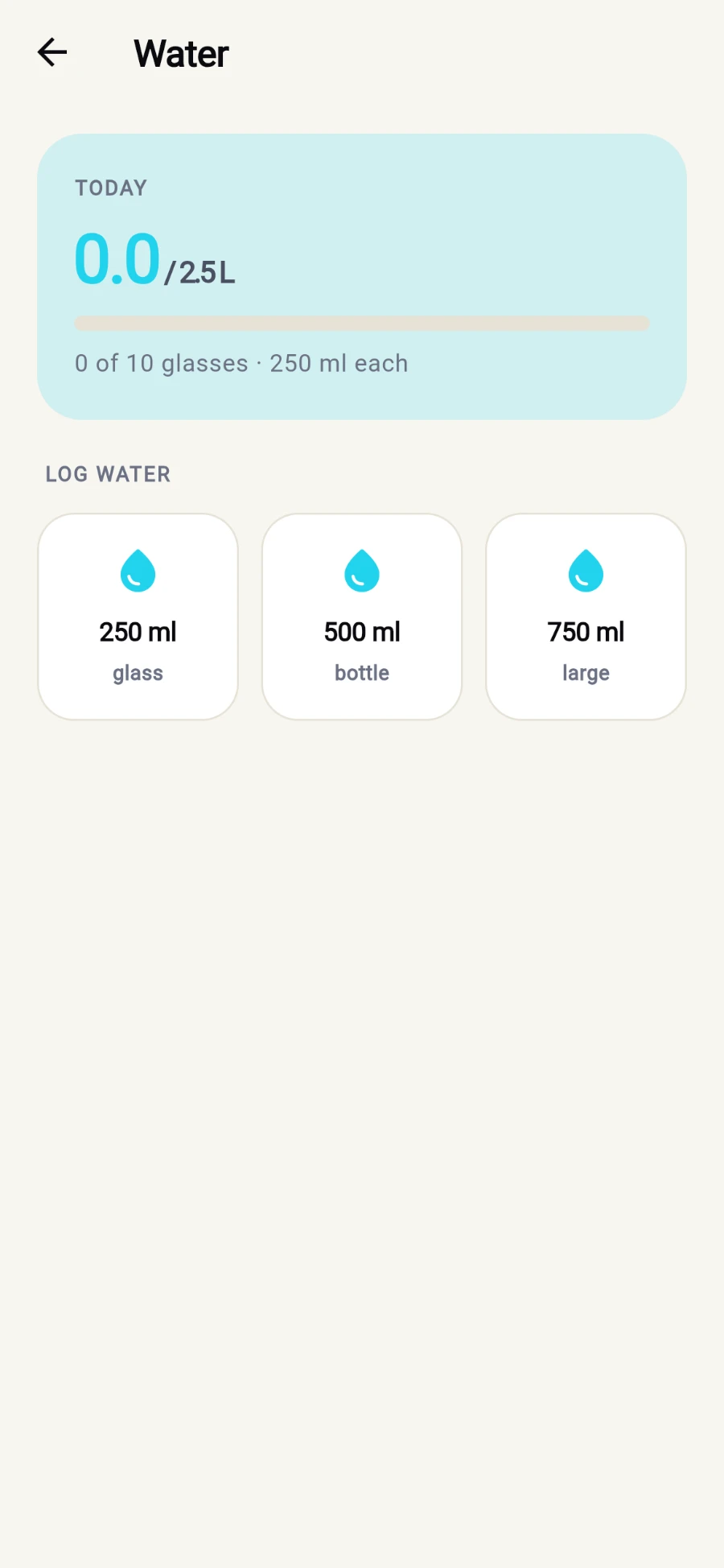
The water tracker - one tap per glass. -
The Recovery tile shows last night's sleep once a wearable is connected. Tap into Sleep for the 7-night average, recovery score, HRV, and the NIGHTLY BREAKDOWN of the last 14 nights.
-
At the bottom of the dashboard, the year banner — Your year, summed up — opens your Year in Review: check-ins, Classes, Workouts, Minutes, Steps, Points, Sets logged, and your TOP CLASS of the year.
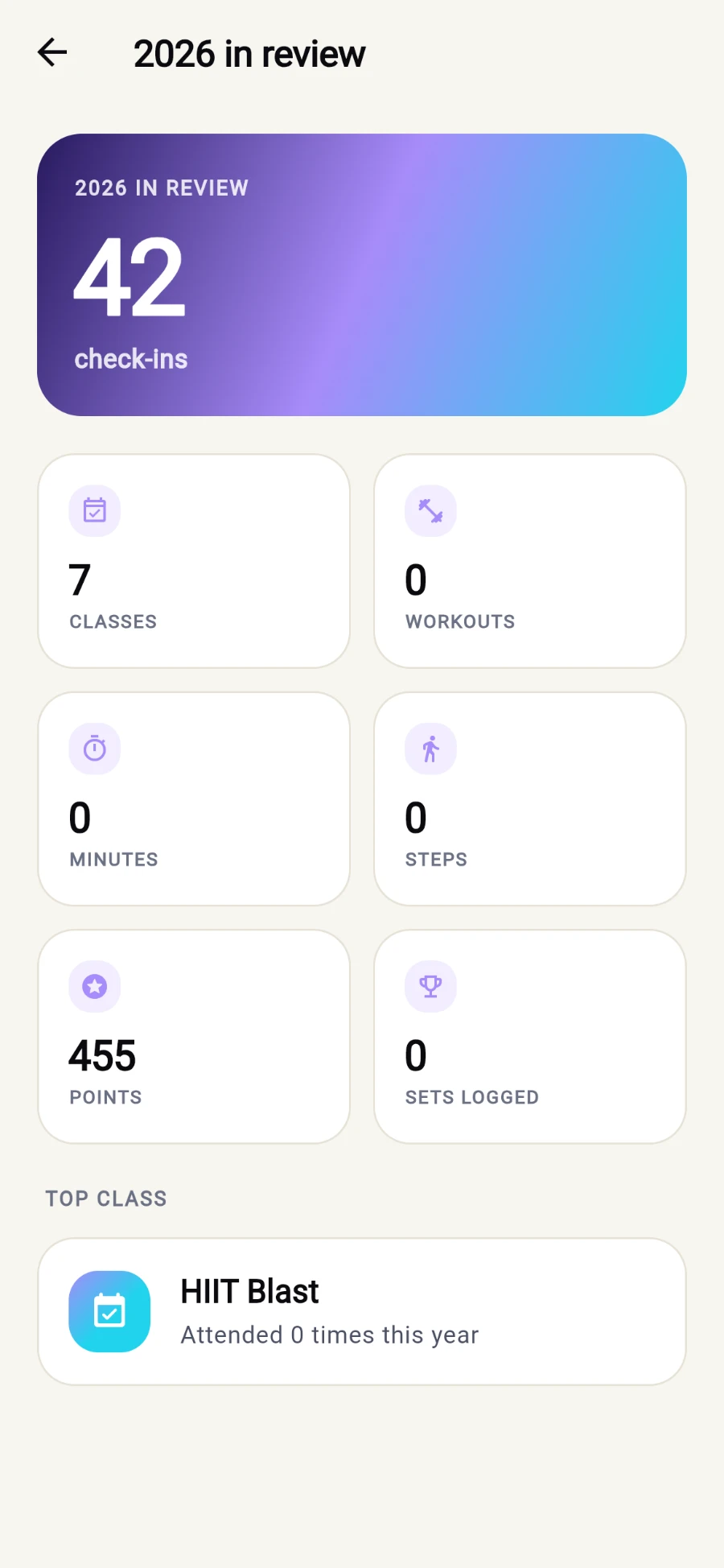
Your year, summed up.
What you should see
A dashboard that fills up as you train: streak climbing, weight trend colour-coded, PRs accumulating, water bar filling — and a year recap worth screenshotting in December.
If something goes wrong
- The Recovery tile says "Connect a wearable to see sleep" — sleep and HRV come from a connected wearable's daily data; without one the tile stays empty.
- A photo won't upload — check camera and storage permissions, and your connection; the gallery only lists photos that finished uploading.
- Year in Review is empty — No data for this year simply means nothing is logged yet; it fills as your check-ins and workouts accumulate.
Still stuck? Email hello@prismgym.com — include your gym name, the device, and a photo of what you see.