Book classes and PT
The Train tab is the booking half of the kiosk: today's classes and the week ahead, a classic timetable grid, full coach profiles with open PT slots, your assigned training program, and the aspirations questionnaire that tunes it.
What you'll do
Book a class, book (and know how to cancel) a PT session, check your program, and take the aspirations test.
You'll need: a signed-in session; PT bookings that cost money draw on your gym wallet.
Steps
-
Open Train. Four sub-tabs run along the top: Classes, Programs, Aspirations and Trainers.
-
Classes lists today plus the next seven days with class artwork, the coach, the room, a time chip and a live booked count. Tap Book — the button flips to Booked; full classes show Full.
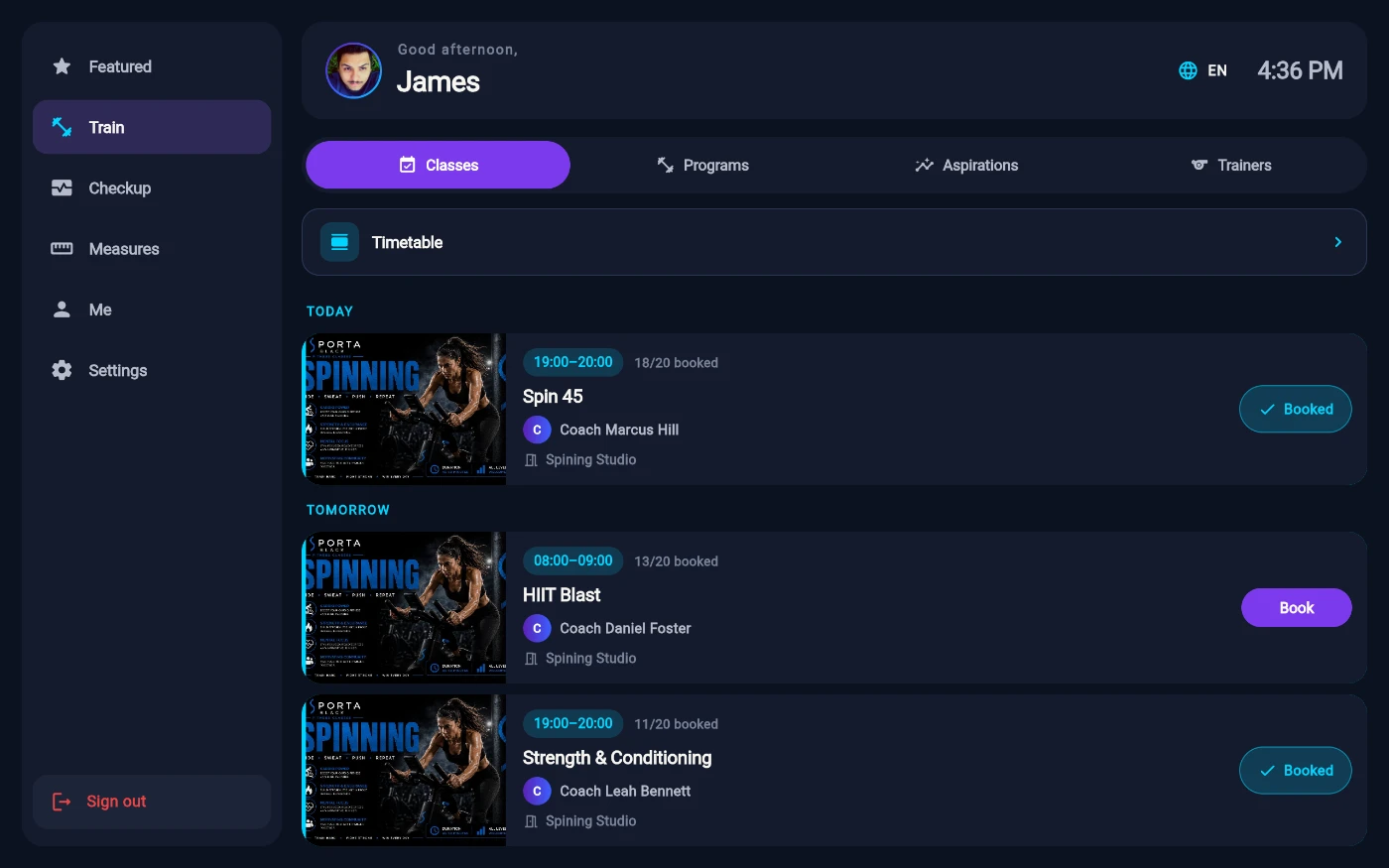
Today and tomorrow, with Book and Booked side by side. -
Prefer a week-at-a-glance? Open the Timetable — hours down the side, classes placed at their real times, with a 7-day switcher. Tap a class to book from there too.
-
Trainers shows every coach with photo, specialty chips, bio, certifications and rate. Tap View slots on a coach to book a session.
-
The slot picker shows the next two weeks of free one-hour slots grouped by date. Tap one — the Confirm booking sheet lists Trainer, When, Duration and Cost (paid from your wallet, or marked Complimentary) — then confirm.
-
Your booked sessions appear under Your upcoming sessions. Tap one to cancel: more than 24 hours out, Cancel & refund returns the fee to your wallet; inside 24 hours the sheet warns you and Cancel anyway forfeits it.
-
Programs shows your assigned training program — the week you're on, sessions done, and each session in the current week (rest days included). The kiosk is for checking in on it; as the hint says, the full walkthrough lives in the phone app.
-
Aspirations asks What motivates you? — tap Start the test, answer twenty 1-to-5 questions, and tap See my profile for your six-axis result: Power, Sport, Fun, Shape, Balance and Move, with your top two explained. Retake it whenever your goals shift.
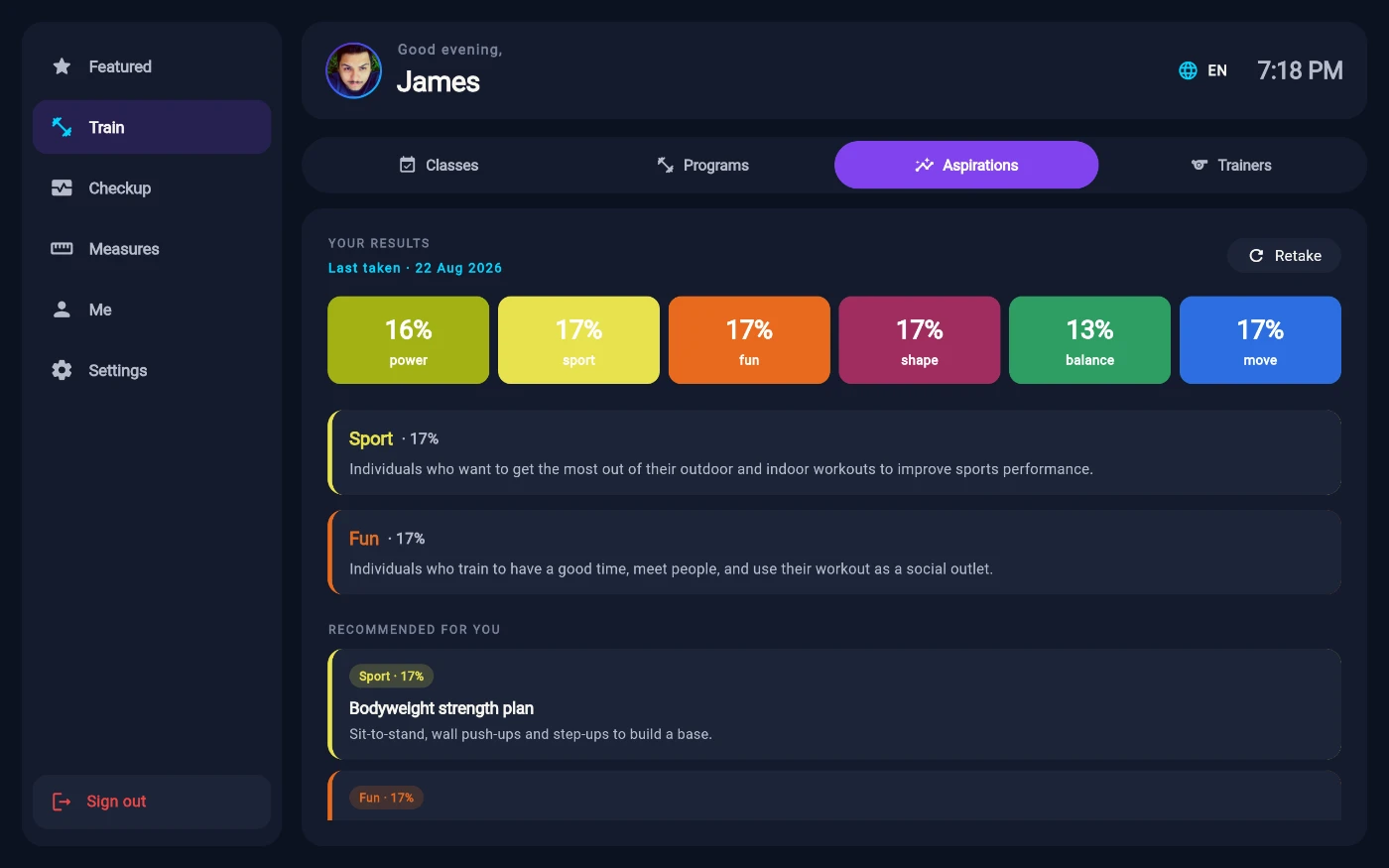
Your six aspiration axes, with the top two explained.
What you should see
Booked classes show a Booked badge here and on your Featured home; PT bookings appear under Your upcoming sessions with the wallet charge reflected immediately.
If something goes wrong
- "This class is full — try the waitlist." — kiosk booking is first-come; the phone app handles waitlists.
- "Someone just booked that slot — pick another." — slots are live; the picker refreshes and the money never left your wallet.
- "Not enough wallet balance — top up first." — top up in the member app or at reception, then book again.
- A class is greyed out or refuses your booking — some classes are restricted (for example women-only); the error says exactly why.
Still stuck? Email hello@prismgym.com — include your gym name, the device, and a photo of what you see.