Held orders and tables
If your gym runs a cafe, juice bar or restaurant corner, the POS has a table floor: every table is a tile showing whether it is free or has an open tab, and a cart can be parked against a table and picked up again later — even from another till. Parked orders snapshot their names and prices, so a tab still reads correctly after you edit the catalogue, and cashiers cannot quietly delete lines from a parked order without the right permission.
What you'll do
Create your tables, open a tab on one, park it, resume it, and settle or clear it.
You'll need: POS permission for daily use; creating and editing tables is done from the same screen. Managers need the held-order permission to remove lines from parked orders.
Steps
-
Open the POS tab and tap Tables — the subtitle reads "Restaurant floor — hold orders against tables". Tap Add table.
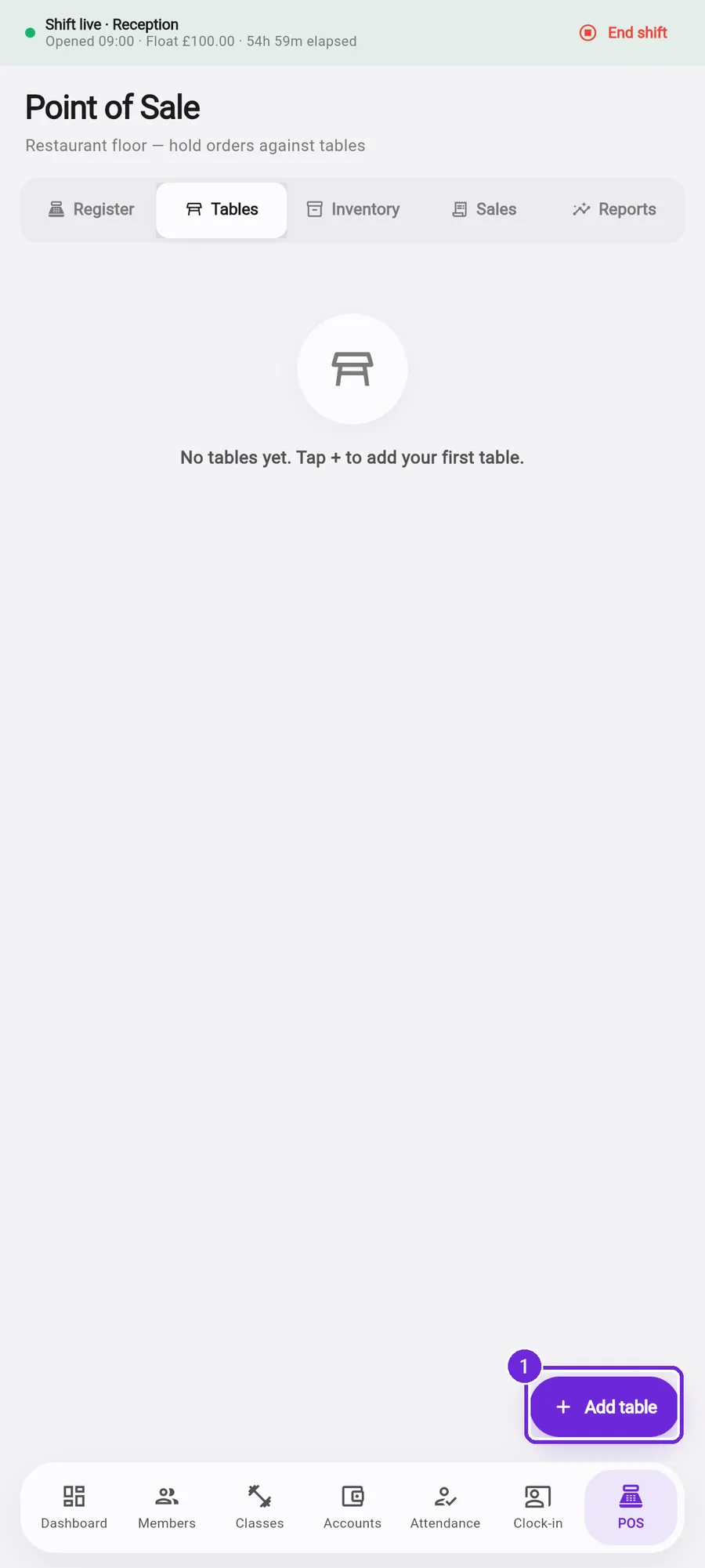
The floor before any tables exist — Add table sits bottom-right. -
In the New table dialog give it a Label, and optionally Seats and a Zone. Decide what kind of table this is with the Temporary tab switch:
- On (the default) — a running tab for one customer, for example their name. It disappears by itself the moment its order is paid or cleared, so the floor never fills with yesterday's customers.
- Off — a permanent, physical table (T1, Bar 3) that stays on the floor plan between orders.
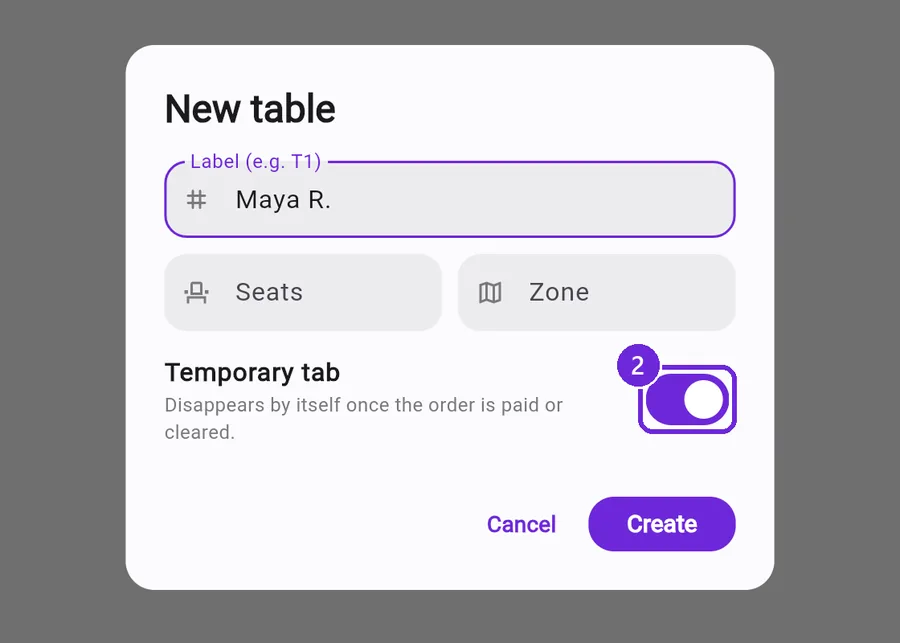
A per-customer tab: label it with their name and leave Temporary tab on. -
Tap Create. The tab appears on the floor under its zone (Main when none was given), reading Empty.
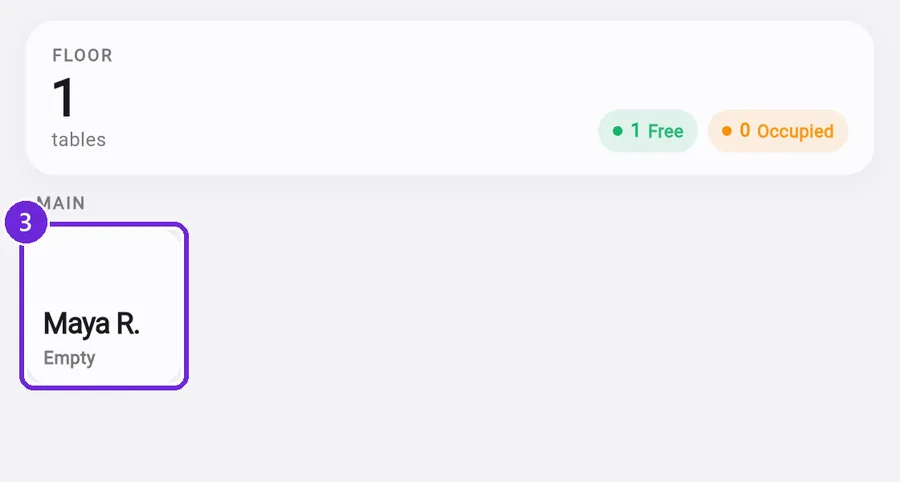
One free table — the summary strip counts Free and Occupied. -
Tap the tile to start the order. The register opens with the table attached — its label shows on an amber chip next to the totals in the cart. Add items as usual.
-
Tap Hold table next to the Charge button. The cart is parked against the table and the register is free for the next customer.
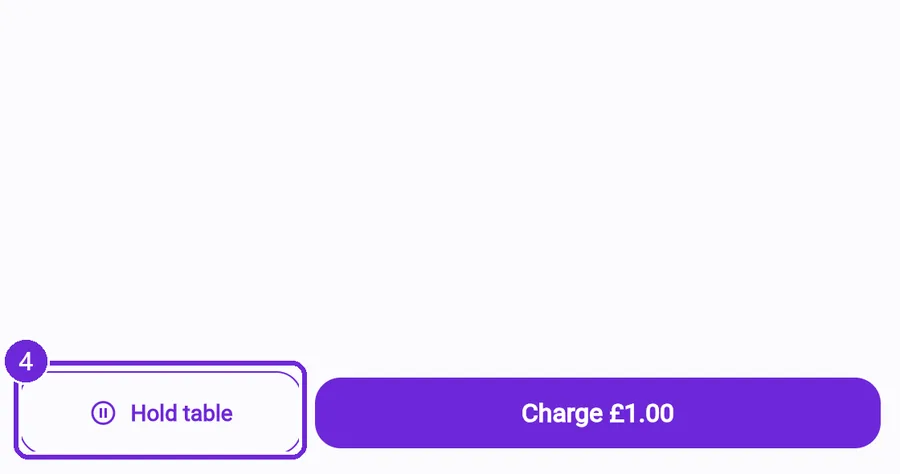
Hold table parks the order; Charge settles it. -
Back on the floor the tile turns amber with the tab's running total, and the strip shows Occupied and the Open tabs value.
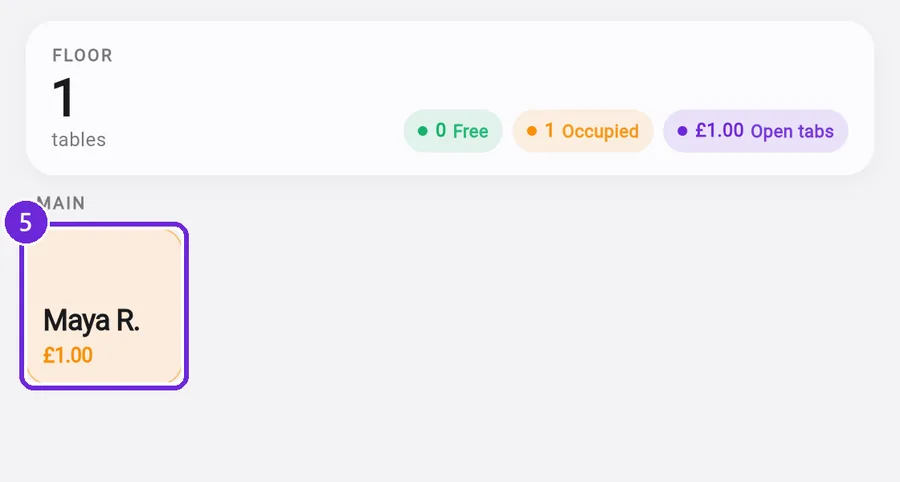
An open tab — amber tile with its total. -
To pick the tab up again, tap the occupied tile — its held order loads straight into the cart, at the names and prices it was parked with. Add or adjust items and tap Hold table again; the parked order is updated in place, never duplicated.
-
To settle, resume the tab and tap Charge as with any sale. The parked order is removed and — for a temporary tab — the table itself is archived, so the floor is clean again. A permanent table simply shows Empty.
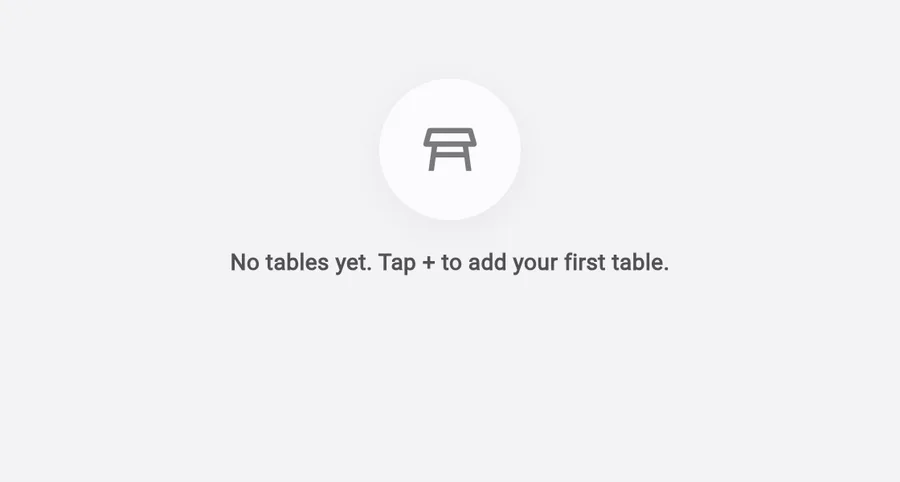
Paid — the temporary tab has removed itself. -
To abandon a tab, resume it, remove everything, and the button becomes Clear table — tapping it deletes the parked order (and archives a temporary tab).
What you should see
Every occupied table shows its tab on the floor; resuming one brings back exactly what was parked; settling frees the table the moment the sale completes.
If something goes wrong
- A tab resumed with old prices — that is by design: parked orders keep the prices they were rung at, so the customer pays what the menu said when they ordered. Clear and re-ring if you need today's prices.
- You cannot remove a line from a resumed tab — you lack the held-order permission; ask a manager, and expect the change to be visible to the owner.
- Two devices fight over the same table — the parked order lives on the server, so whichever device holds last wins; resume again to see the latest state.
- A table shows occupied but nobody is there — resume it, empty the cart, and tap Clear table to free it (permission required).
- Old per-customer tables are cluttering the floor — they were created before temporary tabs existed. Long-press each one and delete it, or edit it and turn Temporary tab on so it clears itself the next time it is paid.
Still stuck? Email hello@prismgym.com — include your gym name, the device, and a photo of what you see.