Create classes and timetables
What you'll do
Create the classes your gym runs each week and keep the timetable current. A weekly class is a recurring series — one entry that repeats on its day and time, with a trainer, room, capacity and color.
You'll need: a staff account with class management permission, and your trainers already added.
Steps
-
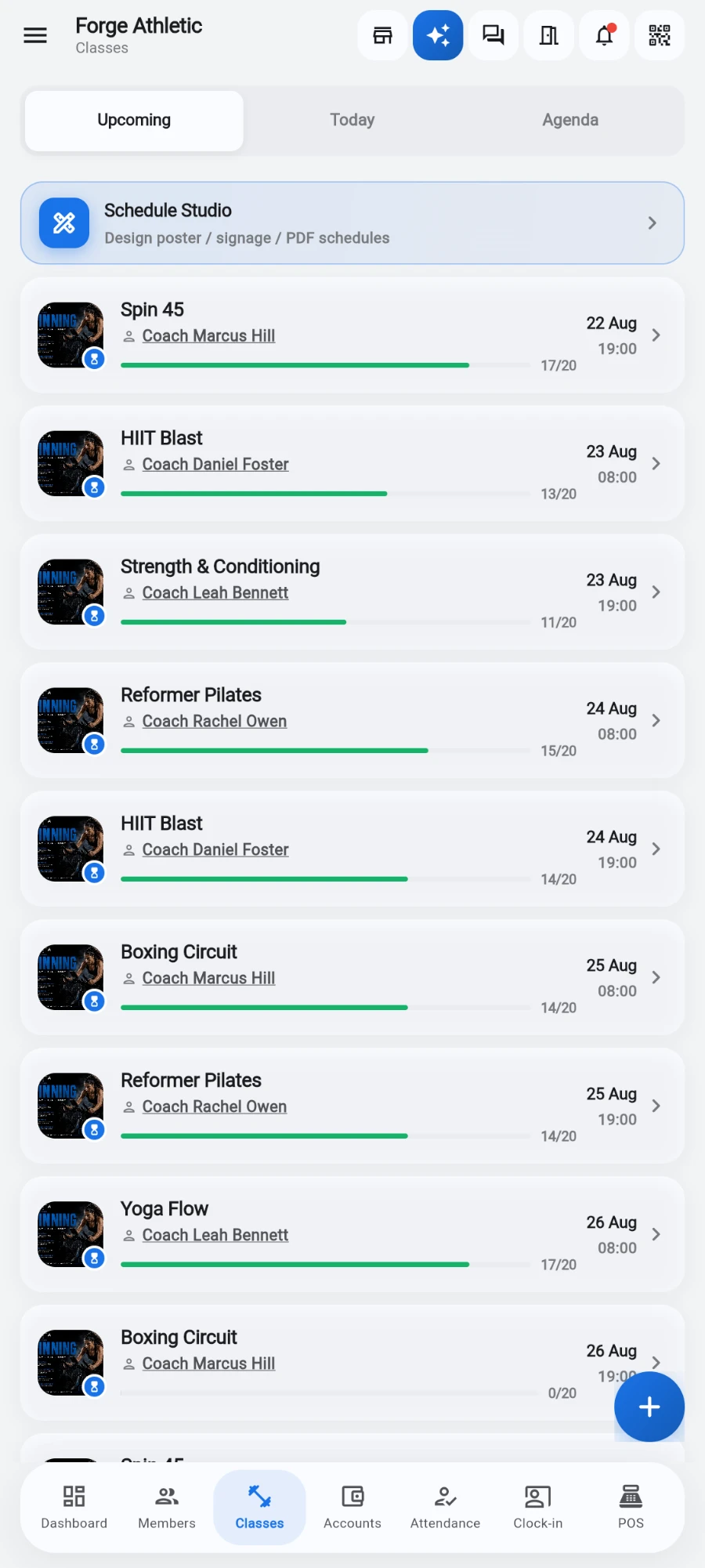
Open the Classes tab. Switch between Upcoming, Today and Agenda to see the schedule three ways.
-
Tap the plus button to add a class.
-
Give it a name, pick the trainer, room, capacity and a color for the timetable.
-
Set the day and start time, and how long each session runs.
-
Make it repeat weekly to build the series — future sessions are created for you.
-
Save. The class appears in Upcoming with its booked count (for example 0/16).
What you should see
The weekly schedule fills the Upcoming list, each class showing its trainer, date, time and booked count, in the color you chose.
If something goes wrong
- A class is missing from Upcoming — check it wasn't created as a one-off in the past; recurring series generate future sessions automatically.
- The wrong trainer shows — edit the series and change the trainer for all future sessions.
- Members can't book — the class may be full, or bookings may be limited by their plan's inclusions.
Still stuck? Email hello@prismgym.com — include your gym name, the device, and a photo of what you see.