Screen status and diagnostics
Signage is only useful if you can trust it is actually on the wall. The Screens page answers "what is playing on every wall right now"; the All screens hub gathers every Prism TV — menu boards and studio screens — into one fleet view; and each screen's detail page turns "did my upload land?" and "why is it dark?" into one-glance answers. Behind it all, the player is built to keep playing through Wi-Fi drops and outages without help.
What you'll do
Read the fleet and per-screen status surfaces, use the diagnostic panels on the device detail page, and know what the player handles by itself.
You'll need: a staff sign-in on the admin app and at least one paired screen.
Steps
-
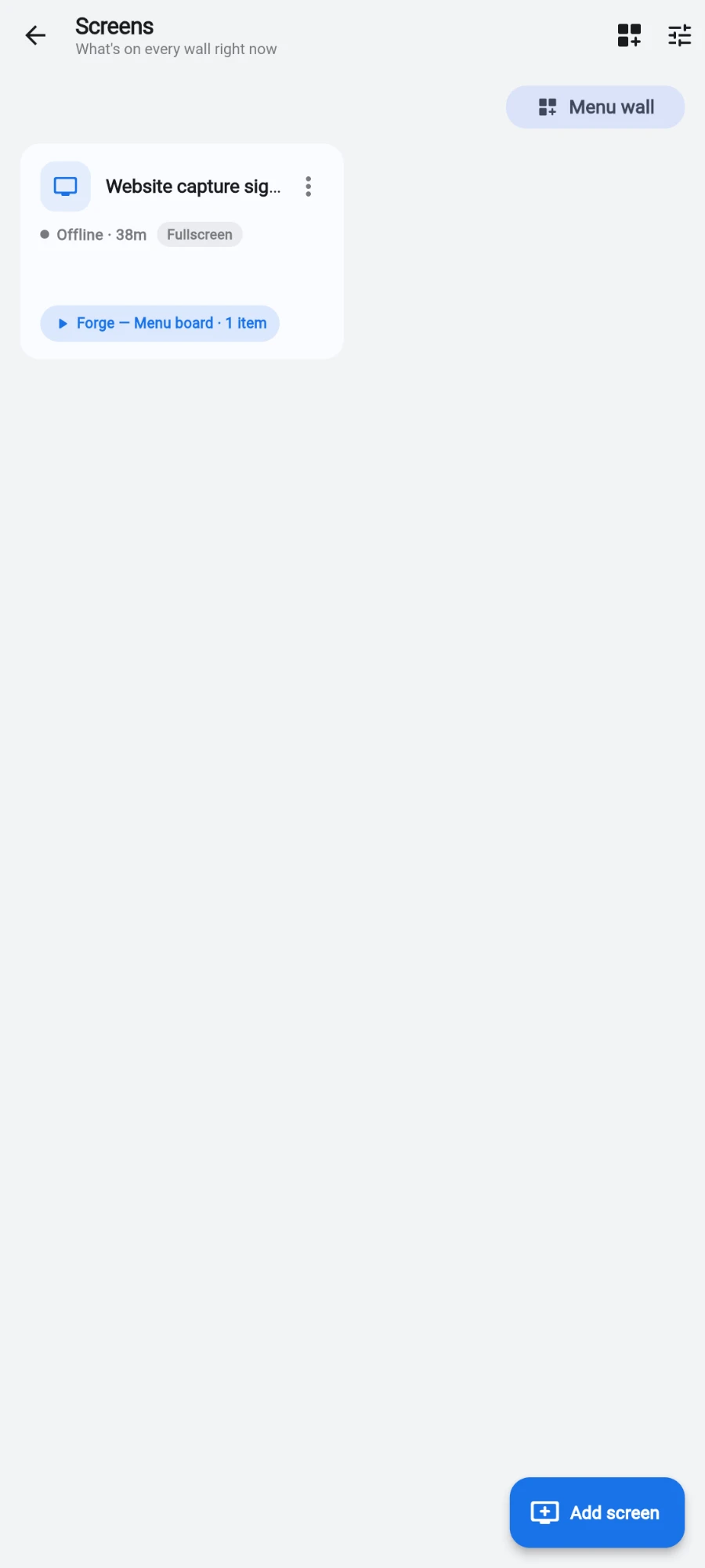
Open Signage from the drawer. The Screens page — "What's on every wall right now" — shows a card per screen: name, live status dot, layout chip, location or studio, and a "Playing now" pill with the playlist name and item count. Status refreshes silently every half minute, so the dots stay honest without a manual pull.
The Screens page grid with status dots and Playing now pills -
A screen with nothing assigned shows No content · Tap to set up — tapping it goes straight into the setup wizard rather than a bare detail page.
-
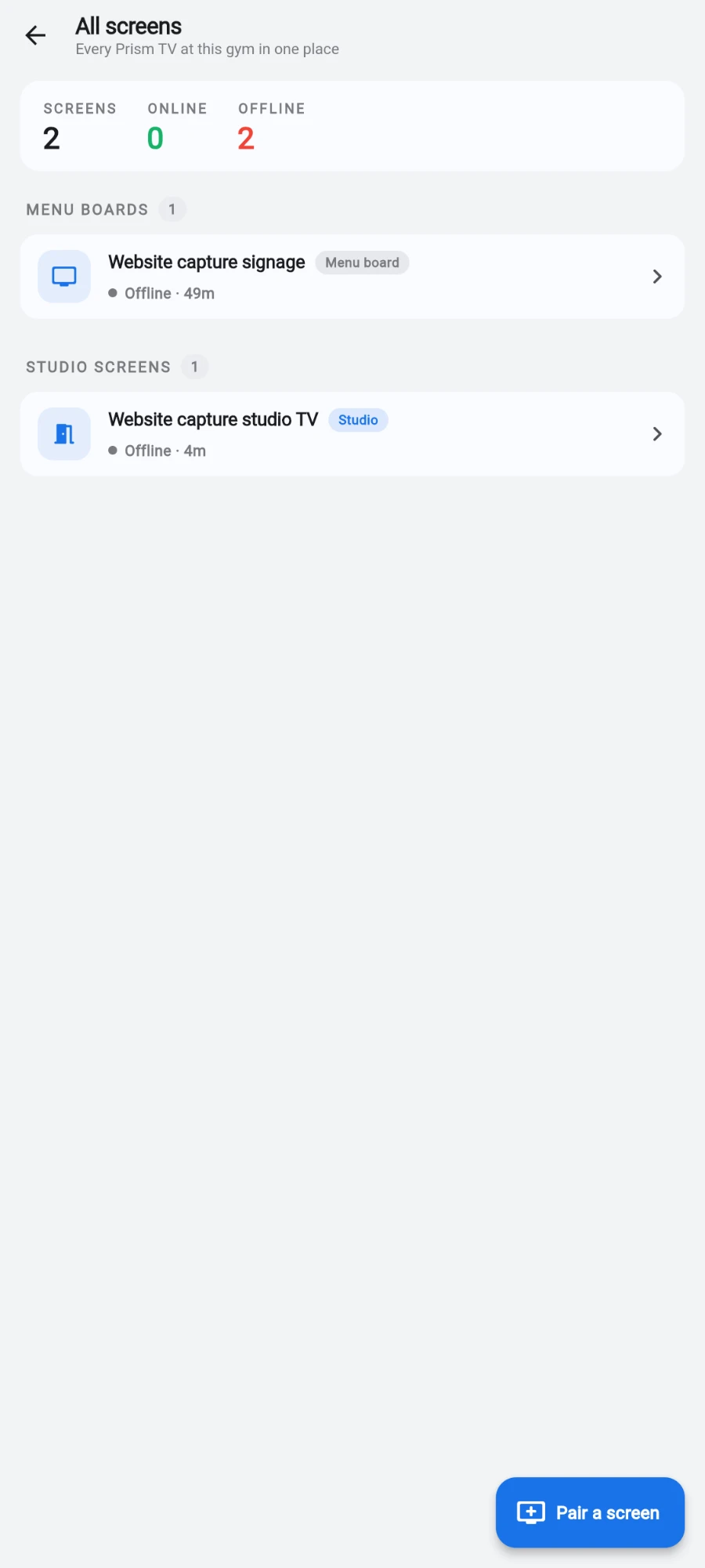
For the whole fleet, tap Tools and choose All screens ("Every TV — menu boards and studio screens"). The header counts SCREENS, ONLINE and OFFLINE (offline only turns red when it is non-zero), and the list is sectioned into Menu boards and Studio screens. Each row deep-links into that device's own editor.
The All screens hub with fleet counts and sections -
From the hub, Pair a screen first asks "What kind of TV are you pairing?" — Menu board ("A café or lobby signage screen") or Studio screen ("A TV inside a training studio") — and routes you into the right pairing flow.
-
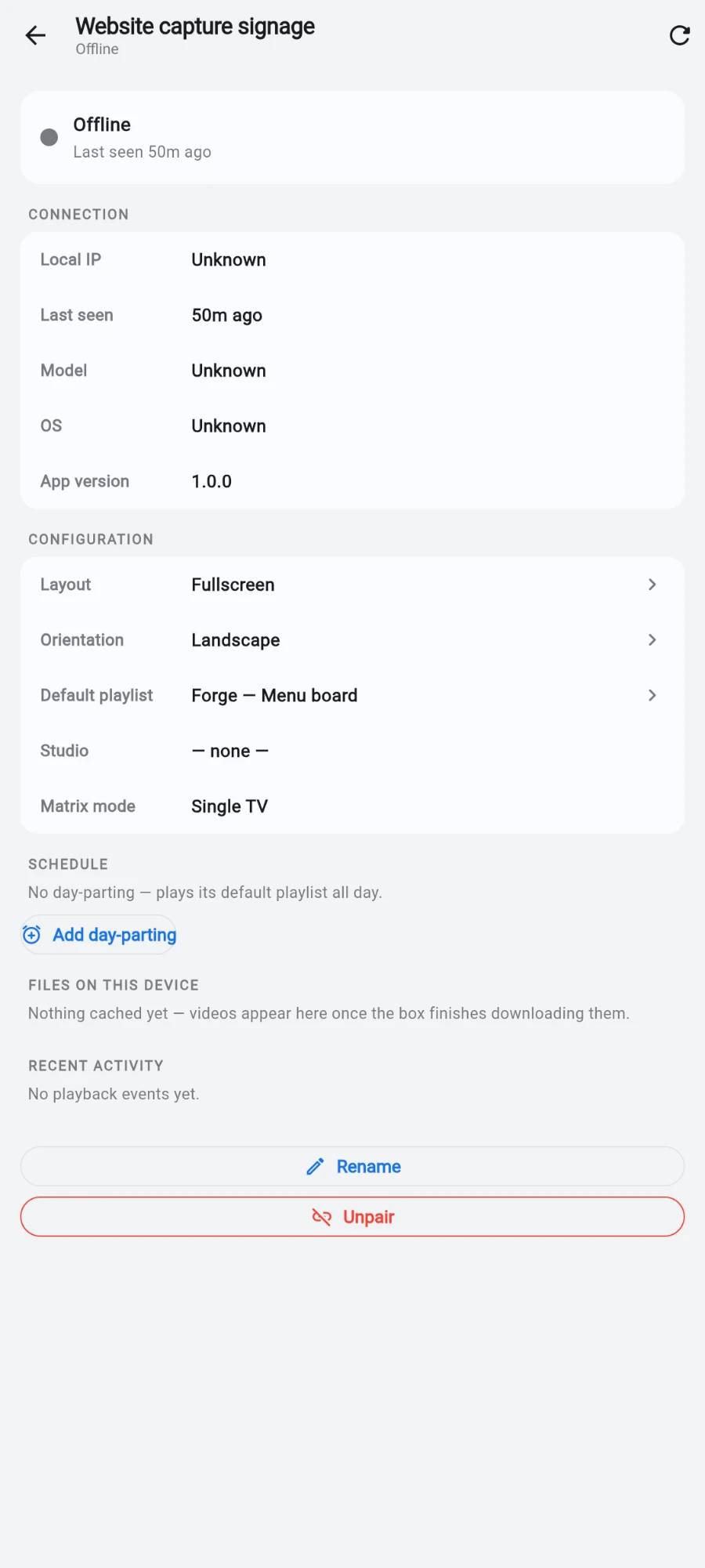
Tap any signage screen card to open its detail page. Status reads in plain words: Online · sending heartbeats, Offline with how long ago (minutes, hours or days), or Never connected. Players check in every minute; a screen counts as online when it has been seen within the last two minutes.
-
The Connection card answers the real support questions: Local IP (copyable), Last seen, Model, the Android version, and App version.
The device detail page: status, Connection and Configuration cards -
Files on this device lists exactly which media the box has actually cached — per-file size, cached or errored state, and how long ago, plus a total. Files you dropped on the box locally are distinguished from cloud downloads by icon. If an upload is not in this list, it has not landed yet.
-
Recent activity is the playback log — the last 30 events, each marked played, skipped or errored, with a timestamp and the error message when there is one. It is proof-of-play and failure forensics in one list.
-
From the detail page you can also Rename the screen or Unpair it. The Unpair this device? dialog confirms the box will return to its pairing screen; media cached on the box is deliberately not deleted, so re-pairing the same box later starts warm.
What you should see
Green dots across the Screens page, every card carrying a "Playing now" pill, and — on any detail page — a cached-file list that matches what you uploaded and a playback log full of played events.
If something goes wrong
- A screen shows Offline — the box has not checked in for over two minutes. Check the TV's power and the box's network; the moment it reconnects, it resumes its playlist and picks up any changes it missed.
- Never connected — the screen was paired but the box has never checked in. Confirm the player is running and the box is online; its local network address shows on the TV's pairing screen.
- An upload plays everywhere except one screen — open that screen's Files on this device: if the file is missing or errored, the box has not finished (or has failed) downloading it. Large files on slow Wi-Fi take time; an errored file retries on its own.
- An item never appears in rotation — check Recent activity for that item: an errored entry with its message tells you why (a bad URL, an unsupported file, a private page).
Still stuck? Email hello@prismgym.com — include your gym name, the device, and a photo of what you see.