Security and the audit log
Gyms handle cash, personal data and shared tablets — three things that reward a real security setup. Prism's model has four layers: roles decide what each person can see and do; two-factor authentication protects the sign-in itself; authorization rules make destructive actions capture a selfie of the person doing them; and the audit log keeps a permanent record either way. This chapter sets up all four.
What you'll do
Assign roles, turn on two-factor for sensitive accounts, choose which actions require a selfie, and learn to read and manage the audit log.
You'll need: an owner sign-in. Everything here lives under Settings → the People group.
Steps
-
Start with roles. Settings → Role permissions shows the preset grid — columns for Manager, Receptionist, Cashier, Coach, Accountant and Custom against each app module and action. Sensitive actions default off even for managers; grant them deliberately. The owner role always holds everything and can't be edited.
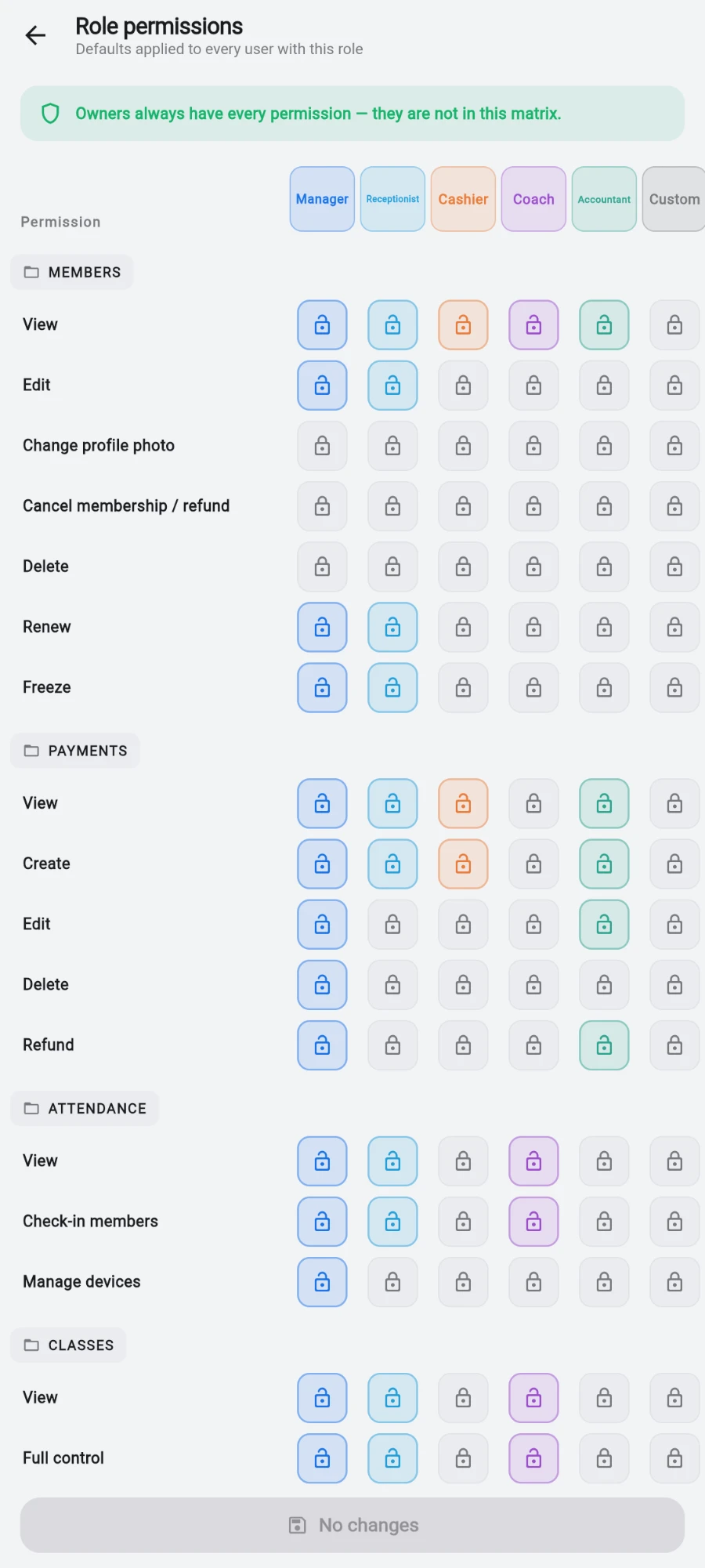
Role defaults. Sensitive actions such as Delete and Change profile photo start locked for every role. -
Per-person tweaks live in Users & permissions — individual overrides layer on top of the role preset. Changes reach signed-in staff within a couple of minutes; nobody needs to sign out and back in, and a deactivated account is signed out automatically.
-
Turn on two-factor for your own account: Settings → Two-factor authentication → Enable two-factor auth. Follow Step 1 — Scan this QR with any authenticator app (Google Authenticator, 1Password, Authy — or use Copy secret to add it manually), then Step 2 — Enter the 6-digit code and tap Verify and turn on. Every sign-in now asks for a fresh code after the password.
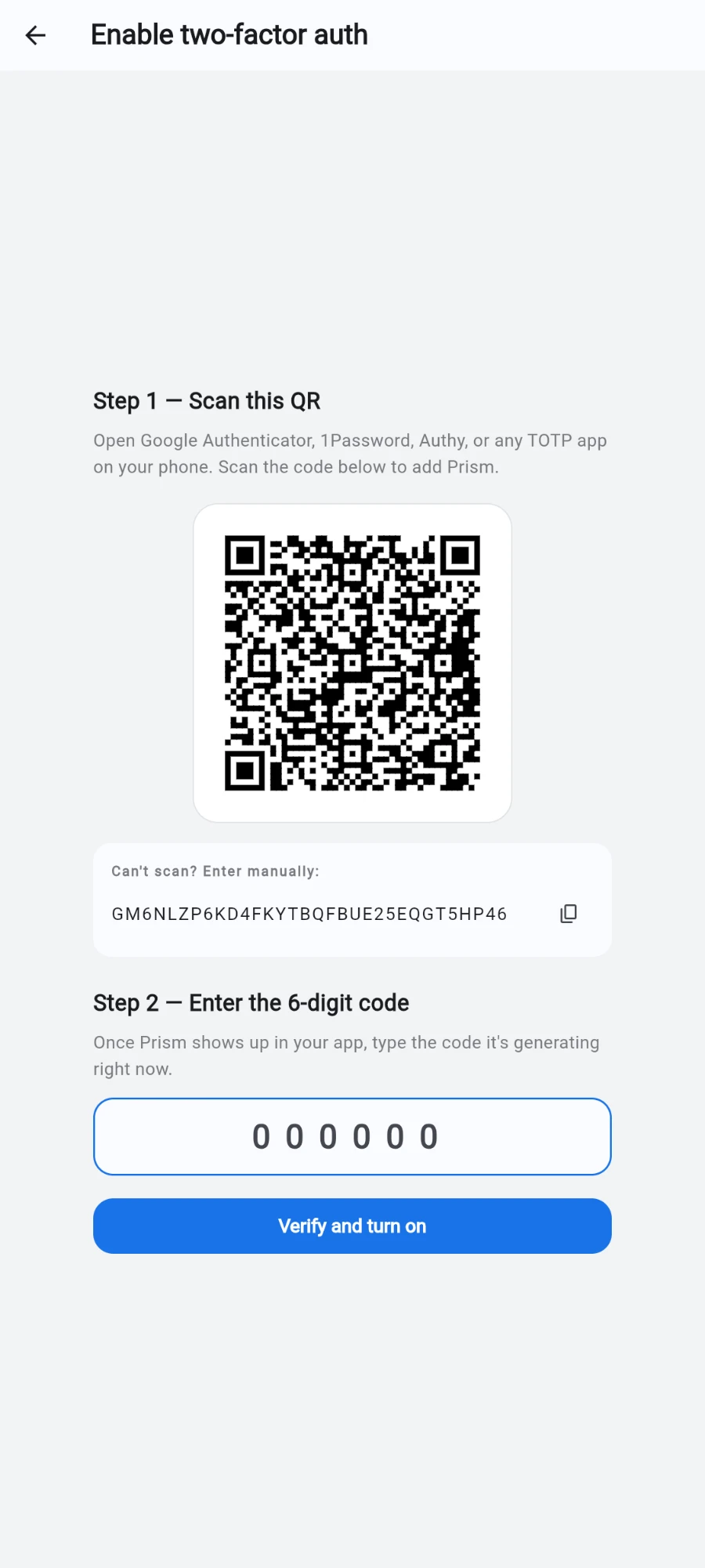
Scan the QR with any authenticator app, then confirm the six-digit code. -
Open Settings → Authorization rules — the Authorization (selfie) rules screen lists destructive actions grouped High impact to Low impact: delete a member, cancel a membership with refund, delete a payment, refund a POS sale, adjust a wallet balance and more. Selfie capture per action decides whether the person doing it must take a selfie first.
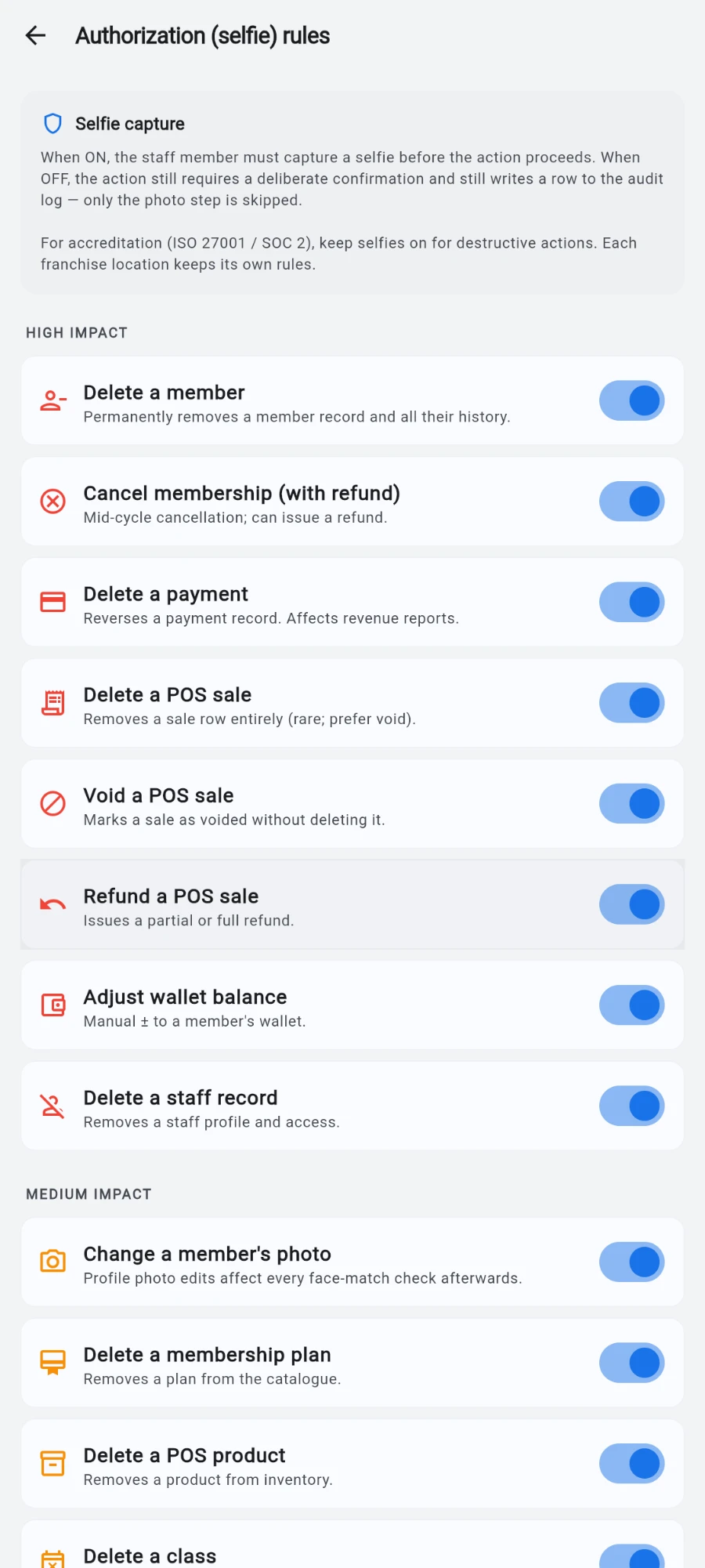
High-impact actions first, each with its own selfie toggle. -
When a gated action runs, the staff member is prompted for the selfie and a reason; the action only completes once both are captured. Turning a gate off never turns off logging — it only trades the photo for a text-only trail.
-
Read the record in Settings → Audit log — Photo record of every destructive action. Each entry shows who, what, the target, the reason and the selfie. Use Filter by date to narrow a period, and Select for bulk actions.
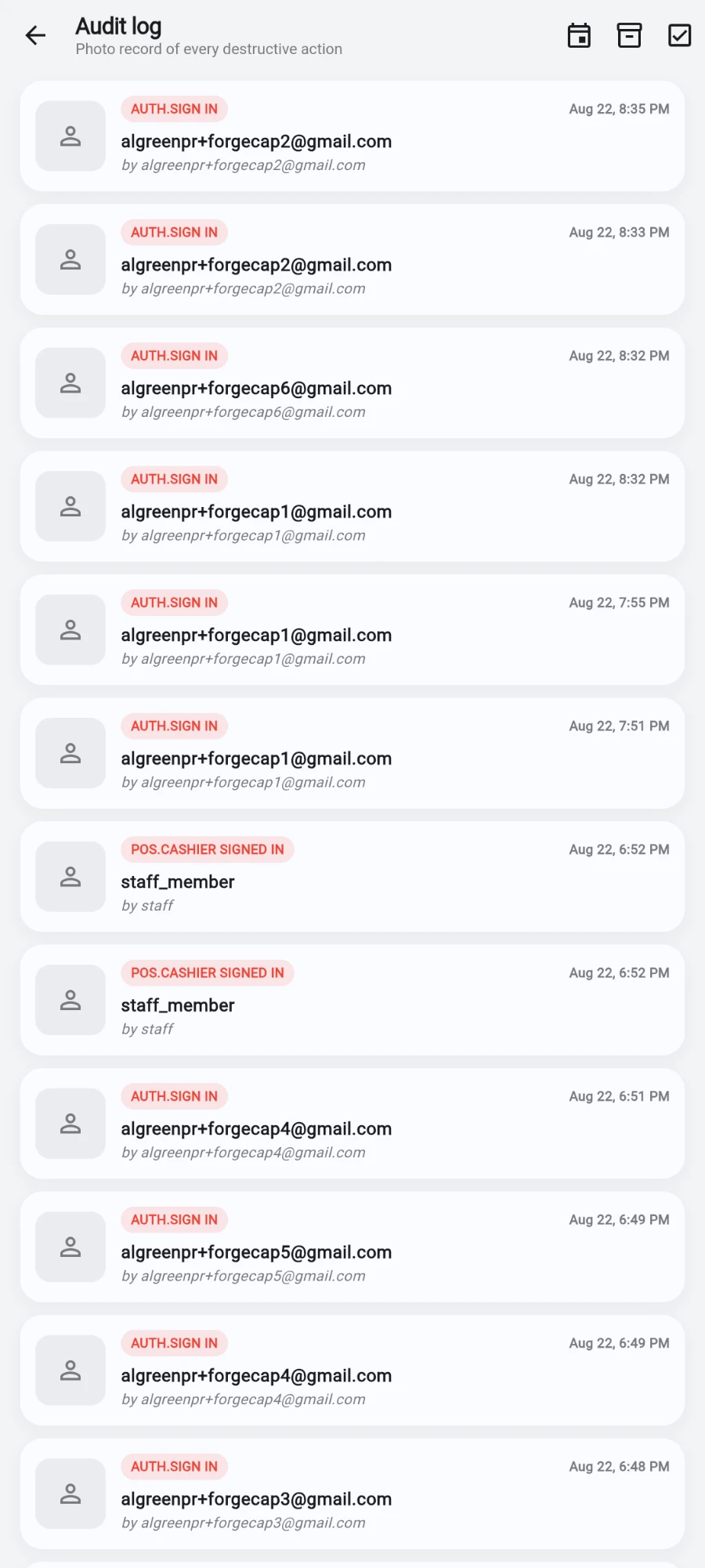
The audit log with entries showing actor, action, reason and selfie thumbnail -
Entries can be archived but never silently destroyed: swipe to archive (with an Undo snackbar), and Show archived reveals everything hidden, where Restore brings entries back. Archived entries stay preserved for compliance.
What you should see
Every deletion, refund, waiver, discount and cancellation appears in the audit log within seconds, with a selfie where you've required one — and the same events reach your Telegram channel instantly if it's connected, each with a specific title like a member deletion or a refunded sale.
If something goes wrong
- Staff say they can't do their job — check the role grid first, then their per-user overrides. Remember sensitive actions default off, even for managers.
- The selfie prompt appears where you didn't expect it — when a rule's configuration can't be read, the app fails safe and requires the selfie anyway.
- You lost your authenticator device — your account can't complete two-factor sign-in; contact platform support through another owner's Help & support to recover.
- An audit entry seems to be missing — check Show archived; entries are archived, not deleted. Routine noise like sign-ins lives in the activity feed, not the audit log.
Still stuck? Email hello@prismgym.com — include your gym name, the device, and a photo of what you see.