Sign in at the kiosk
The kiosk never asks for a password. Members get in with their phone, their member card, or — hands-free — Bluetooth; anyone can browse the timetable as a guest. The welcome screen shows every option side by side, and each kiosk's gym can switch individual options on or off.
What you'll do
Sign in with each method, and understand how the kiosk protects your session when you walk away.
You'll need: an active membership, plus the Prism member app on your phone or your member card. Guests need nothing.
Steps
-
Walk up to the welcome screen. Below the gym's logo and clock sits the sign-in strip: Scan QR from your app, Tap your member card, Sign in with Bluetooth and Browse as guest — plus Join now where self-signup is on.
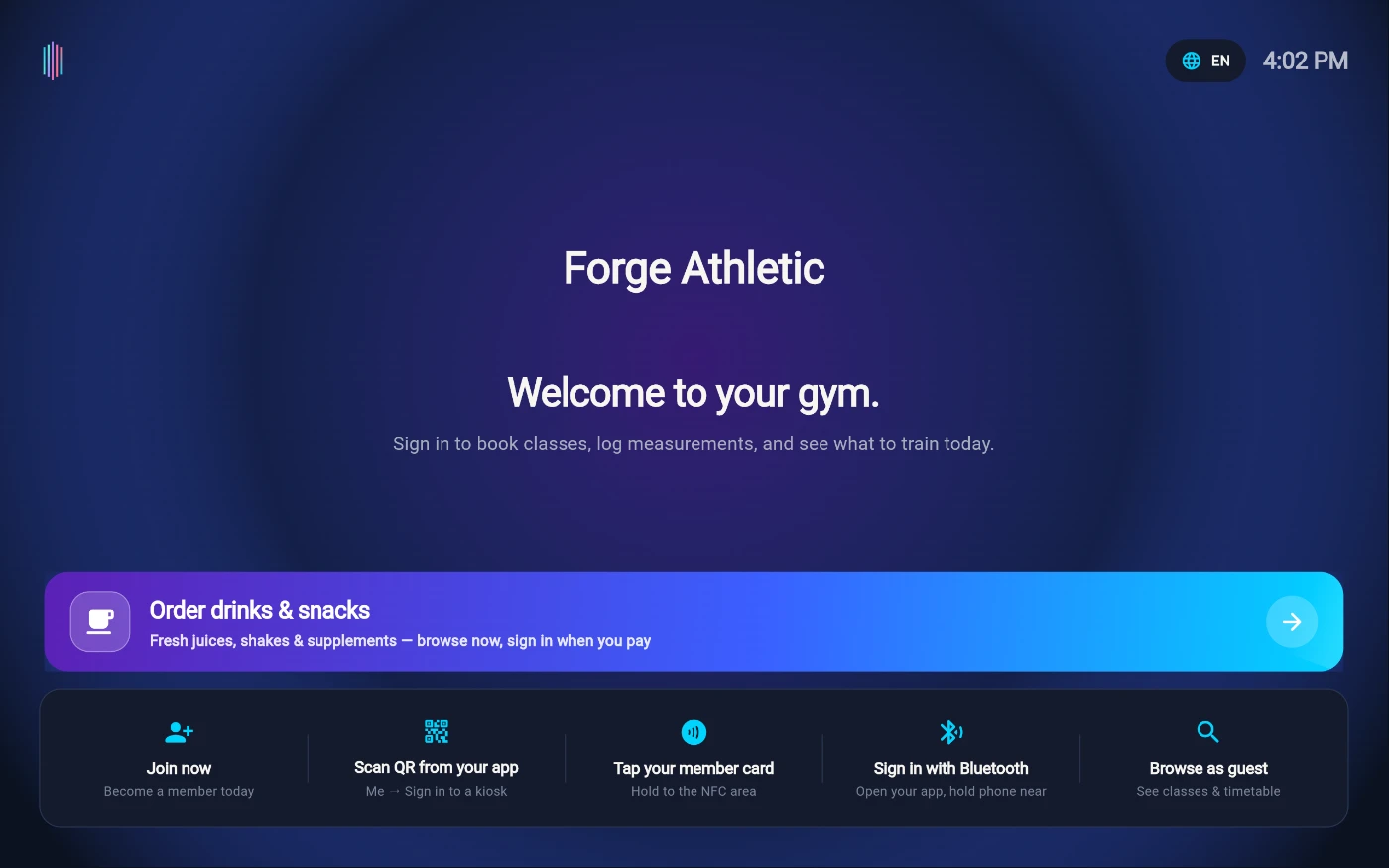
The kiosk welcome screen. -
Phone QR (the everyday method): tap Scan QR from your app. The kiosk displays a large code and the instruction Open the Prism app, tap Check-in, then tap Scan a kiosk. Point your phone at the code — you're signed in within a second or two. The code refreshes itself every half minute; the caption counts it down.
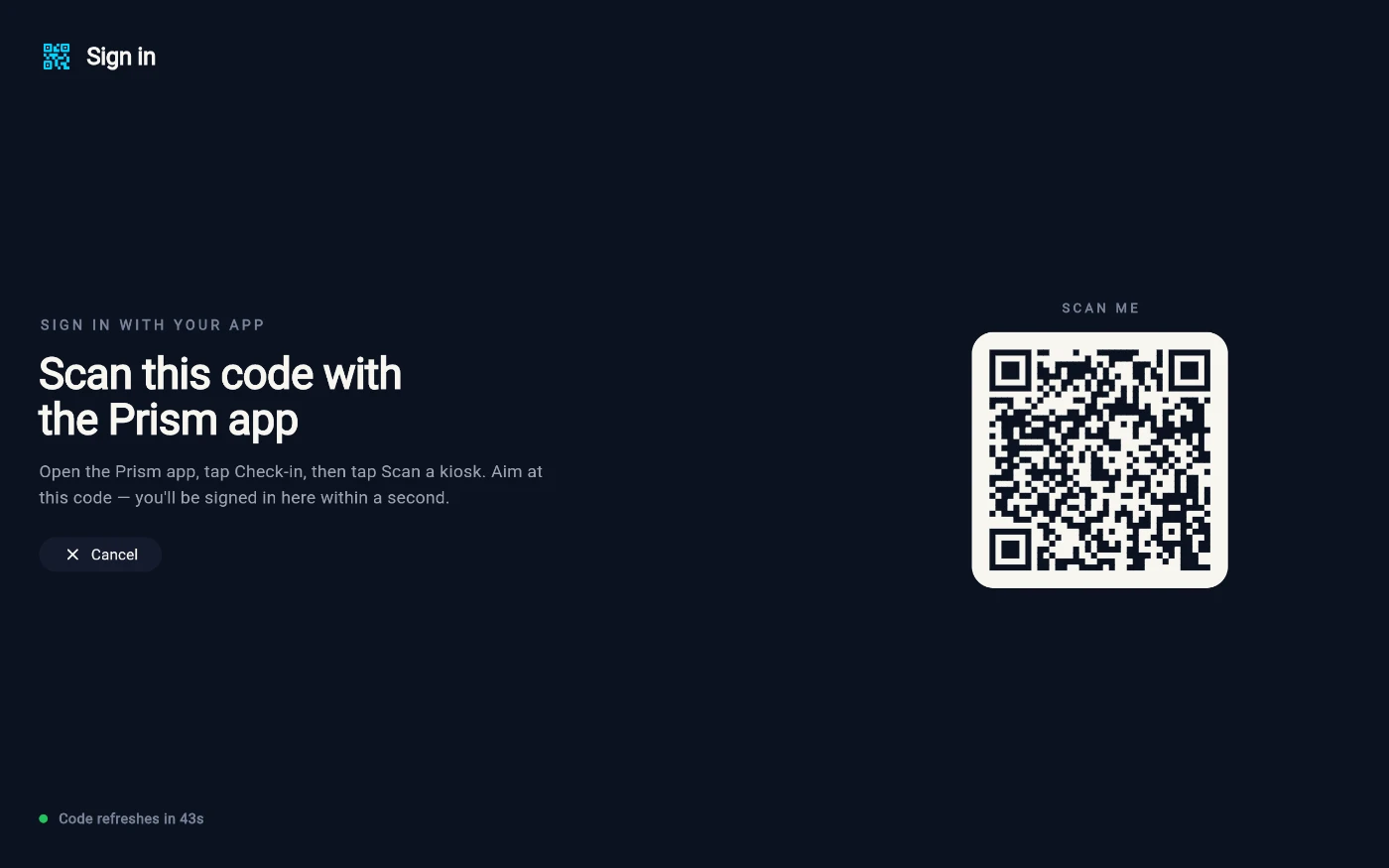
The rotating kiosk QR code. -
Member card: tap Tap your member card and hold the card flat against the tablet's NFC area. On kiosks with a USB card reader attached, the screen says Tap your card on the reader instead — hold the card to the reader. You can also tap a card on the reader from the welcome screen without choosing anything first.
-
Bluetooth (hands-free): the kiosk explains it on screen — In the Prism member app, open Gym access and tap "Bluetooth sign-in", then hold your phone near this screen — you'll be signed in automatically. No pairing, no picker.
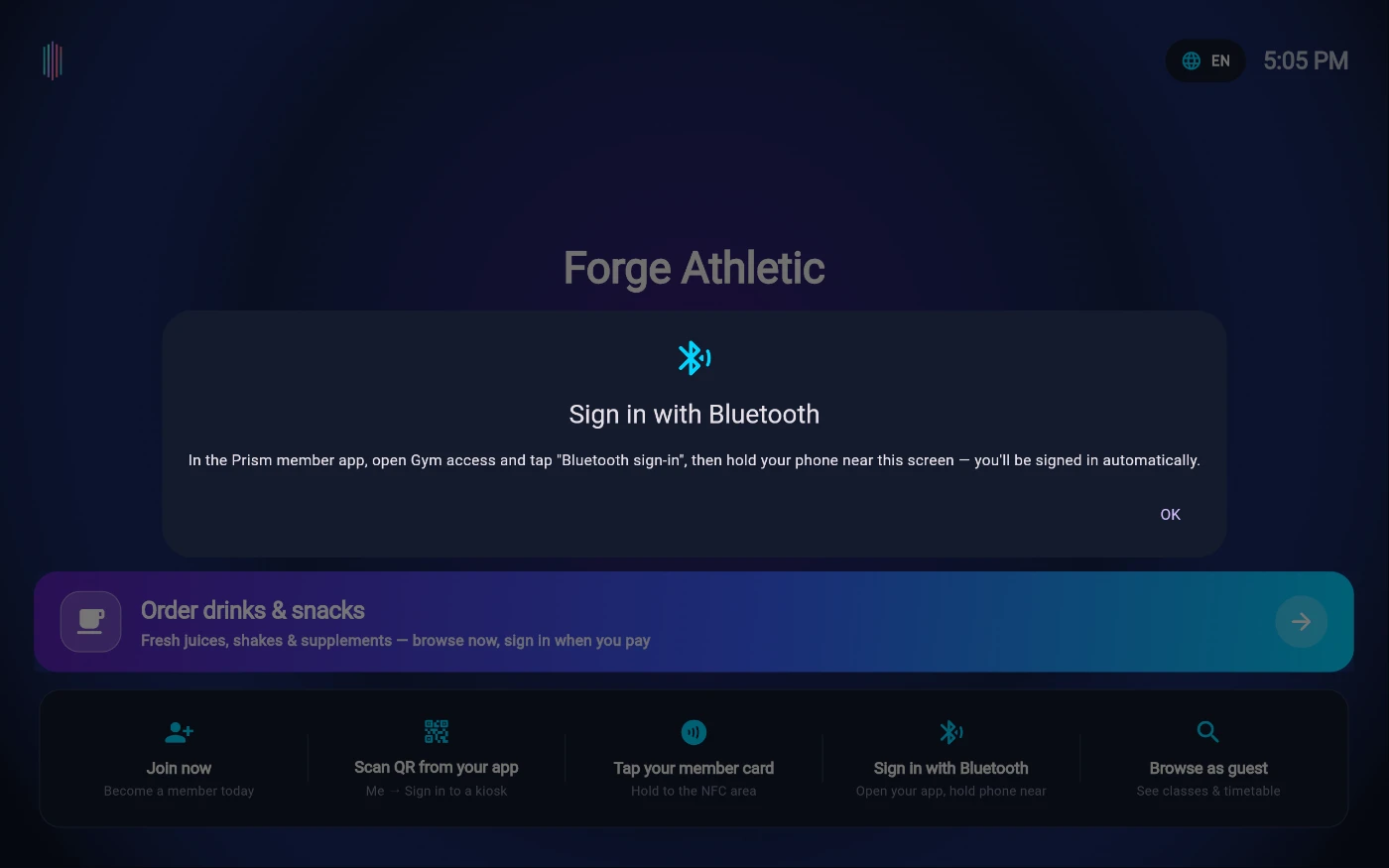
Bluetooth sign-in — the kiosk explains it, no pairing needed. -
Guest: tap Browse as guest to see today's classes, the timetable and the trainer roster read-only — booking asks you to sign in. Back to home returns to the welcome screen.
-
When you're done, tap Sign out in the left rail — or just walk away and let the kiosk do it for you.
What you should see
After any successful sign-in the kiosk greets you by first name with your photo and opens your member home on the Featured tab.
If something goes wrong
- "We don't recognise that card — see reception to enrol it." — the card isn't linked to your membership yet; the front desk can enrol it in under a minute.
- "NFC is turned off — enable it in Settings." or "This kiosk doesn't have NFC." — use the QR option instead, or ask staff to attach a USB reader.
- "That session has ended. Try again." after scanning the QR — the code rotated mid-scan; scan the fresh code.
- "Your membership is inactive — see reception." — the membership has expired or is frozen; reception can fix it and you can sign in immediately after.
- Bluetooth sign-in never triggers — make sure the member app is open on the Bluetooth sign-in screen and the phone is held close to the kiosk; if it still fails, the QR method always works.
Still stuck? Email hello@prismgym.com — include your gym name, the device, and a photo of what you see.