Accounts: revenue, receipts and P&L
All money reporting lives in one place: the Accounts tab. Revenue is what came in, Receipts is what went out, Payroll is what you owe your team, and P&L reconciles all three into a monthly bottom line.
What you'll do
Read a period's revenue by stream and tender, understand how wallet money is counted, record business expenses, and export or email the monthly P&L.
You'll need: an account with payments and reports access; the Payroll tab additionally needs the payroll reports permission.
Steps
-
Open Accounts. Four tabs: Revenue, Payroll, Receipts and P&L.
-
On Revenue, pick a range — Today, This week, This month, Last month, Year to date or Custom range. A period comparison against the previous period appears alongside the headline.
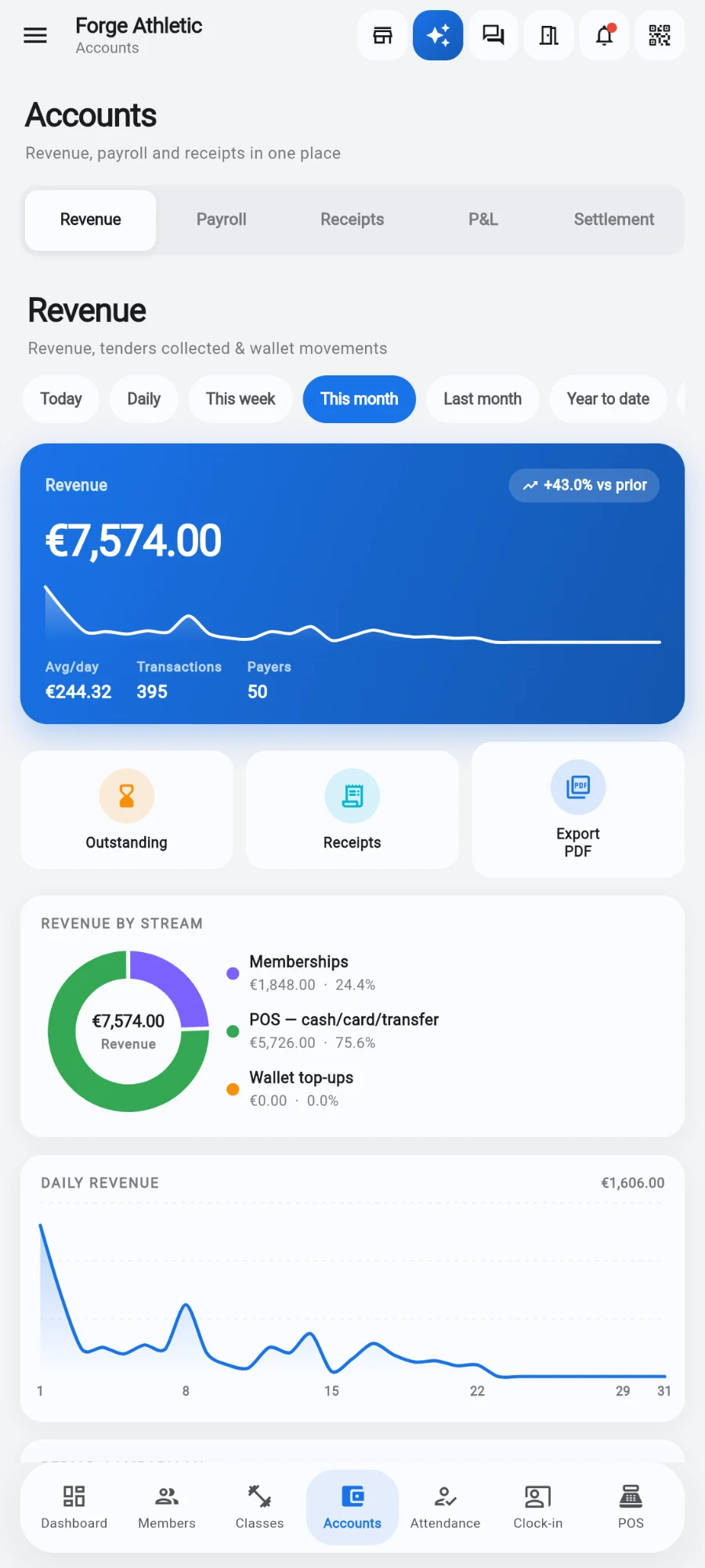
Revenue at a glance — streams, trend and export in one place. -
Read Revenue by stream — memberships and services, retail sales and Wallet top-ups are split at the line-item level, so a basket holding a plan and a protein bar attributes each half to the right stream.
-
Check Tenders collected (cash & bank) — the cash, card and transfer money that should reconcile to your tills and bank deposits. Wallet-paid sales are deliberately excluded here.
-
Review Wallet movements: Top-ups received, wallet-paid sales shown as separate labelled rows, and the Outstanding wallet liability — money the gym still owes members.
-
Tap Export revenue PDF for a summary, or choose Full breakdown for every sale row with date, member, items, tender and any free-text note.
-
Switch to Receipts to log business expenses by category — rent, utilities, supplies. This ledger is permission-separated from member payments and feeds the expense side of the P&L.
-
Switch to P&L and pick a month. The hero card shows Net profit (or Net loss) with month-over-month deltas, followed by three charts: a donut of where the money went — commissions, payroll and each expense category as a slice, with the profit share alongside when the month is in the black — a donut of the income mix, and a 6-month trend of revenue versus expenses bars with the net direction underneath, so a drifting cost base shows up before it becomes a loss.
Screenshot comingThe P&L charts: the spend donut with profit share, the income-mix donut, and the 6-month revenue-vs-expenses trend bars -
Read down the statement: the income breakdown, Cost of revenue (Trainer commissions plus Sales commissions), payroll split into Salaried wages and Hourly wages, Operating expenses by category, and Gross profit with margins.
-
If you take more than one currency, the By currency card shows a mini P&L per currency alongside the rolled-up headline, so each currency's pile reads on its own terms.
-
Check Staff delivery & class performance — contracted versus delivered classes per salaried coach, per-class fill rates with under-performing flags, and the salaried-staff attendance rollup.
-
Share it: tap PDF to export, or use Send P&L report — Add recipient for each partner or accountant, then Send now for this month or switch on Automatic delivery with Send every month and a Delivery day. After a send, a confirmation lists exactly who the month's report was emailed to — and names anyone it could not be delivered to, so a bounced accountant address never fails silently.
What you should see
A revenue view whose tender totals match your till cash-ups, a wallet card whose liability makes sense against member balances, and a P&L whose bottom line equals revenue minus commissions, payroll and expenses — with every block drill-down-consistent, because all the screens read the same figures.
If something goes wrong
- Revenue looks low after a busy wallet day — those sales were paid from wallets, so the money was already counted at top-up time. Check the wallet-paid row for the amount.
- The drawer doesn't match the revenue figure — compare against Tenders collected (cash & bank) and the shift's own cash-up variance, not headline revenue, which includes non-drawer tenders like transfers.
- P&L and the Revenue tab disagree — check you are looking at the same month and range; both are built from the same underlying reports, so an identical period always reconciles.
- No month-over-month delta — the previous month has no data yet; the comparison appears from your second month.
Still stuck? Email hello@prismgym.com — include your gym name, the device, and a photo of what you see.