Strap pairing and loans
A strap becomes a name on the wall in two steps: the strap goes into the gym's inventory once, and then it's linked to a member — permanently (a member's own strap) or as a per-class loan from the front-desk basket. The TV listens for every strap in the room through its USB ANT+ receiver, matches each broadcast against the inventory, and puts the right name on the right tile. The TV's own Members screen shows who's linked at a glance.
What you'll do
Add straps to the inventory in the admin app, pair or loan them to members, and verify the links on the TV.
You'll need: the straps (each has a 5-digit ANT+ id printed on the case), the admin app with access to the HR straps screen, and the studio TV.
Steps
-
In the admin app, open HR straps from the drawer. Tabs split the inventory into All, Paired, Loaned and Recent claims.
-
Tap Add strap. In the Add HR strap sheet, enter the ANT+ id (the 5-digit number on the strap case) and, if you have it, the BLE MAC (optional). Pick the strap kind, then tap Add to inventory. A short QR code is generated automatically so you can print a sticker for the strap.
-
Each strap row shows its state: FREE, PAIRED or ON LOAN. From the row's menu you can act on it directly.
-
For a member's own strap, choose Pair permanently… — the strap follows them into every class until you Unpair from member.
-
For the front-desk basket, choose Loan for a class. In the Loan strap sheet, search for the member and optionally bind the loan to a class starting soon. A class-bound loan returns itself automatically when the class ends; a loan with no class is a quick hand-out that stays with the member until you choose Reclaim loan.
-
On the TV, open Members from the Hub to verify. Search with Search by name, filter with the All / Paired / Unpaired chips: a green chip with the device label means linked; an amber NO STRAP chip means not.
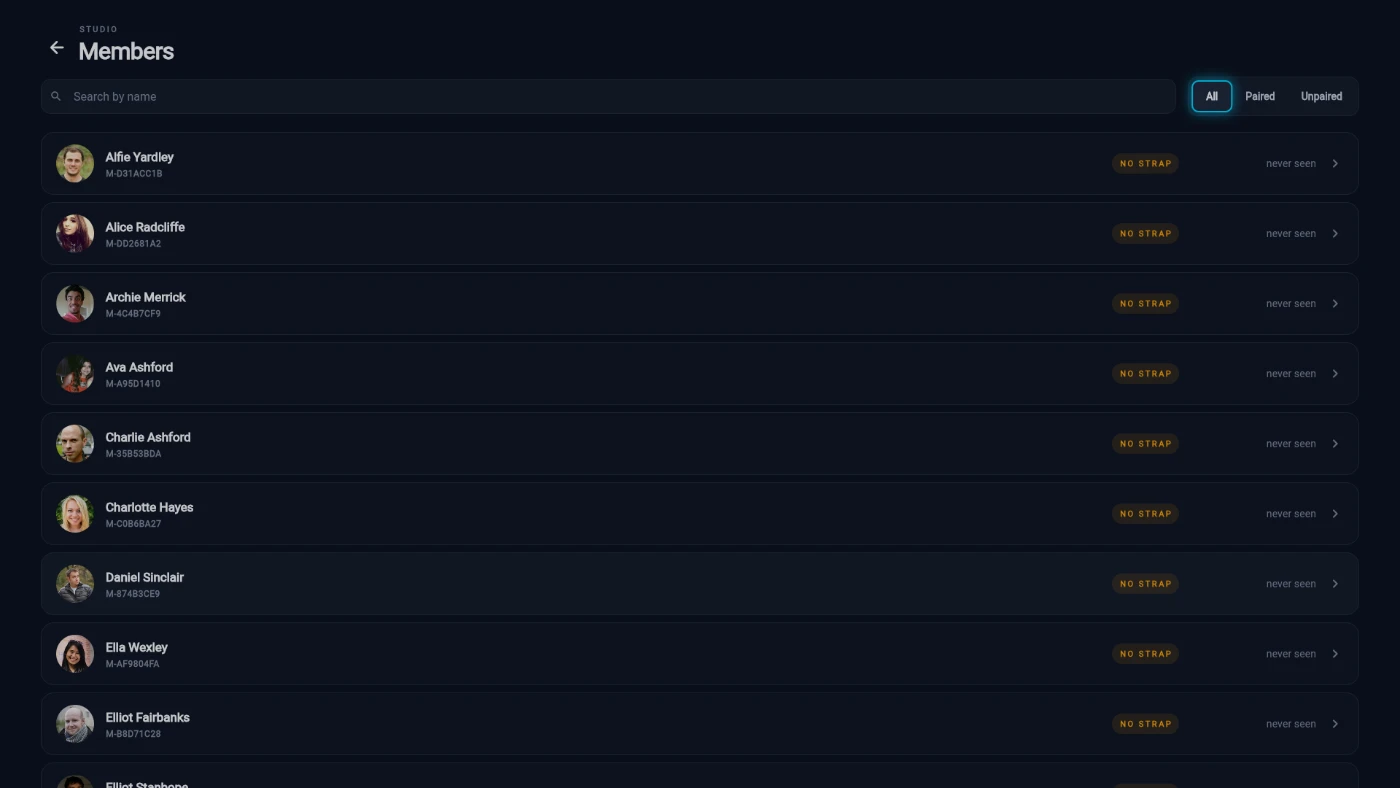
The TV Members screen: strap chips, filters and search -
Select a member for their detail card — strap status, last seen, and their short member ID.
-
During a live class, the small strap diagnostic chip on the wall proves the hardware link: it reads STRAP LIVE with a live heart-rate figure when the receiver is hearing a strap, so you can confirm the antenna works from across the room.
What you should see
On the TV's Members screen, everyone training tonight shows a green strap chip. On the admin's HR straps screen, loaned straps sit under Loaned and return to FREE when the class ends or you reclaim them.
If something goes wrong
- A member never appears on the wall — the strap isn't in the inventory, or the ANT+ id was mistyped. Check the 5-digit number on the case against the strap's row.
- The wrong name appears over a heart rate — two straps were swapped at the desk. Reclaim both loans and re-loan them to the right people; the wall corrects within a second.
- The diagnostic chip says the strap wasn't found — the receiver isn't hearing anything. Check the USB ANT+ receiver is seated in the TV box and the strap is worn against skin.
- You can't delete a strap — it's currently on loan. Reclaim it first; if you just want it out of circulation, use Edit / retire to keep its history.
Still stuck? Email hello@prismgym.com — include your gym name, the device, and a photo of what you see.