Equipment register
The equipment register is a plain floor inventory: what you own, how many, and any notes worth keeping (serial numbers, condition, which floor). It's deliberately separate from the connected group-training equipment that broadcasts to the heart-rate wall — this list is for everything, connected or not.
What you'll do
Add your equipment as line items grouped by category, and keep the list honest as kit comes and goes.
You'll need: owner or settings access, and ten minutes with a walk around the floor.
Steps
-
Go to Settings → Equipment.
-
Tap Add equipment.
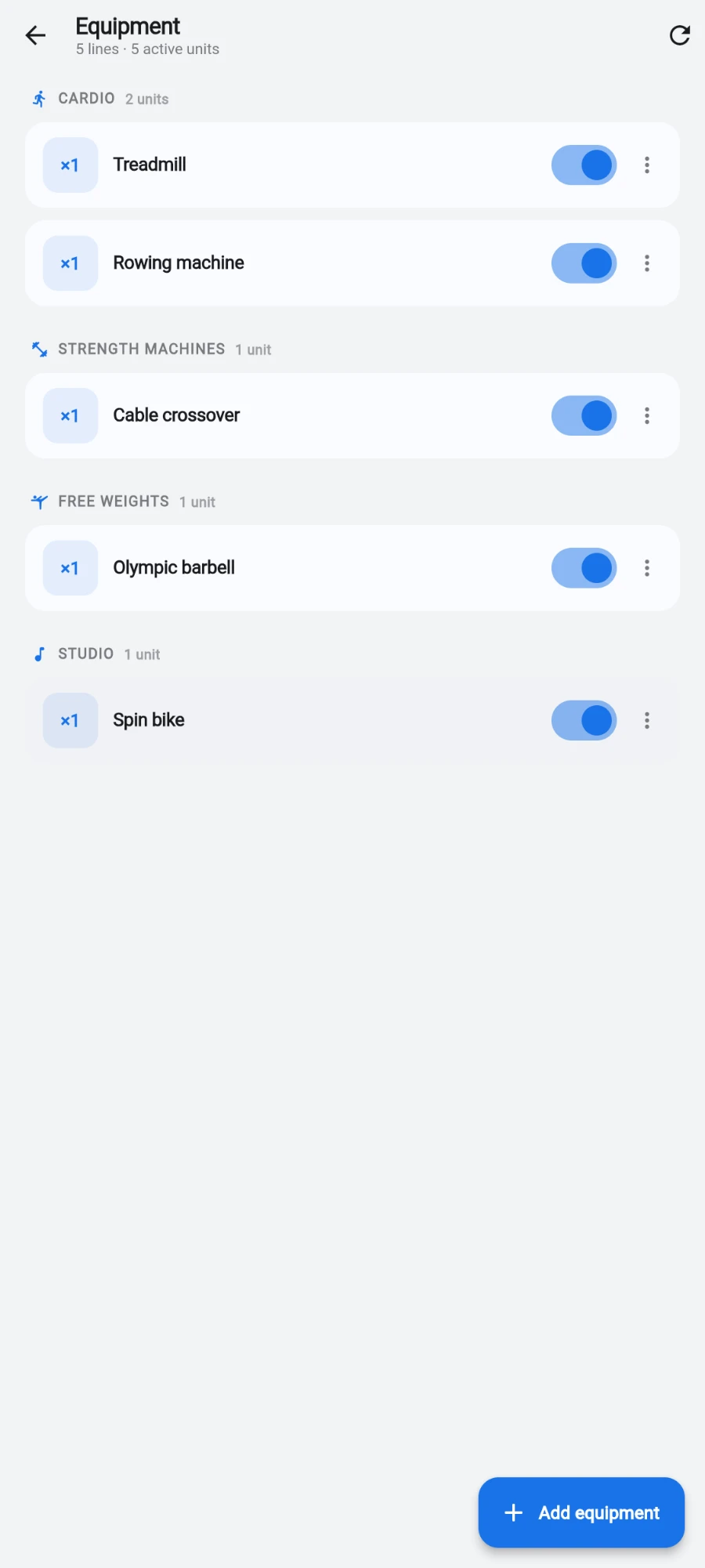
The register, grouped by category with quantities on every line. -
Enter the Name (like "Treadmill" or "20 kg plates") and pick a Category: Cardio, Strength machines, Free weights, Functional, Stretch & mobility, Studio or Other.
-
Set the Quantity and add Notes (optional) — serial numbers, floor, condition.
-
Leave Active on for kit that's on the floor; turn it off when something is retired or in storage. Tap Save.
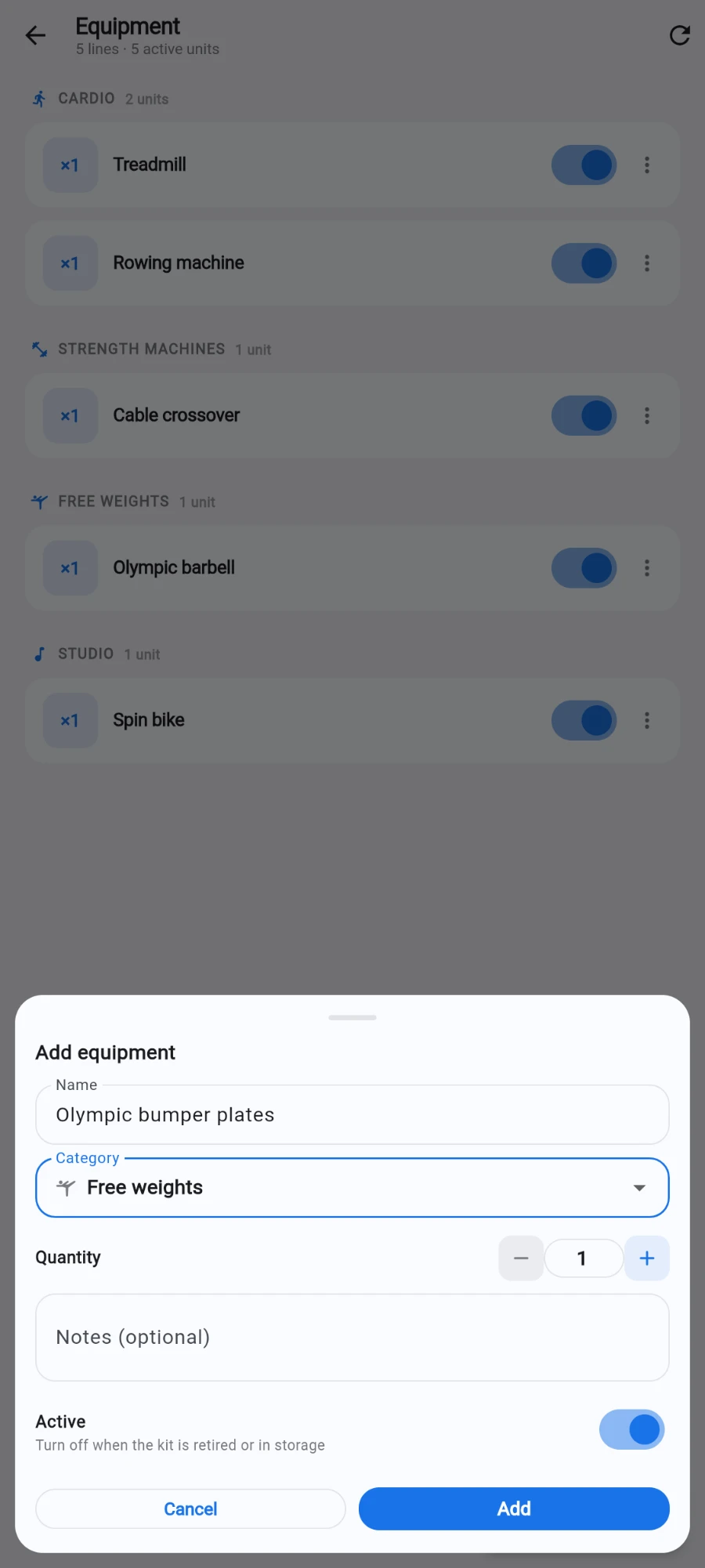
The add form: name, category, quantity, notes and the Active switch. -
To change a line later, tap it and use Edit — or Delete to remove the line entirely.
What you should see
A grouped list — cardio first, "other" last — with each line showing its quantity, so an insurance inventory or a new manager's walk-through is one screen.
If something goes wrong
- Save is refused — the name is empty or the quantity is below 1; both are required.
- A line vanished — its Active toggle is probably off; inactive kit is filtered out of the main view.
- Deleted something by mistake — deleting removes the line permanently; re-add it. The confirm dialog warns first.
Still stuck? Email hello@prismgym.com — include your gym name, the device, and a photo of what you see.