Member wallet
Every member has a wallet — stored value they load at the desk and spend on anything in the catalog: memberships, café items, PT sessions. The balance card sits right on the profile, and every movement lands in a labelled ledger with a running balance, so "where did my money go?" is always answerable.
What you'll do
Top up a wallet (in whatever currency the customer hands over), review the transaction history, and correct mistakes — deleting a mistaken top-up or making an audited balance adjustment.
You'll need: a staff account; balance adjustments need the wallet-adjust permission. Cash top-ups need an open till shift so the money lands in a drawer.
Steps
-
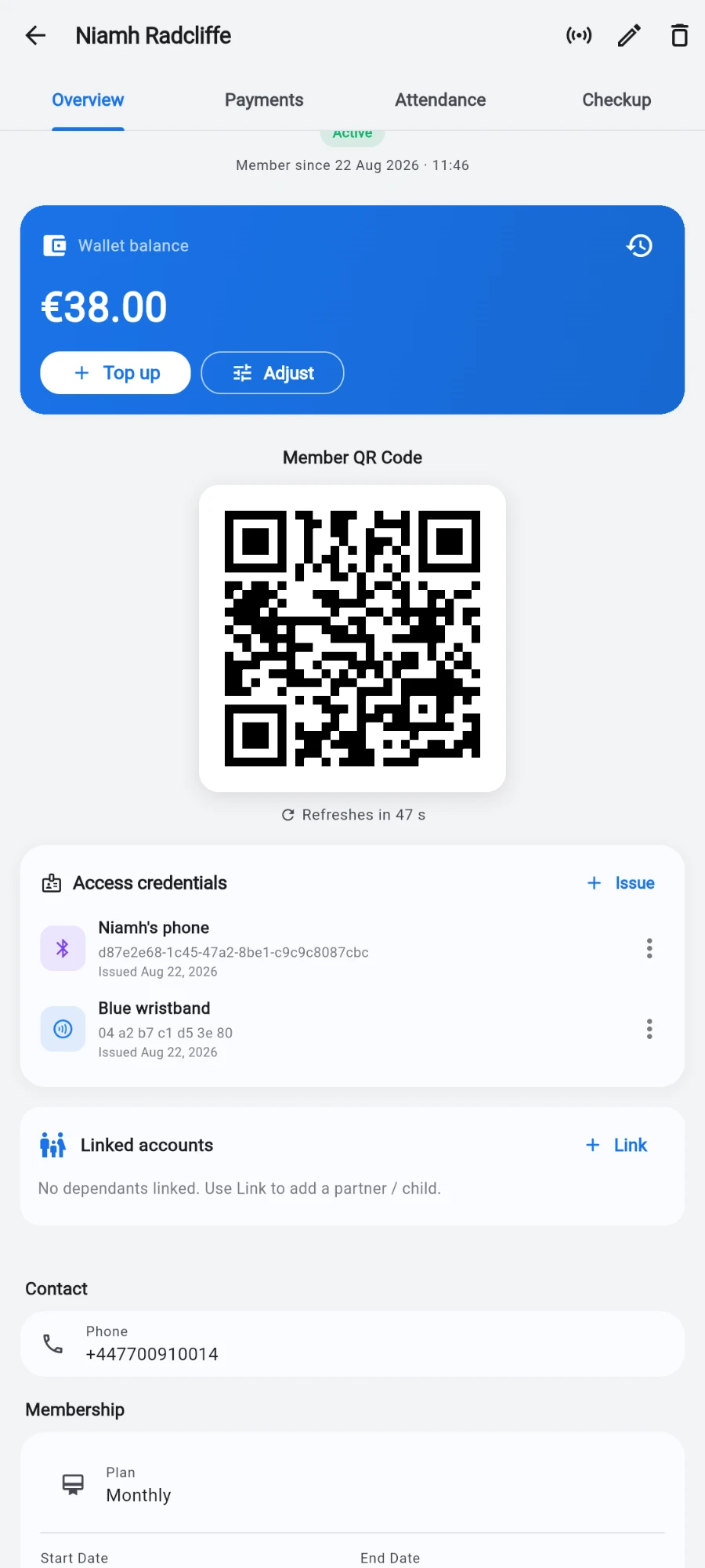
Open the member's profile. The Wallet balance card shows the current balance with three actions: Top up, Adjust, and Transaction history.
-
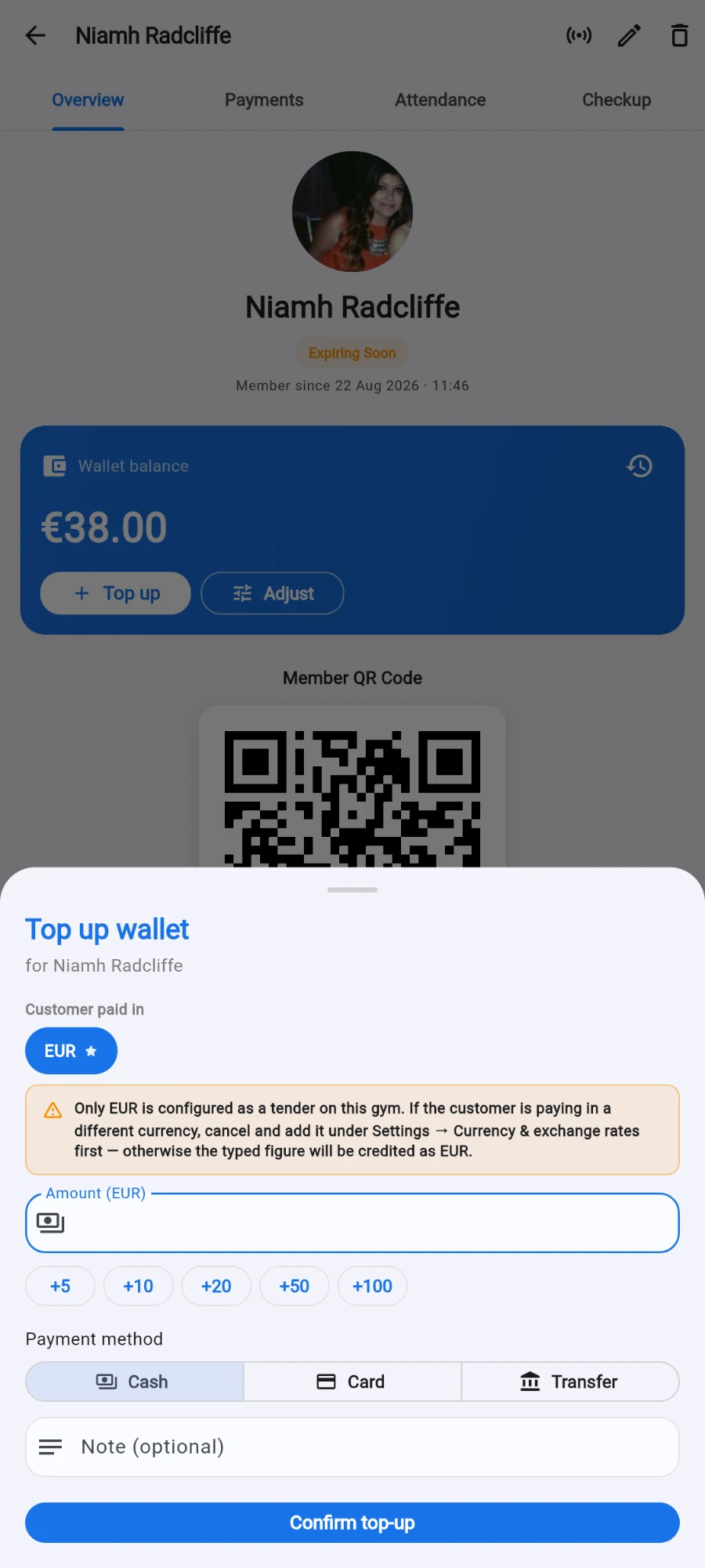
Tap Top up. The Top up wallet sheet opens.
-
Enter the amount — or build it with the quick-add chips, which match the notes cashiers actually handle in your currency. Chips add up: tapping a 5,000 chip twice makes 10,000.
-
If the customer is paying in a different currency than your books, pick it under Customer paid in. The preview spells out exactly what the wallet will be credited and at what rate, before you confirm.
-
Pick the Payment method — Cash, Card or Transfer — and add a Note (optional).
-
If your gym runs a loyalty top-up bonus, the sheet previews the extra percentage the member's tier earns, spelled out arithmetically — the bonus is recomputed on the server, so the preview and the credit always match.
-
Tap Confirm top-up.
-
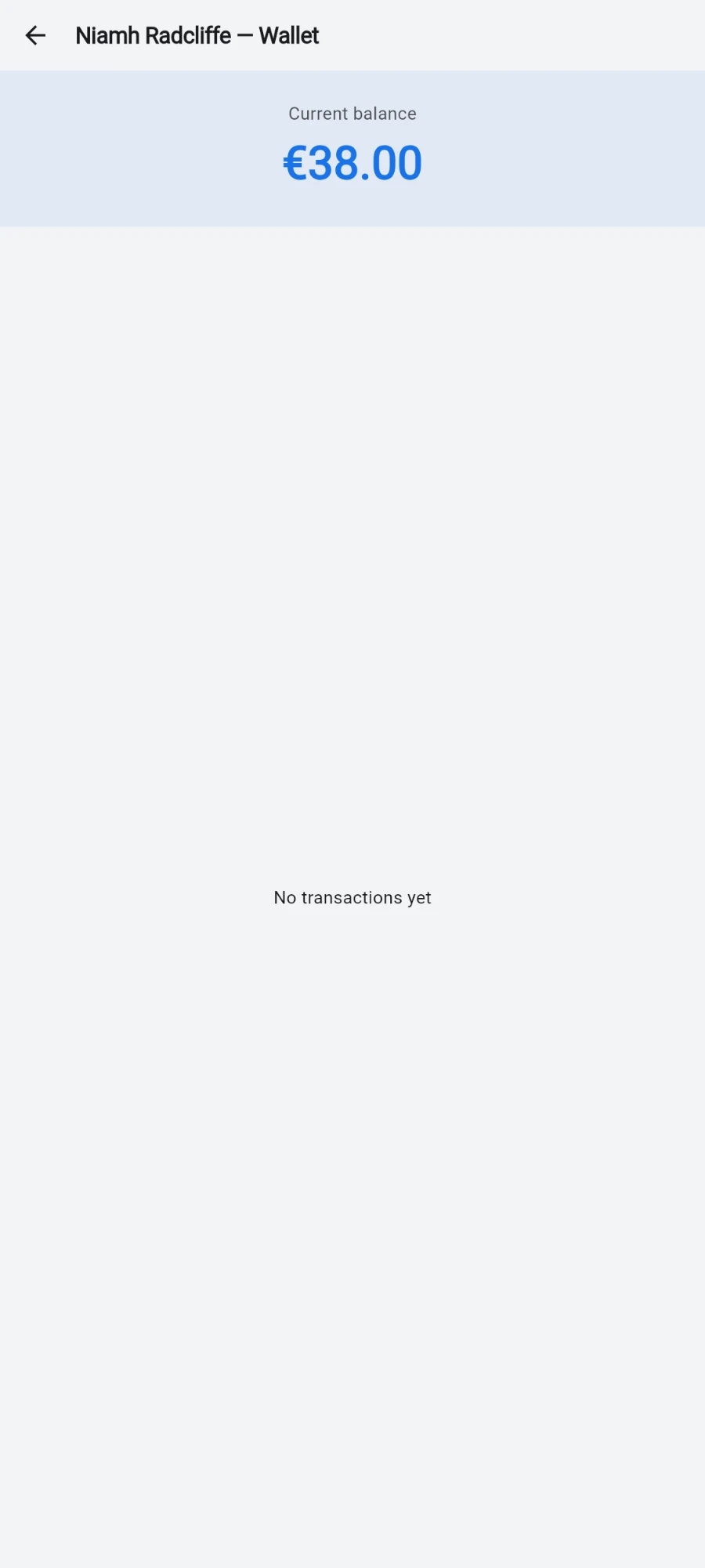
To read the ledger, tap Transaction history: every row is labelled — Top-up, Purchase, Refund, Adjustment or Tier bonus — under the Current balance headline.
-
To undo a mistaken top-up, open the history, pick the top-up, and confirm the Delete this top-up? dialog — it states what will be reversed, then requires a Reason. The row is removed and the balance reduced.
-
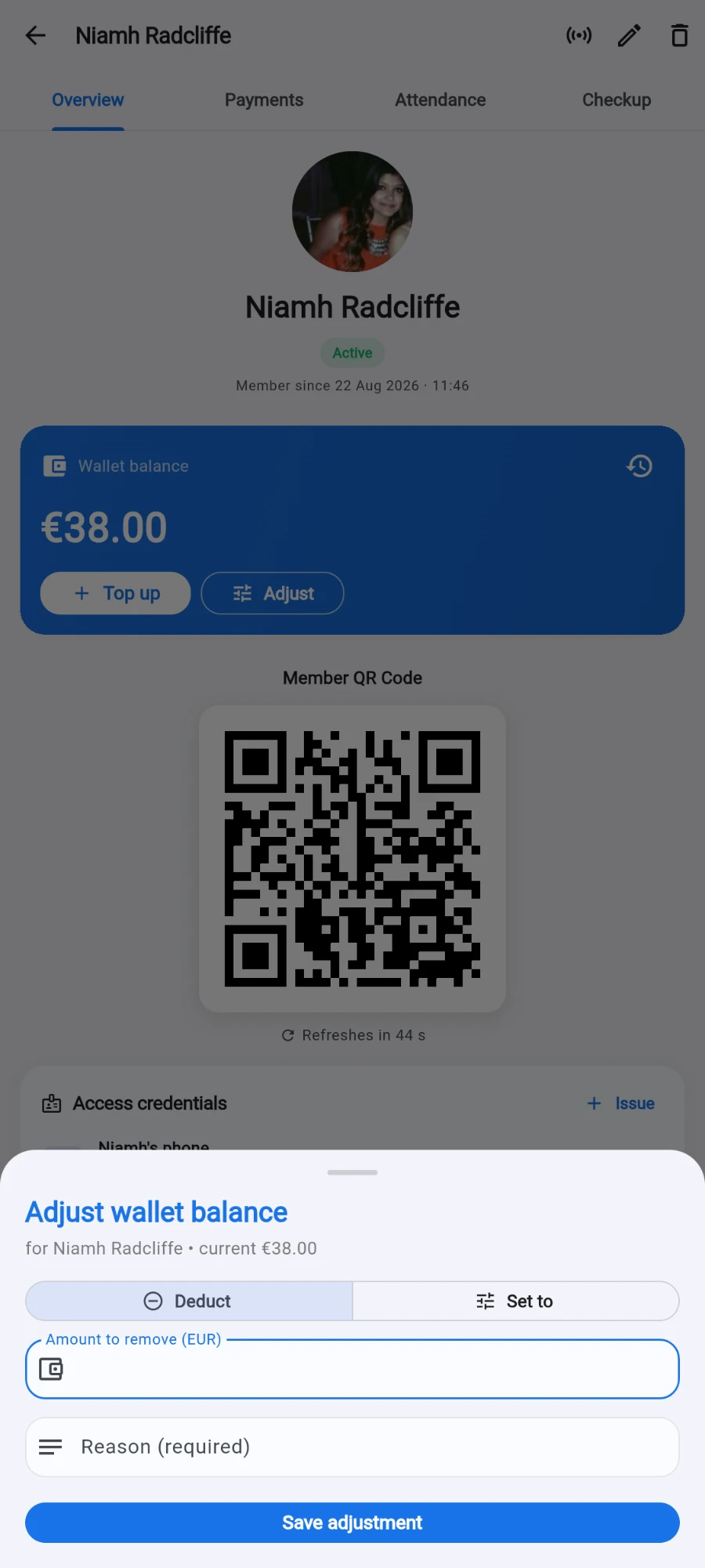
To set or correct a balance directly, tap Adjust on the wallet card. In Adjust wallet balance, either apply a delta (Deduct) or Set to an exact agreed figure, enter the Reason (required), and tap Save adjustment. The reason becomes the transaction note and an audited activity-log entry.
What you should see
The balance card updates immediately, and the new row appears in the history with its label. A cash top-up adds to the open shift's expected cash. Gym-wide, the sum of all positive balances appears on the revenue report as Outstanding wallet liability — the money you're holding for members.
If something goes wrong
- Cash top-up refused — no open till shift on the device. Open a shift in POS so the cash has a drawer to land in.
- "Delete this top-up?" is refused — part of that top-up is already spent. Use Adjust with a reason instead; the ledger stays truthful.
- Wallet payment greyed out at the point of sale — the balance doesn't cover the total. Top up first or choose another method.
- The credited amount doesn't match the cash handed over — check the Customer paid in currency and the rate in the preview before confirming; the wallet is always credited in your books currency at the shown rate.
Still stuck? Email hello@prismgym.com — include your gym name, the device, and a photo of what you see.