Find your way around
The app has four tabs — Today, Train, Progress and Me — plus a raised Check in button docked in the middle of the bar that works from anywhere. The app wears your gym's own name, logo and colours, and Today is the launchpad: your stats, your next class, live orders and quick actions all surface there.
What you'll do
Take a two-minute tour of the app so every later chapter makes sense.
You'll need: the app installed and your membership linked.
Steps
-
Open the app — you land on Today. The header shows your gym's logo, a bell for announcements, a messages icon with an unread count, and your avatar.
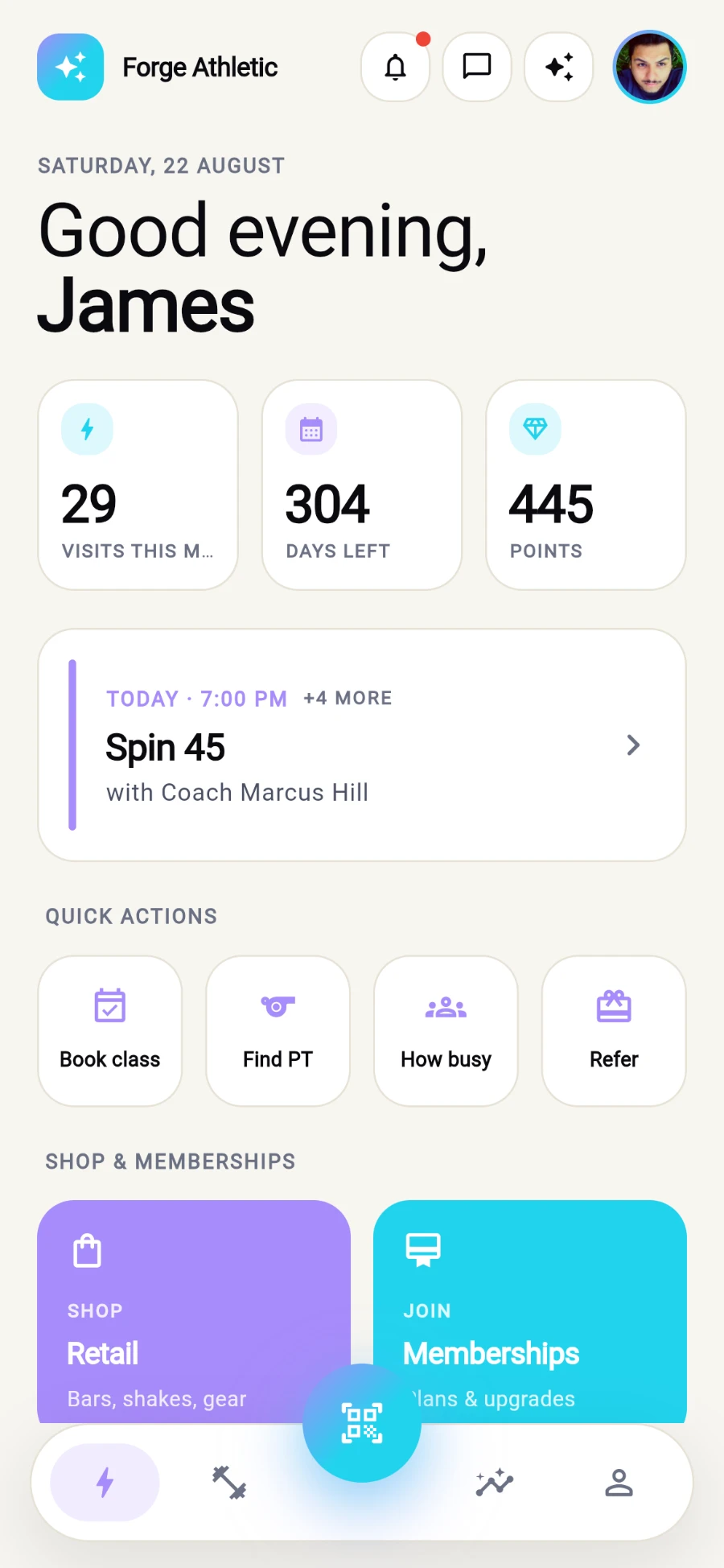
Today is the launchpad - stats, next class and quick actions in one scroll. -
Under the greeting sit three stat pills: Visits this mo., Days left and Points. Tap Days left for your full plan and expiry details; tap Points for the earn-and-redeem explainer.
-
Scroll to Quick actions: Book class, Find PT, How busy and Refer each jump straight to that job.
-
Below that, Shop & memberships offers two shortcuts — Retail and Memberships — straight into the in-app shop.
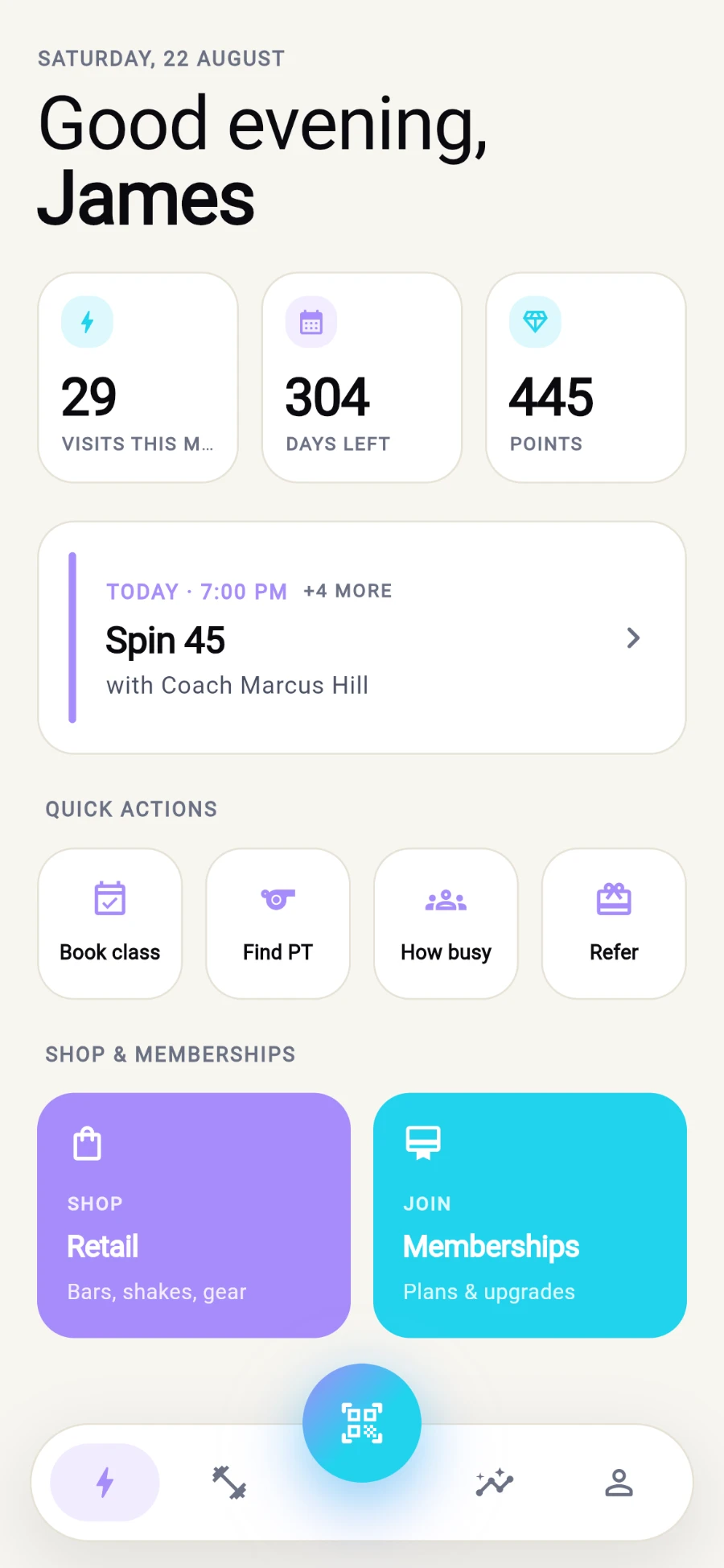
Four quick actions, then two shortcuts straight into the shop. -
Watch the top of Today for live cards: your next booked class (or a Find your next class prompt), a banner when you arrive at the gym, a tracker for a cafe order in flight, and your gym's promo carousel — every banner taps through to something.
-
Tap Train — four pills along the top switch between Classes, PT, Workouts and Programs.
-
Tap the raised Check in button in the middle of the bar. It opens the access sheet — entry QR, paying and kiosk sign-in — from any tab. Close it to come back.
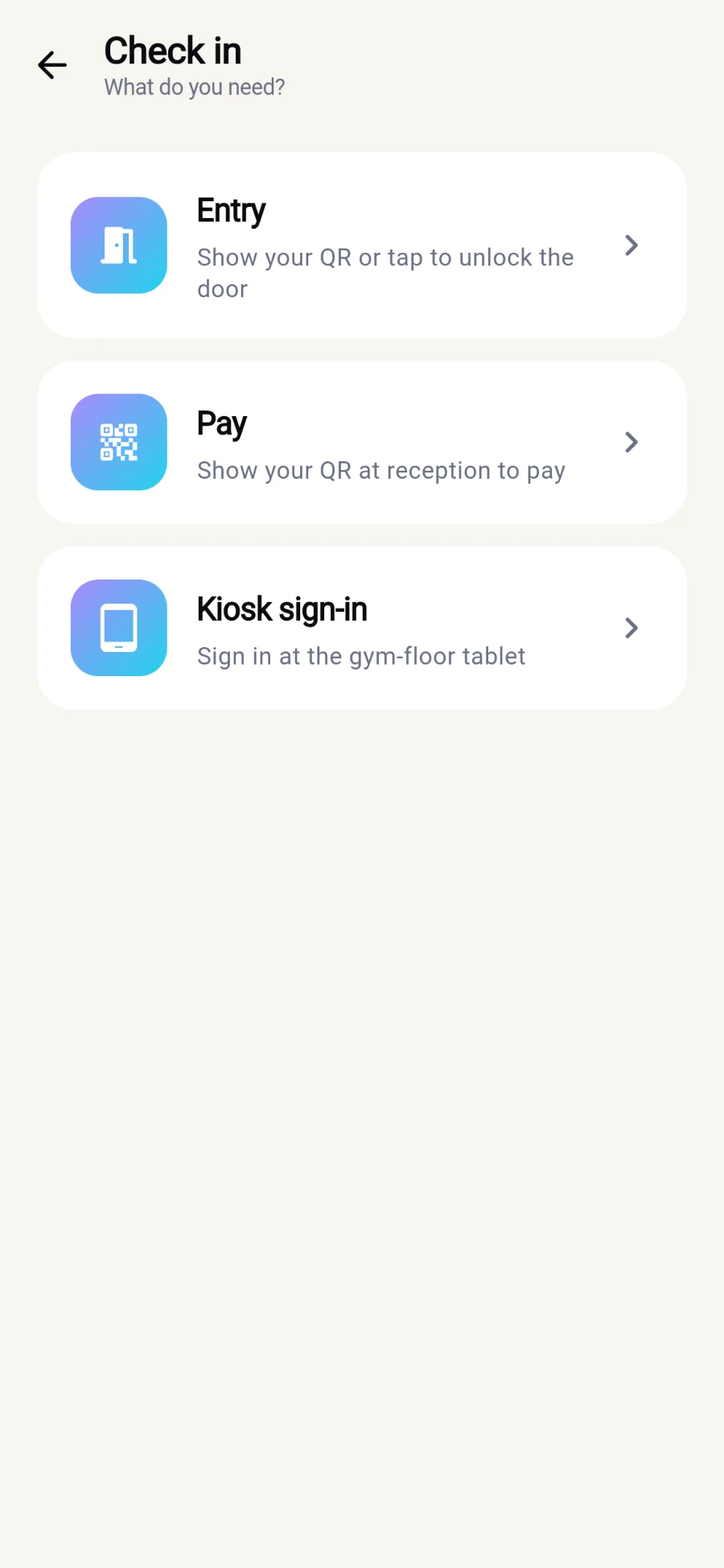
The raised Check in button opens this sheet from any tab. -
Tap Progress for your training dashboard, and Me for your membership card, wallet and settings.
What you should see
You can name all four tabs, open the Check in sheet from anywhere, and jump to booking, the shop or the crowd meter in one tap from Today.
If something goes wrong
- Today looks empty — pull down to refresh. Each card loads on its own, so a slow connection fills the screen piece by piece rather than blocking it.
- The colours look generic, not like my gym — the app repaints with your gym's branding after the first successful sign-in; check your connection and reopen.
- A banner tap did nothing — update to the latest app version; every banner should lead somewhere.
Still stuck? Email hello@prismgym.com — include your gym name, the device, and a photo of what you see.