Chain reports, settlement and royalties
Once you run more than one branch, three questions follow: can my members train at the other branches (and who pays for it), how is each branch doing, and — for franchises — what does each franchisee owe head office? Prism answers all three without widening day-to-day data visibility: a cashier at one branch still can't browse another branch's members.
What you'll do
Switch on cross-branch visiting per location, read the settlement and chain reports, grant a read-only HQ observer seat, and run the monthly royalty report.
You'll need: an owner account; the organization set to chain or franchise (royalties are franchise-only).
Steps
-
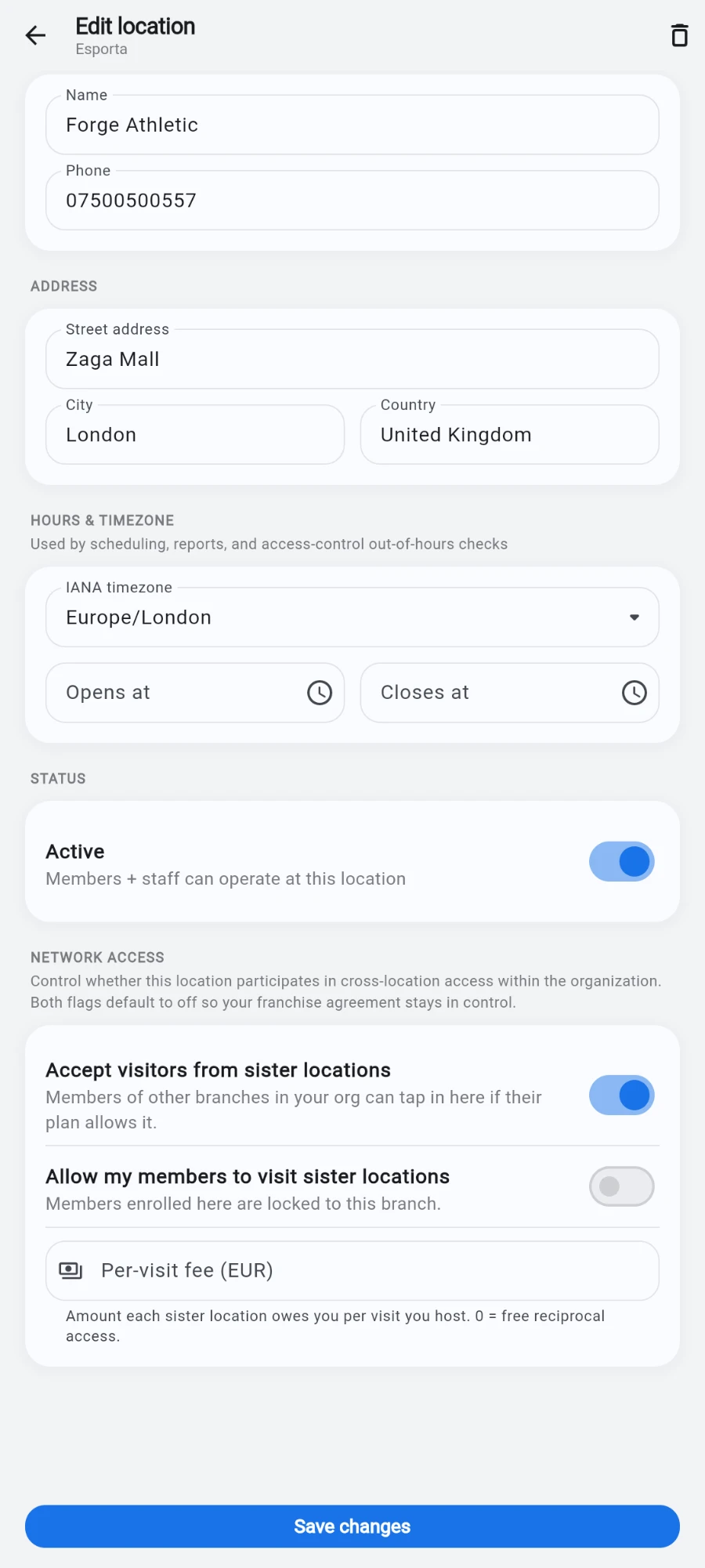
For each branch, open Settings → Locations, edit the location, and find Network access. The two switches are independent: Accept visitors from sister locations (this branch hosts) and Allow my members to visit sister locations (this branch's members roam). A flagship can host without letting its own members leave, or vice versa.
-
Set the per-visit fee the branch charges when it hosts a sister-location member — in this branch's currency, zero meaning no settlement. Save the location.
-
To see who owes whom, open Reports and tap Cross-location visits. The Network settlement view lists monthly rows per home-and-visited pair with visit counts, the amount owed, and a total. Filter by date range and use Export CSV for the finance folder. You only see settlement pairs your account has access to.
-
For the estate view, open Chain reports from the reports area: revenue split into memberships versus POS, visits and new members per location per day, a revenue-by-location comparison, an all-locations trend line, and a leaderboard over your chosen range.
-
To give head office, an auditor or a consultant eyes on everything, open HQ observers from the Organisation screen and toggle the person on. An observer sees every location read-only — reports, roll-ups and activity logs — with no write access anywhere. Toggling off removes only the observer flag; any per-location roles they also hold survive.
-
For franchises, set the Royalty rate on the Organisation screen, then open Royalty report. Each month it shows, per location: gross revenue (memberships plus all POS sales), the rate, the royalty due, and visits, sorted by revenue. Export PDF produces the statement to send each franchisee.
What you should see
Members checking in at sister branches without desk intervention, a settlement report that turns those visits into a monthly number per branch pair, chain dashboards for the whole estate, and — for franchises — a royalty statement per location with a PDF ready to send.
If something goes wrong
- A member is refused at a sister branch — check both switches (their home branch must allow roaming, the visited branch must accept visitors) and the member's plan scope and tier.
- The settlement report is empty — no fees are set (zero means no settlement), or no cross-branch visits happened this month. The screen points you at the location settings.
- The royalty report returns nothing — the organization isn't set to franchise, or the rate is 0%. Both live on the Organisation screen.
- An ex-observer lost their branch role — they shouldn't have: switching the observer flag off preserves per-location roles. Check their assignment under the staff settings for that branch.
Still stuck? Email hello@prismgym.com — include your gym name, the device, and a photo of what you see.