Sell a plan
Everything a member can buy starts from one place: the Sell… button on their profile. It fans out to six sale types — membership plans, class bookings, session packs, laundry and lockers, personal training and nutrition programs — and every one of them lands in the same sales ledger, so your revenue reports see one stream no matter what was sold. This chapter walks the most common path: selling a membership plan.
What you'll do
Open a member's profile, choose their plan, take payment, and confirm. Along the way you can switch the currency you're receiving, apply a capped discount, charge or waive the joining fee, absorb a short renewal gap, or set a future start date.
You'll need: a staff account allowed to sell memberships, and — for cash sales — an open till shift on your device.
Steps
-
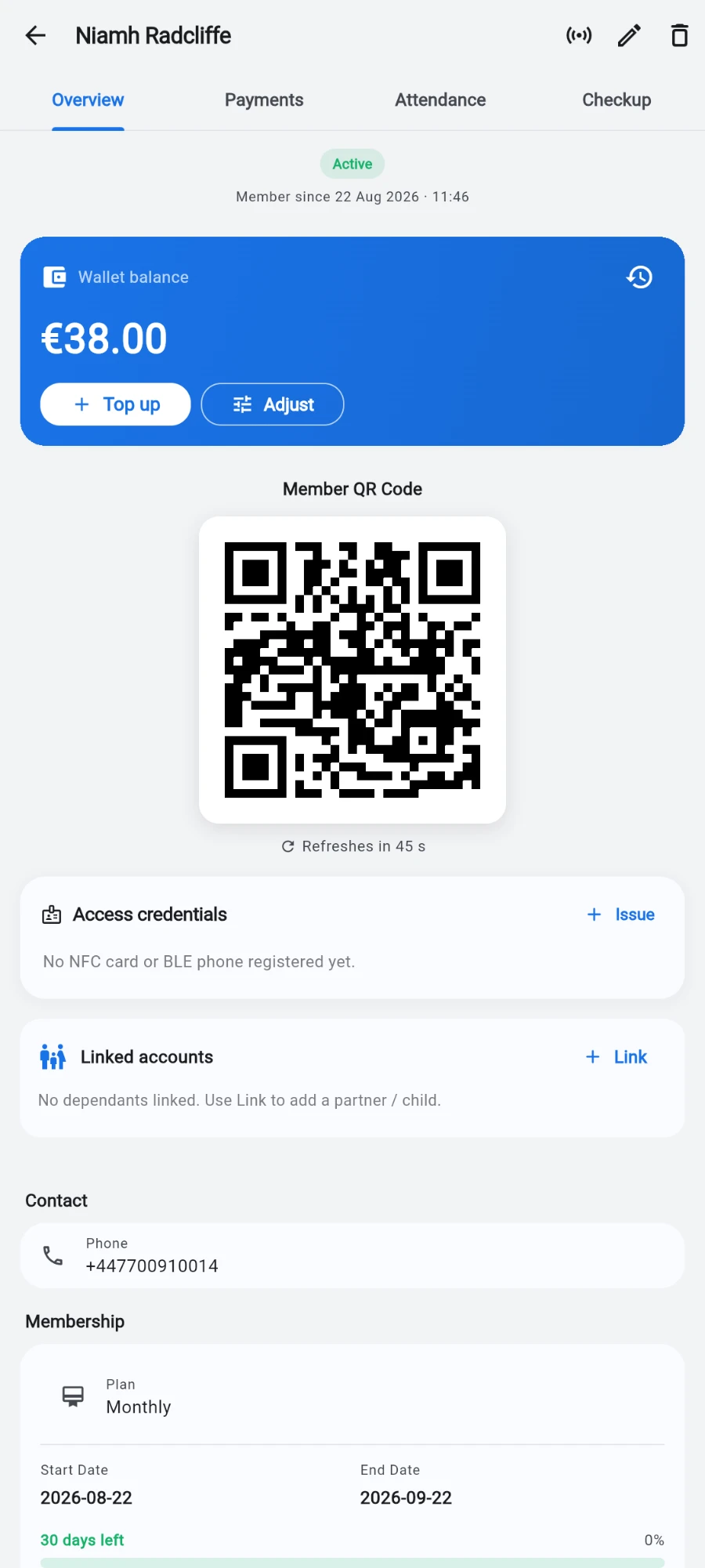
Open the Members tab, find the member, and open their profile.
-
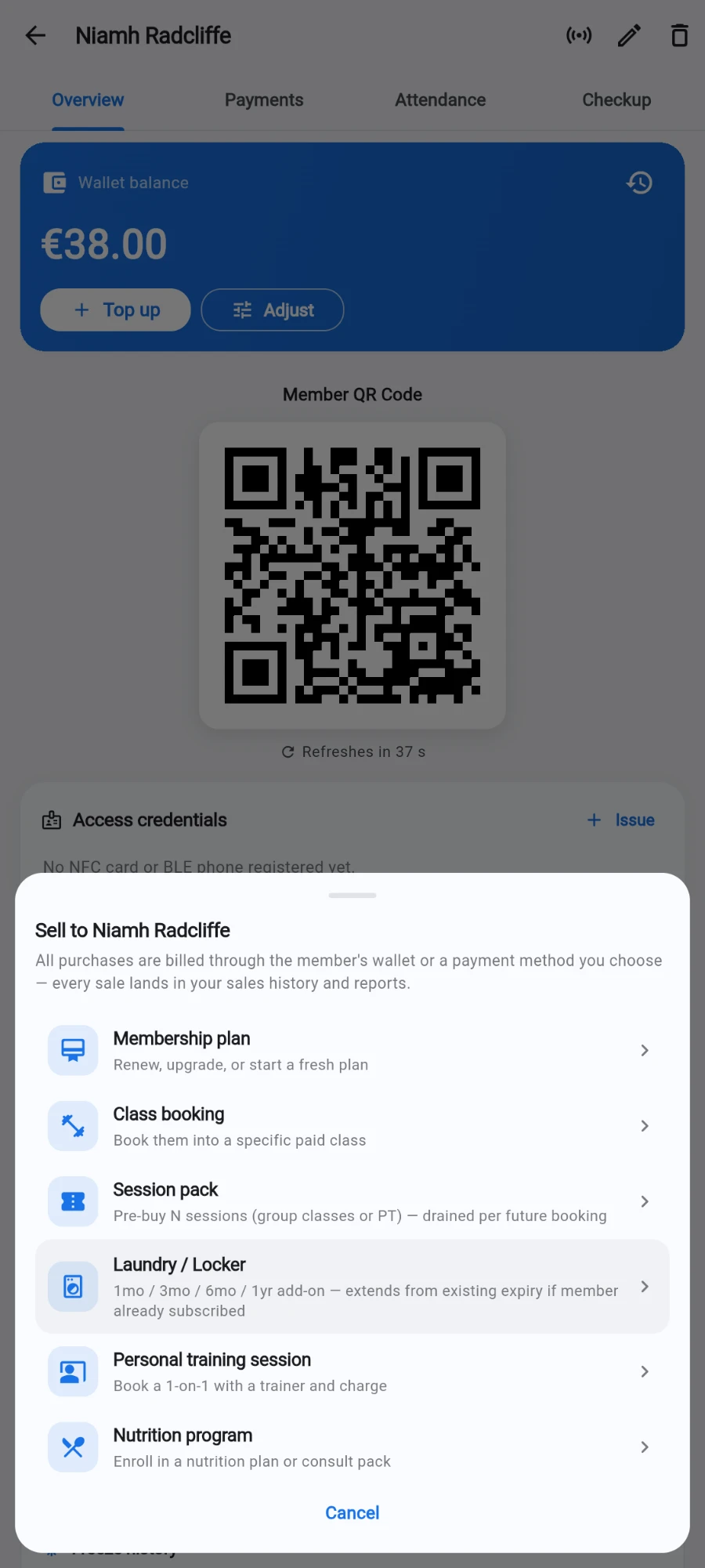
Tap Sell… at the bottom of the profile. A chooser opens with six tiles: Membership plan, Class booking, Session pack, Laundry / Locker, Personal training session and Nutrition program.
-
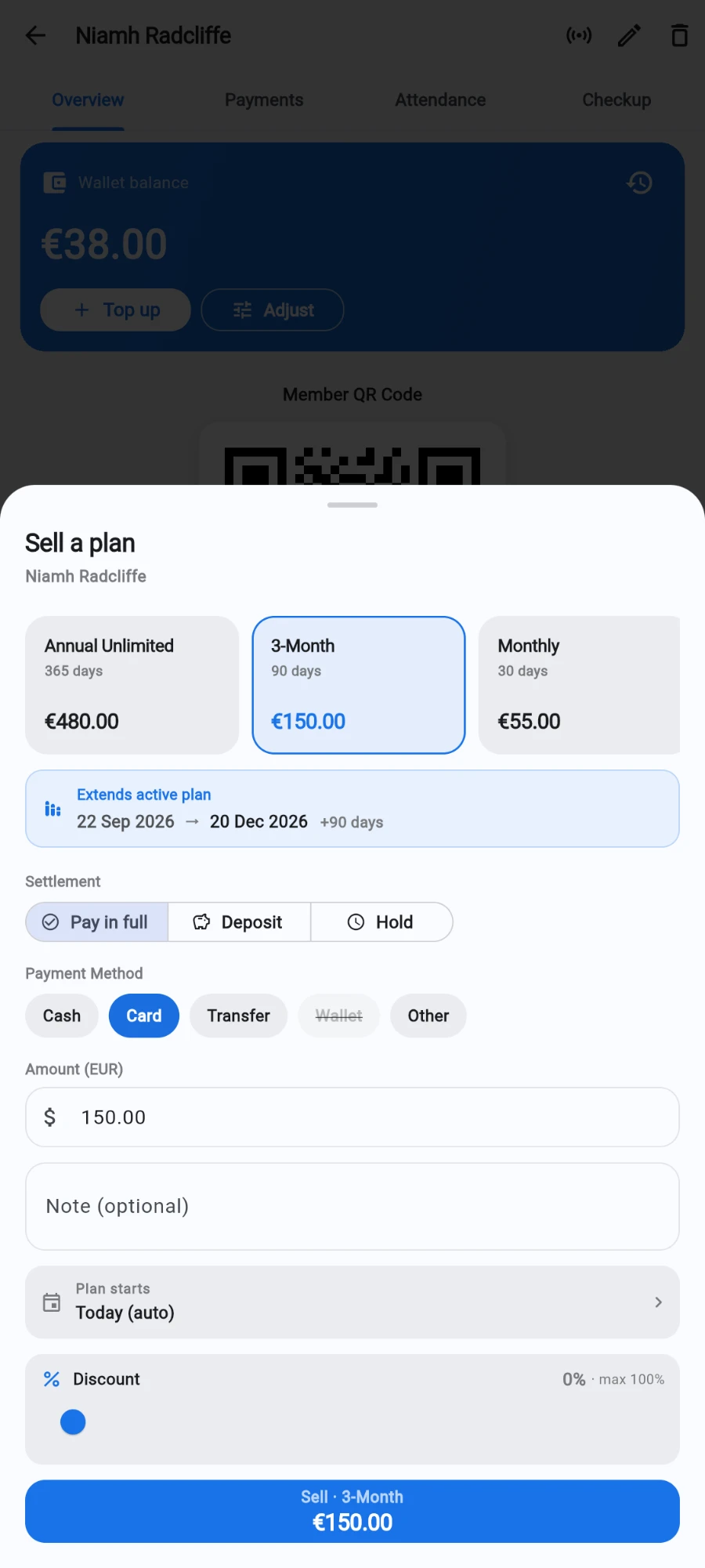
Tap Membership plan. The Sell a plan sheet opens with the member's name under the title.
-
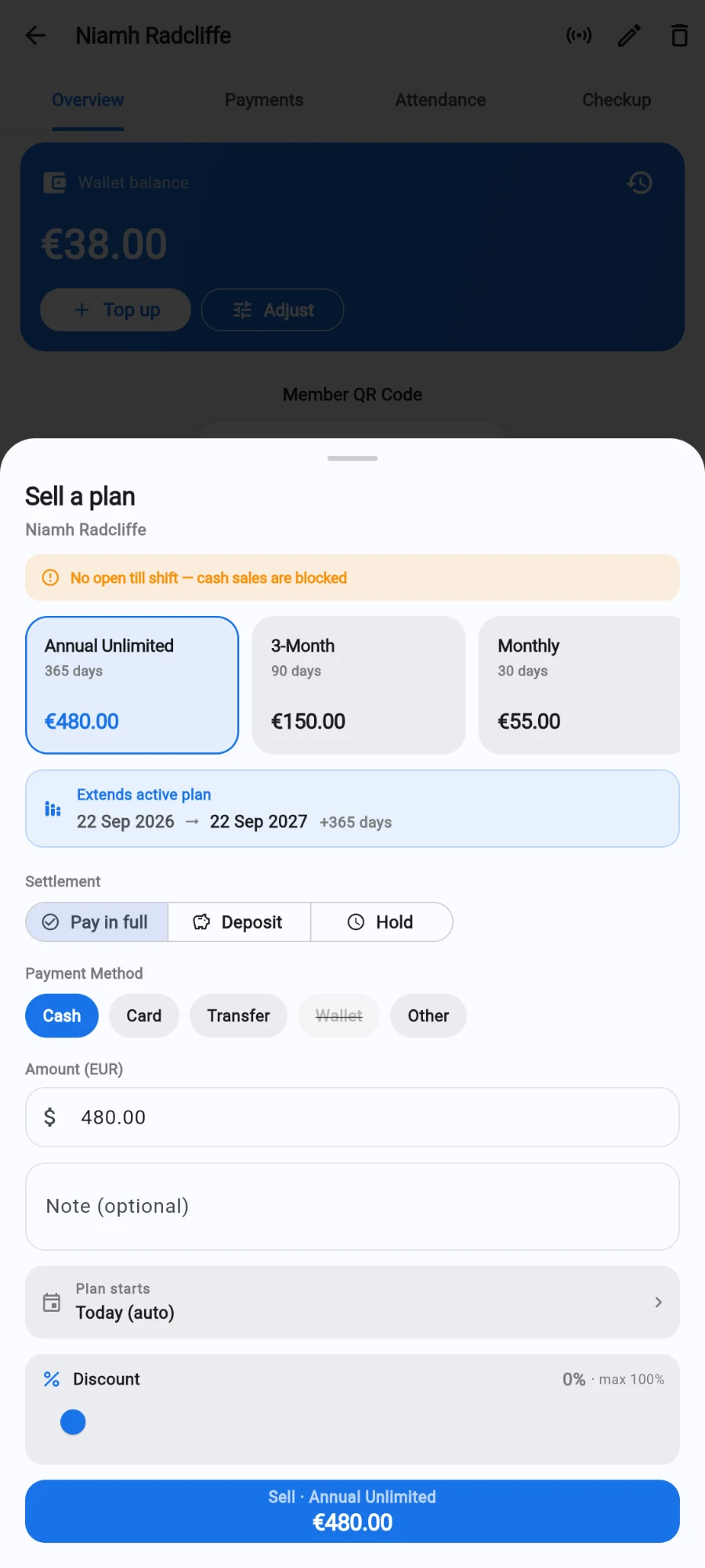
Pick the plan from the horizontal cards — each shows the plan name, its length in days, and its price in the plan's own currency.
-
Read the preview under the cards: an active member shows Extends active plan with their current end date, the new end date, and the days added — buying early never wastes paid days. An expired member shows Starts a fresh cycle.
-
Leave Settlement on Pay in full for a normal sale. Deposit takes part-payment now with the balance later; Hold reserves the plan with no money down. Deferred sales do not open the door until fully paid, and unpaid holds expire automatically.
-
Pick the Payment Method — Cash, Card, Transfer, Wallet or Other. The Wallet chip is greyed out whenever the member's balance can't cover the amount, and it shows the balance so you can see why.
-
If your gym accepts more than one currency, pick the tender under Receive in. The amount field re-frames itself in whatever you pick, so the number on screen is always in the currency crossing the counter.
-
Check the amount field — it's pre-filled with the plan price in the selected tender. You can edit it for a negotiated figure.
-
If a joining fee applies, the fee card shows the amount and its currency. Leave it on Charge, or flip to Waive — every waiver is written to the audit log so the owner can see how much was given away as a selling tactic.
-
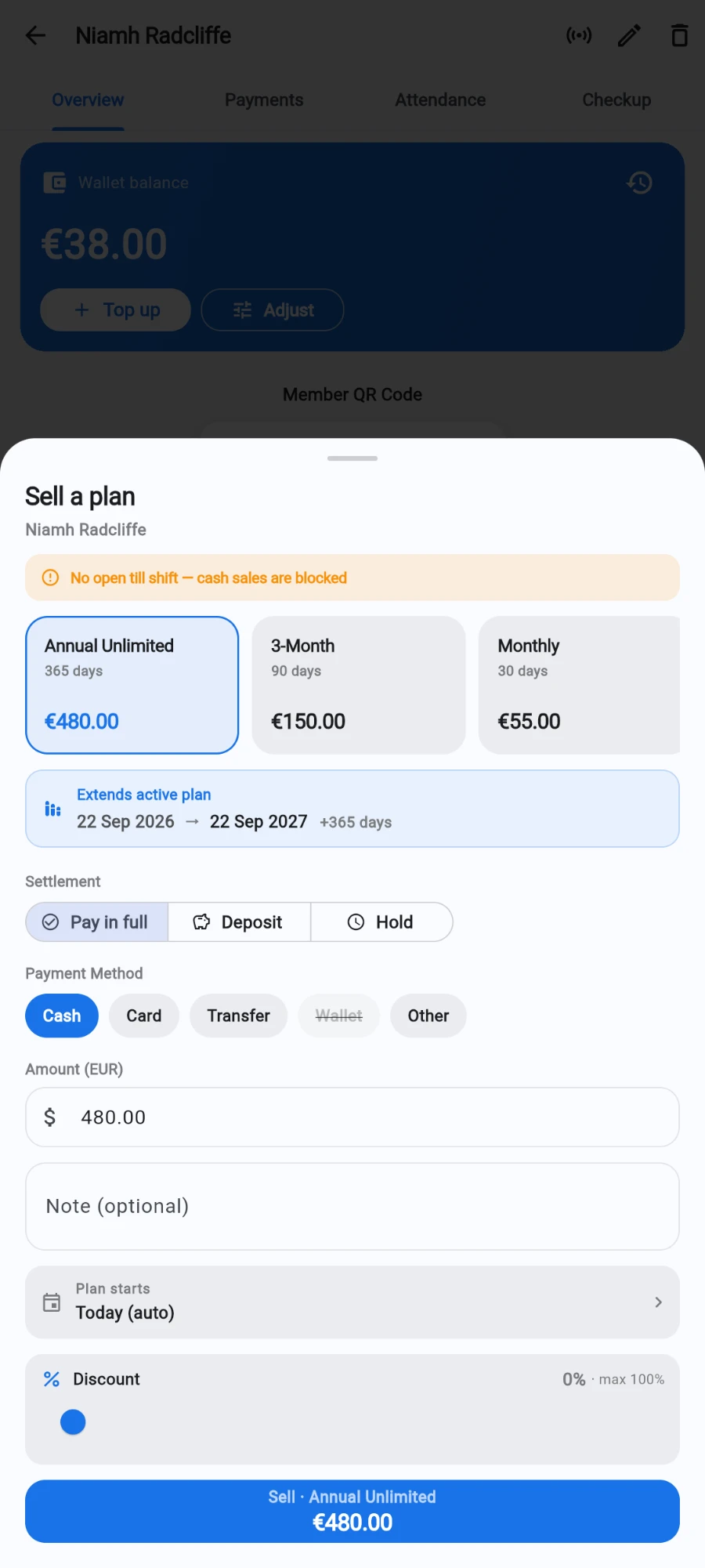
If you're allowed to discount, drag the Discount slider. It stops at your personal cap, and the server enforces the same cap again — a modified app cannot exceed it. The discount applies to the plan only; the joining fee survives it.
-
If the member's plan expired between 1 and 7 days ago, an extra card appears asking whether they used the gym during the gap. Turn it on to start the new term the day after the old expiry — they pay for the days they used — or leave Start fresh from today selected. Add an Audit note (optional) so a future dispute has a paper trail.
-
To start the plan on a future date instead, tap Plan starts and pick a date — the default is Today (auto). The member stays inactive until the start day arrives. Future start and gap absorption can't be combined.
-
Check the big button at the bottom — it shows Sell with the plan name and the exact total in the chosen tender, joining fee included. That number mirrors the server's arithmetic: plan minus discount, plus fee.
-
Tap it. A confirmation shows the new end date, mentioning gap absorption where it happened.
What you should see
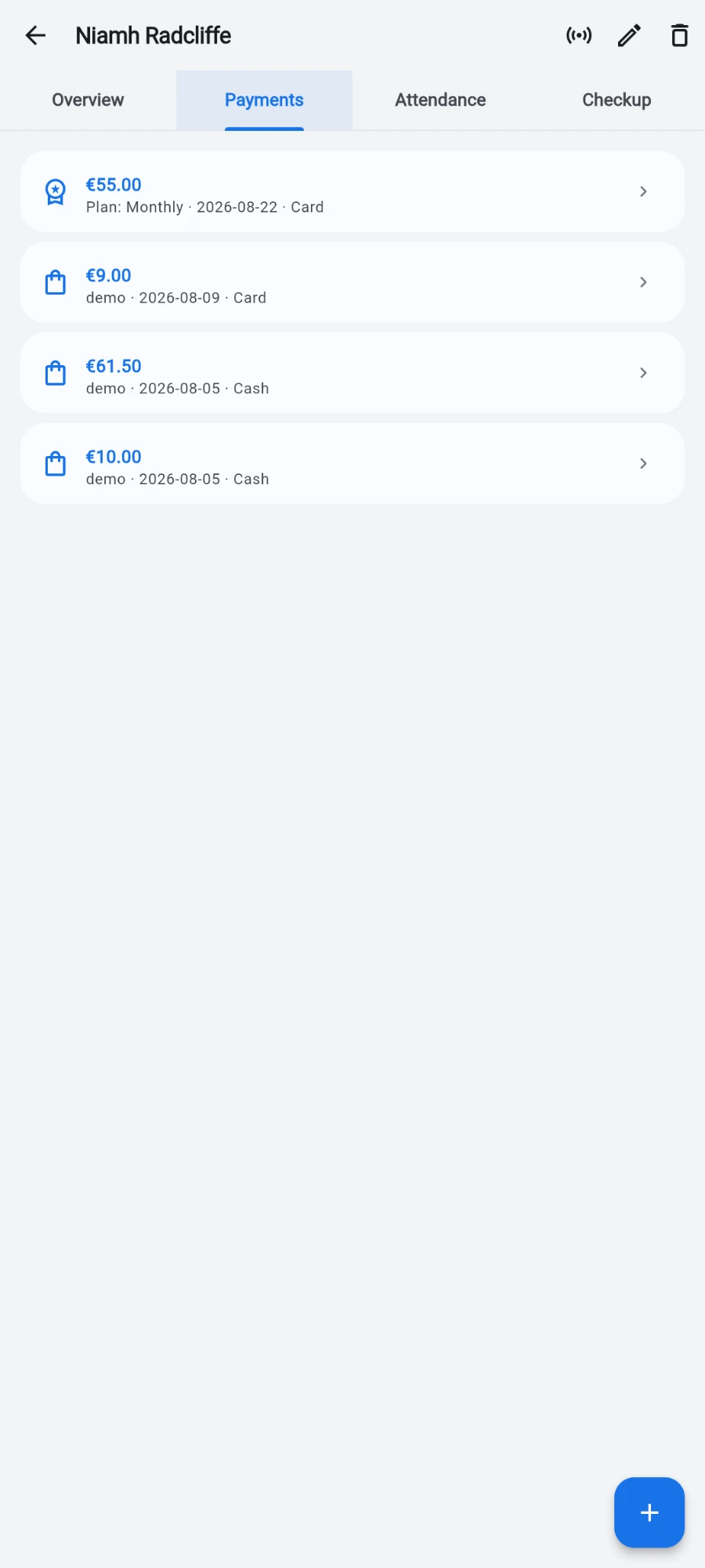
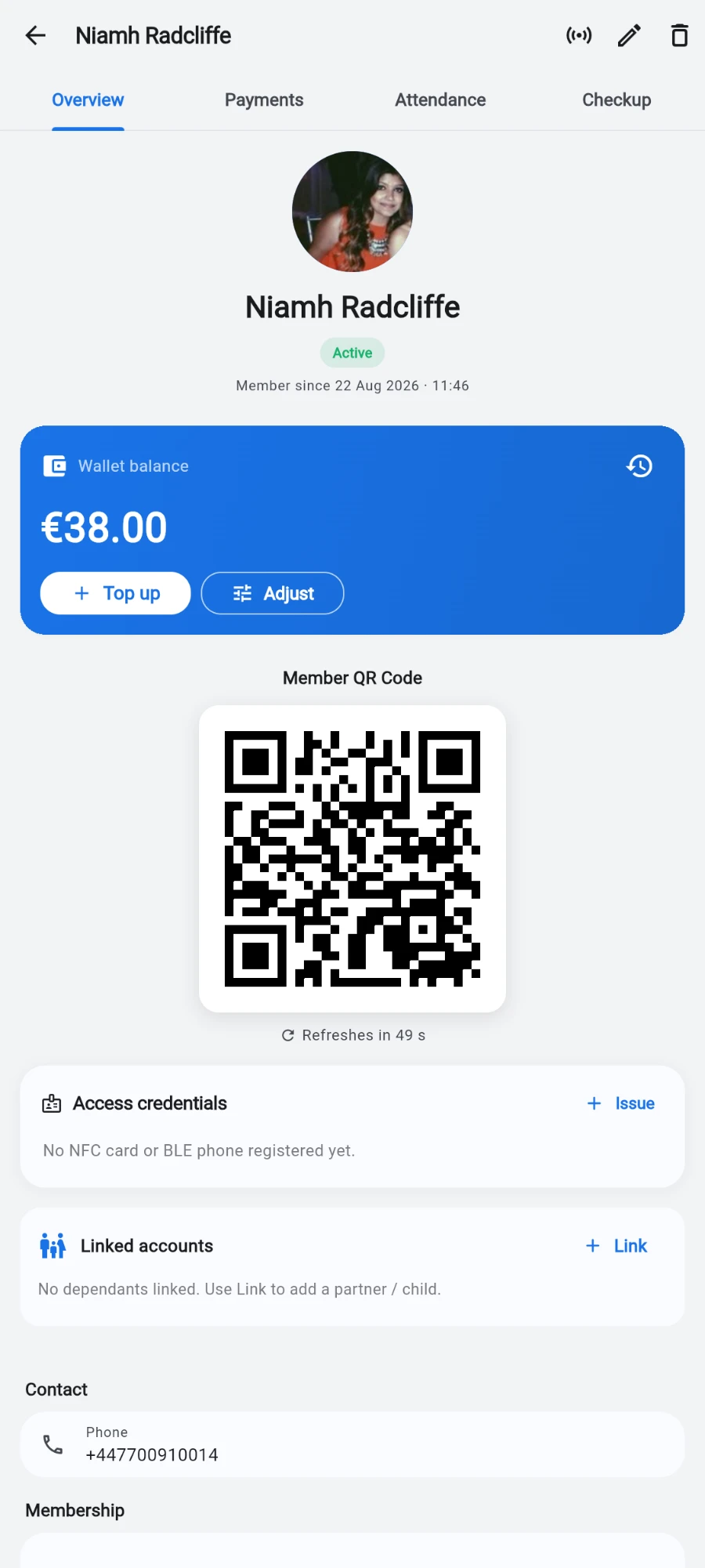
The profile refreshes with the new end date and an active status. The sale appears in the sales ledger and on the revenue report; a cash sale lands in the open till's expected count. If the gym uses door hardware, the member's new validity window is pushed to the doors automatically.
If something goes wrong
- The Sell button total looks wrong — check the joining fee card and the discount slider; the total is always plan minus discount plus fee, in the tender you picked under Receive in.
- "No exchange rate configured for this currency" — the tender you picked has no active rate. Set one under Settings → Currency & exchange rates, then retry.
- Discount refused — you dragged past your cap, or your cap is zero. Ask the owner to raise it under Settings → Users & permissions.
- Wallet chip stays grey — the balance doesn't cover the amount. Top the wallet up first, or lower the amount (a discount can re-enable it live), or take another method.
- The gap-absorption card never appeared — it only shows when the previous plan expired between 1 and 7 days ago. Outside that window, sell with a fresh start from today.
Still stuck? Email hello@prismgym.com — include your gym name, the device, and a photo of what you see.