Export members to CSV
Your member data is yours. The export screen writes the entire roster to a properly-escaped CSV — quotes, commas and multi-line notes handled correctly — at the detail level you choose, and it opens cleanly in Excel without mangling accented names.
What you'll do
Pick how much data to include, preview the columns, and save or copy the CSV.
You'll need: a super-admin account — the screen states Super admin only. Everything exported includes the full roster; the member list's filters don't apply here.
Steps
-
Open Settings → Member operations and tap Export members to CSV.
-
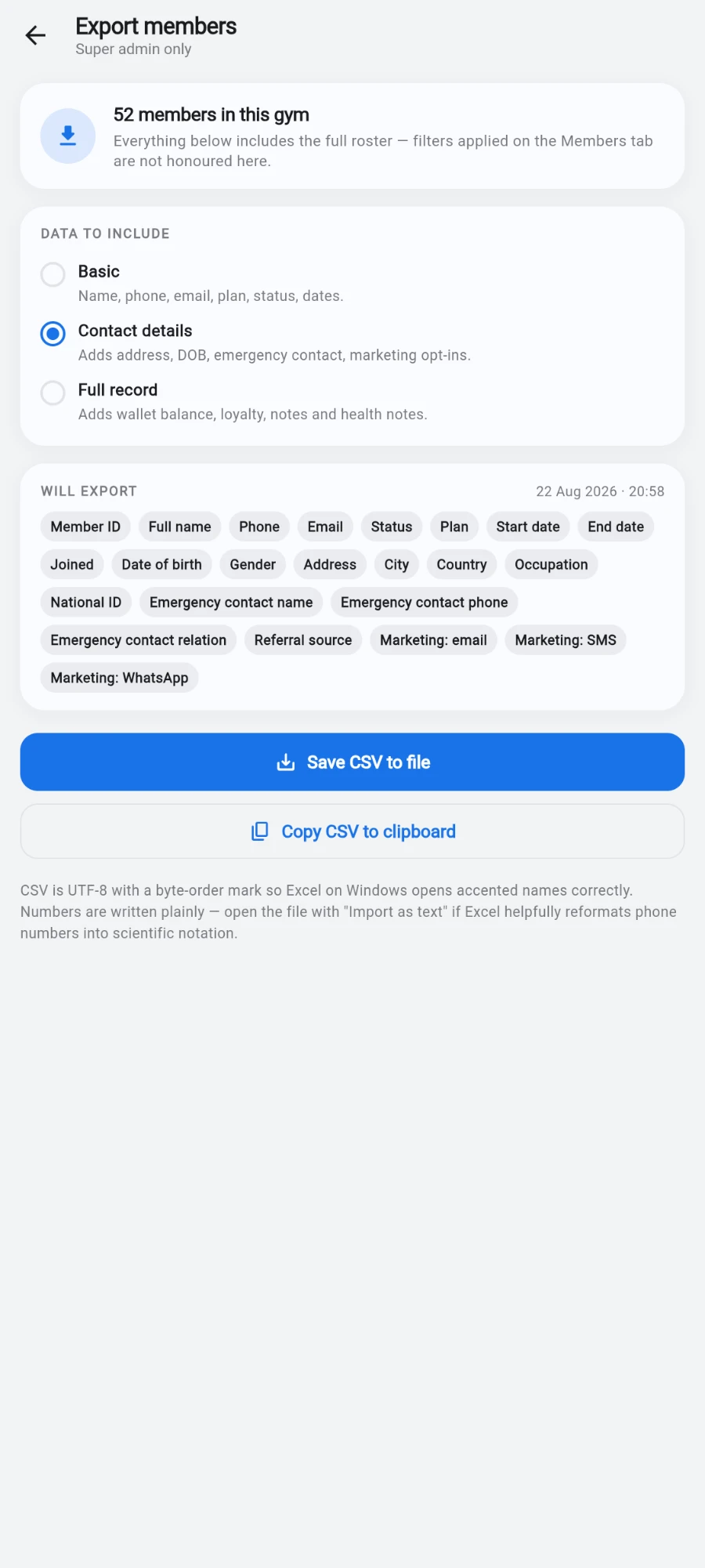
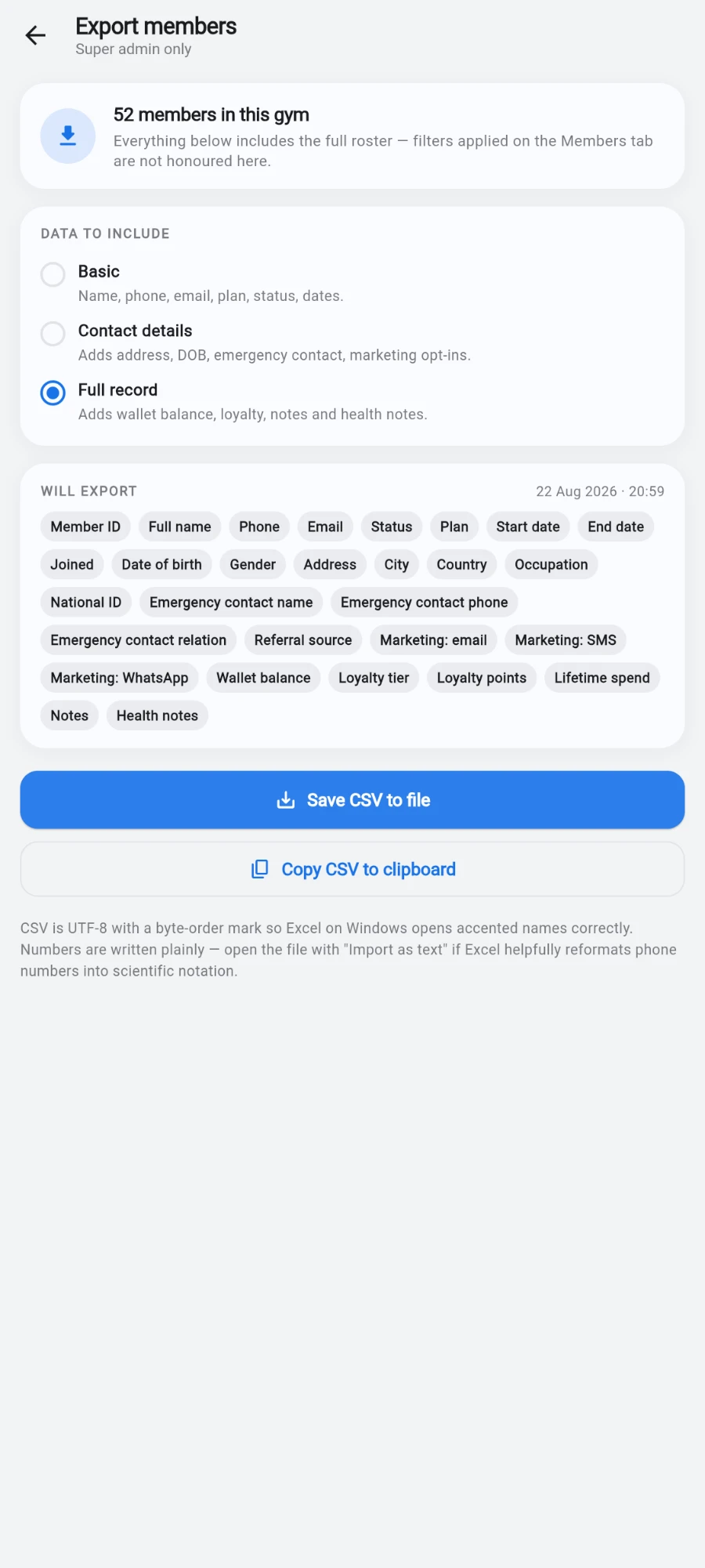
Under the data-to-include section, pick the scope. Three levels, each including the previous: basic identity and membership columns; contact details adding address, emergency contact and marketing opt-ins; or the full record adding wallet balance, loyalty, lifetime spend and notes.
-
Check the live preview of the columns that will export — what you see is exactly what lands in the file.
-
Tap Save CSV to file and pick where to save. The suggested filename carries the gym, scope and date.
-
Or tap Copy CSV to clipboard to paste straight into a spreadsheet.
What you should see
A CSV whose row count matches your roster, opening cleanly in Excel or Google Sheets with every column from the preview.
If something goes wrong
- The screen refuses to open — it's restricted to the super admin; sign in as the owner.
- Excel shows broken characters — you likely opened a copy that was re-saved by another tool. Re-export and open the original file directly.
- Columns are missing — you picked a narrower scope. Re-export at contact-details or full-record level.
- Notes split across rows in another tool — that tool isn't honouring quoted multi-line fields. Open the file in Excel, Google Sheets or LibreOffice, which all read it correctly.
Still stuck? Email hello@prismgym.com — include your gym name, the device, and a photo of what you see.