Take payment: cash, card, wallet and currencies
Once the cart is built, the register offers cash, card, bank transfer and the member's wallet — and, when your gym trades in more than one currency, a choice of which currency the customer hands over. The register is deliberately strict about money: the server re-checks every price at the moment of charge, wallet payments cannot silently fall through, and anything that would make your drawer count wrong is flagged while the customer is still standing there.
What you'll do
Pick the right payment method and tender currency for a sale, pay from a wallet safely, and know what every warning dialog means.
You'll need: an open shift on the register and a cart ready to charge. Wallet payment needs a member attached to the sale.
Steps
-
Below the cart totals, pick the payment method from the icon row — the icons are, in order, Cash, Card, Transfer and Wallet (hold a finger on an icon to see its name).
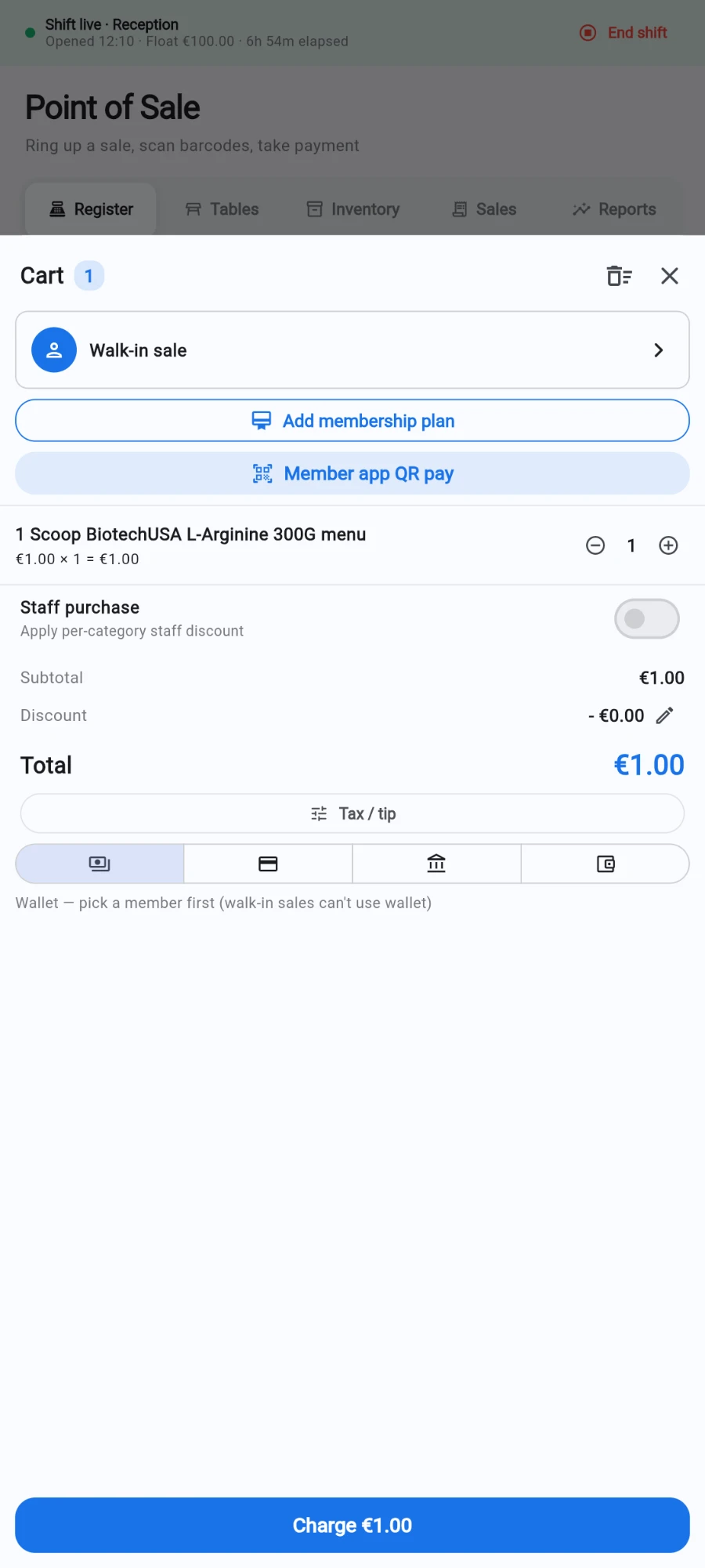
The payment row on a walk-in sale — wallet explains why it is unavailable. -
Watch the wallet status line under the icons — it always explains itself: for a walk-in it reads that wallet needs a member first; with a member attached it shows their balance and either that it is enough to cover the sale or how much it is short.
-
If your gym has more than one currency enabled, a Pay in chip row appears. Tap the currency the customer is actually handing over — the Charge button re-renders with the converted tender amount, and your books amount stays in the base currency in parentheses.
-
If your gym adds a processing fee for a method, a fee line (for example a card fee) appears in the totals when that method is selected, and the customer pays it on top. When the gym absorbs the fee instead, the bill is unchanged and the fee is recorded for reporting only.
-
Tap Charge. If your gym has turned on the extra confirmation step, a Confirm charge dialog asks for one more explicit tap before any money moves.
-
For a wallet payment where the balance covers the sale, that is it — the wallet is debited and the sale completes. If the balance is short, the register normally blocks the sale and suggests a top-up or another method.
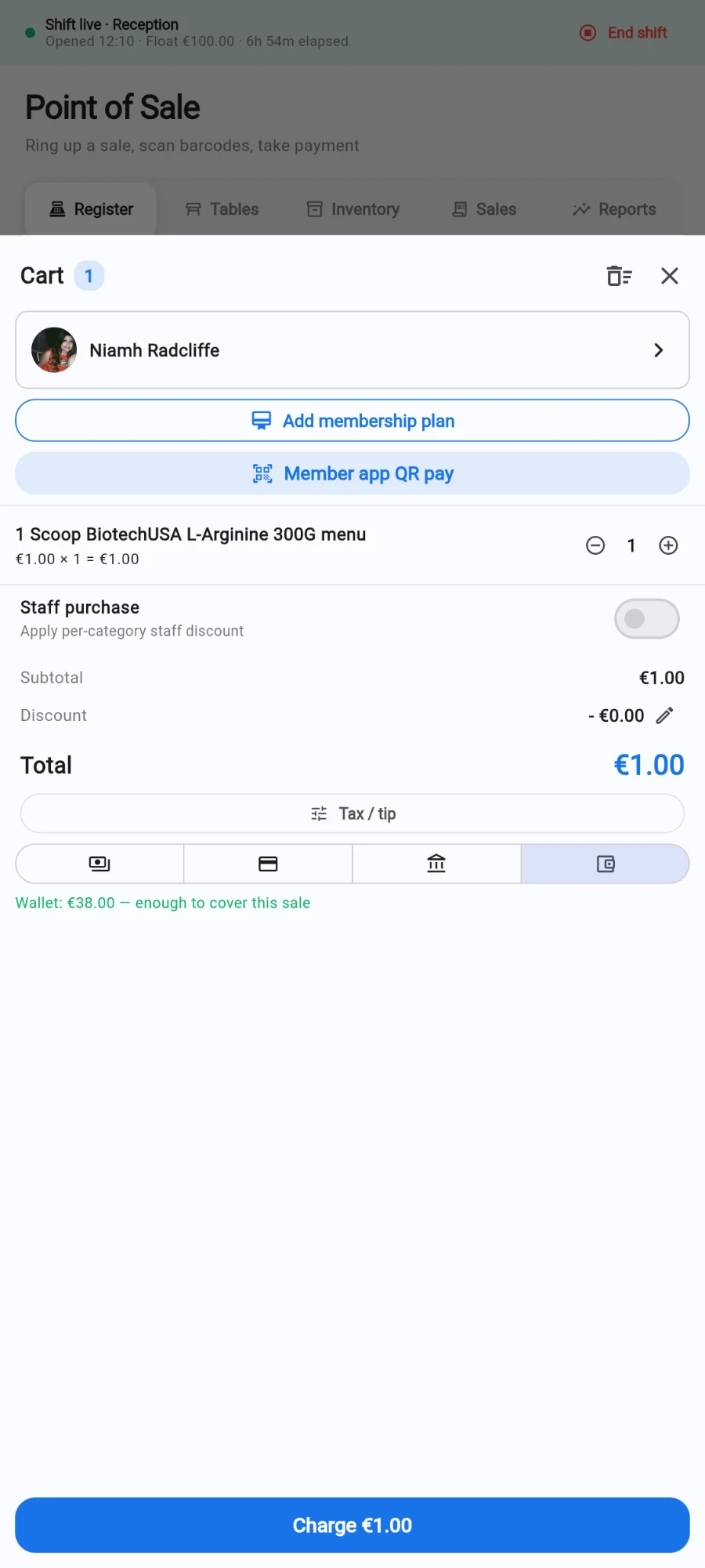
Wallet selected — the green line confirms the balance covers the sale. -
Managers with the overdraft permission see an Authorise wallet overdraft dialog instead of a block: it lists the Current balance, the sale total and the Balance after (negative), and only Authorise & charge proceeds.
What you should see
The Sale complete dialog with the payment method noted at the bottom. Cash sales feed the drawer's expected total for the shift; wallet sales show the debit on the member's wallet ledger immediately; foreign-currency tenders print on the receipt in the currency the customer paid.
If something goes wrong
- Wallet cannot be selected — read the status line: no member on the sale, a zero-total cart, or a balance that is short by the amount shown. Top up the wallet or pick another method.
- The Pay in row is missing — your gym only has one currency enabled. An owner can add currencies and exchange rates in the currency settings.
- The customer disputes the total after a Charged amount changed alert — the receipt shows the authoritative charged figure. A price or rate changed between building the cart and charging; refund and re-ring if the customer does not accept the new amount.
- A fee line appears the customer refuses to pay — switch to a method without a surcharge, or an owner can change who absorbs that method's fee in settings.
Still stuck? Email hello@prismgym.com — include your gym name, the device, and a photo of what you see.