Track revenue and dues
The revenue dashboard is where the money story comes together: what you earned, what physically crossed the counter, what moved through wallets, what's still owed, and what went back out as refunds. All of it follows one accounting convention, applied identically across the dashboard, the exports and the till drawer — so every total reconciles with every other.
What you'll do
Open the revenue view, read its three reconciling totals, drill into outstanding dues, record a manual payment, and export a PDF statement for your accountant.
You'll need: a staff account with access to Accounts. Most gyms keep this owner-and-manager only.
Steps
-
Open Accounts and pick the Revenue tab.
-
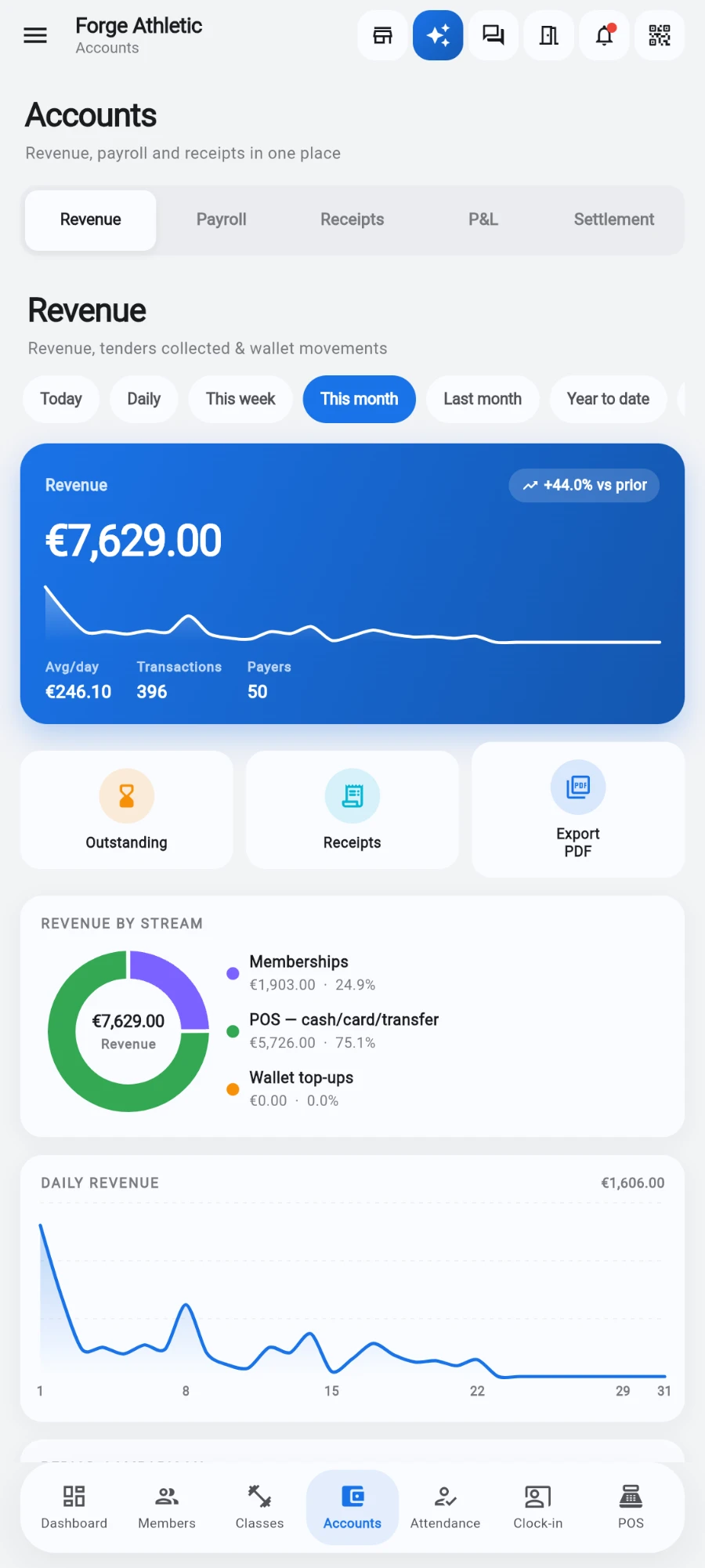
Pick a period — Today, Daily, This week, This month, Last month, Year to date or Custom range. The Daily preset has a single-day picker, so pulling last Tuesday's takings is two taps.
-
Read the headline: total Revenue with its sparkline, plus Avg/day, Transactions and Payers.
-
Check Revenue by stream — the donut splits Memberships, POS sales and Wallet top-ups. A mixed basket (a plan plus a protein bar in one sale) attributes each line to the right stream.
-
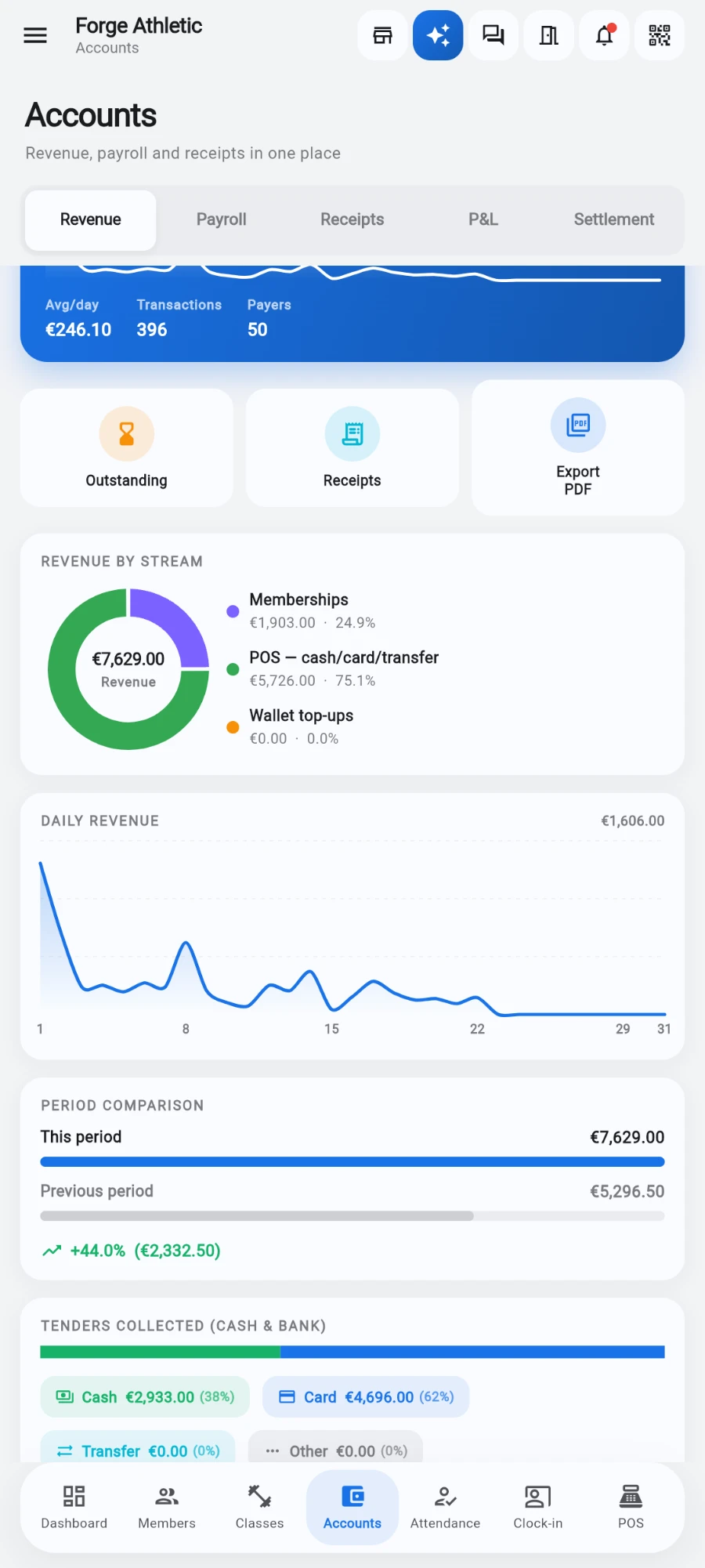
Scan Daily revenue for the shape of the period, and Period comparison for this-versus-previous.
-
Check Tenders collected (cash & bank) — cash, card, transfer and other, bucketed by what physically arrived. This is the figure that reconciles to your till drawers plus bank deposits.
-
Check Wallet movements — Top-ups received, Spent in store, Adjustments and Net movement, plus Outstanding wallet liability (the balance you hold for members). A reconciliation chip compares the wallet ledger against wallet-paid sales and flags any drift.
-
Tap the Outstanding chip to open Outstanding dues — every payment still pending, with a Total outstanding headline. Chase these; they are money members owe you.
-
To record a payment made outside a sale — settling a due, a bank transfer that arrived later — add a manual payment from the member's profile payments tab: amount, method, status and date, attached to the member.
-
To export, tap Export revenue PDF and pick the range and mode: Summary for the aggregate statement, or Full breakdown for every transaction grouped by day with subtotals and page numbers.
-
Choosing Full breakdown reveals a category row so the accountant can pull one revenue stream at a time instead of every product, bar and reception line mixed together: All sales, Memberships (plans, renewals and joining fees), PT packs (personal-training packs and sessions) or Nutrition (nutrition courses and programmes). A filtered export names its category on the statement, so a "Memberships only" PDF can't be mistaken for the whole picture. Then share, save or print from the preview.
What you should see
Three totals that agree with the rest of the system: Revenue matches the dashboard and the P&L; Tenders collected (cash & bank) matches your closed shifts plus bank statements; and Wallet movements matches the members' wallet ledgers. Flipping between periods paints instantly from cache while fresh numbers load silently.
If something goes wrong
- The drawer doesn't match the cash figure — check the shift history for an unclosed shift or a variance at close-out; the revenue view buckets by what was recorded, not what's in the tin.
- Revenue looks low on a busy day — check the wallet figures: wallet-paid sales don't re-count as revenue. The labelled wallet-paid line shows what moved.
- The reconciliation chip shows drift — a wallet redemption and its sale disagree. Open the affected member's wallet history and the sales log for the day; the audit log has the trail.
- A due won't clear — record the settlement as a manual payment with status paid, or take it through POS so it lands in the drawer.
Still stuck? Email hello@prismgym.com — include your gym name, the device, and a photo of what you see.