The heart-rate wall
The HR Wall is the studio TV's spotlight format: small member rings line the left and right edges of the screen while a giant centre tile puts one member "on air" at a time. It shows the same live data as the Quick Start tile grid — same members, same zones, same scoring — just staged differently. Pick whichever format suits the room; boutique HR studios usually run this one.
What you'll do
Open the HR Wall, watch members join as their straps come on air, read the centre stage and the live rankings, and end the session.
You'll need: a paired studio TV in the room, and members wearing paired or loaned heart-rate straps.
Steps
-
On the Hub, select HR Wall — the tile reads Live group training · ring grid.
-
Before anyone's strap broadcasts, the wall shows Waiting for the room with the class clock already running and the hint to power on the heart-rate straps.
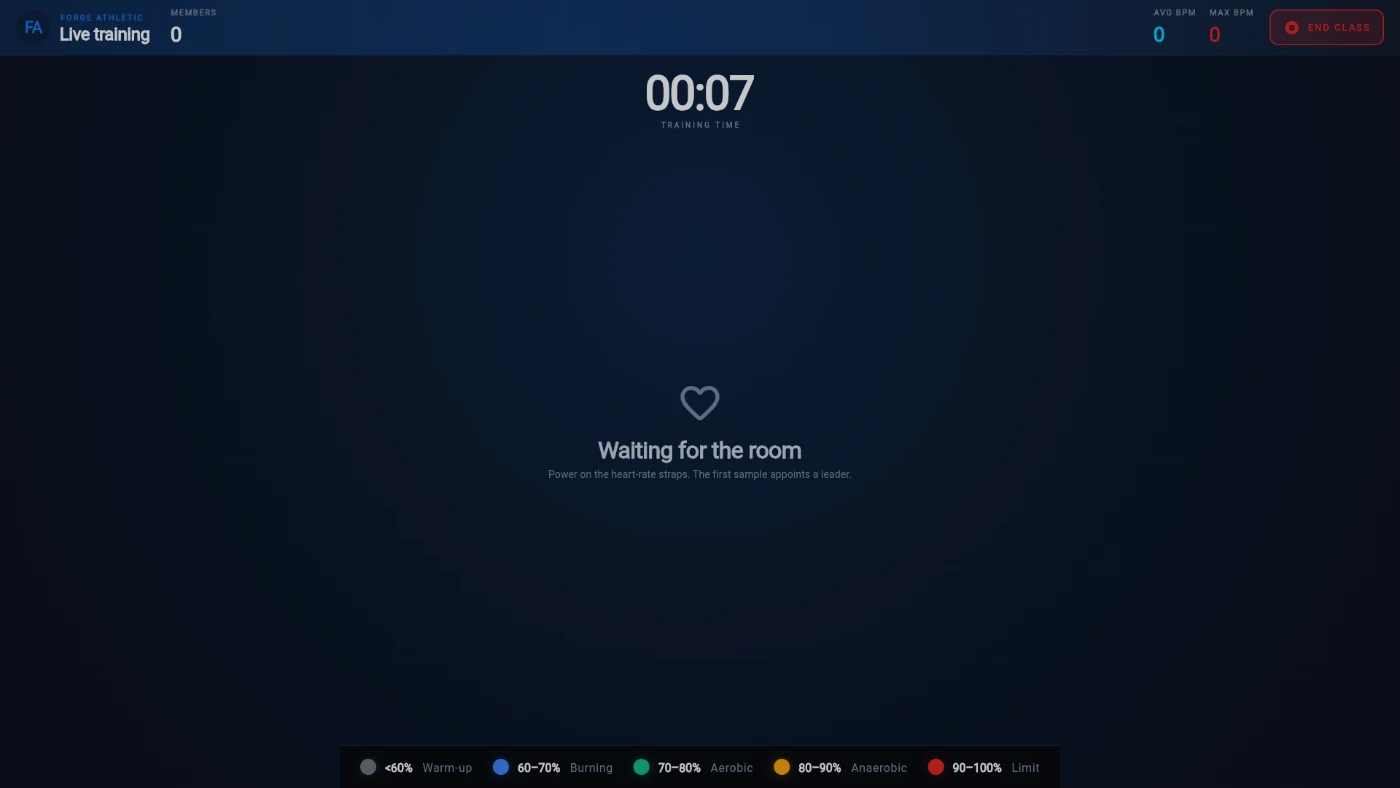
The empty HR Wall: Waiting for the room, class clock running -
Members appear as ring tiles the moment their strap broadcasts — first name, photo, a zone-coloured ring that pulses harder the higher the zone, the live heart-rate figure and a zone caption. The side rails grow from one to four columns on their own, so a 4-person class looks intimate and a 50-person class still fits.
-
Read the centre stage: the giant TRAINING TIME clock, an ON AIR pill showing the member's current rank, a breathing spotlight ring with their live heart rate, their name, and their points and peak heart rate.
-
Watch the spotlight rotate. Every 15 seconds the centre stage moves to the next member in the order they joined — not rank order — so the leader doesn't hog the stage and everyone gets on air.
-
Glance at the header strip for the room totals: the class name, live MEMBERS count (only members actually broadcasting), AVG BPM and MAX BPM. The zone legend runs along the bottom of the screen.
-
End the session with END CLASS in the header. The guard dialog asks End live training? — confirm to close the session and roll up to the podium.
What you should see
Rings pulsing in zone colours on both rails, the centre spotlight handing over every 15 seconds, and the room stats ticking in the header. When you end the class, the top three roll into the podium celebration.
If something goes wrong
- The wall stays on "Waiting for the room" — no strap in the room is broadcasting. Straps only wake against skin; check they're worn and snug, and that the USB ANT+ receiver is plugged into the TV box.
- A member is training but never appears — their strap isn't linked to them. Check the Members screen on the Hub and the strap inventory in the admin app (see the strap chapter).
- The count in MEMBERS looks lower than the room — it counts broadcasting members only, not bookings. Anyone without a live strap isn't in the number.
- You backed out by accident — the guard dialog protects the session; choose Keep going and the wall carries on with everyone's points intact.
Still stuck? Email hello@prismgym.com — include your gym name, the device, and a photo of what you see.