Tills, shifts and cash-up
A till is a physical register — "Reception", "Bar" — and a shift is one cashier's session on it, from counted opening float to counted closing drawer. The open shift lives on the server, never on the device, so two tablets on one till always agree, and every sale is stamped with its till, shift and cashier so the end-of-day count reconciles to the cent — per currency, if you take more than one.
What you'll do
Set up tills once as an owner, then run the daily rhythm: open a shift, trade, and close with a cash-up.
You'll need: owner or manager access for till setup; any POS-permitted staff can open and close their own shift.
Steps
-
Owner setup: open Settings → Tills and tap Add till. Under Basics give it a name and an optional Short code, set the Default opening float (one field per currency on multi-currency gyms), and pick its Printer routing — Receipt printer, Kitchen printer, Bar printer.
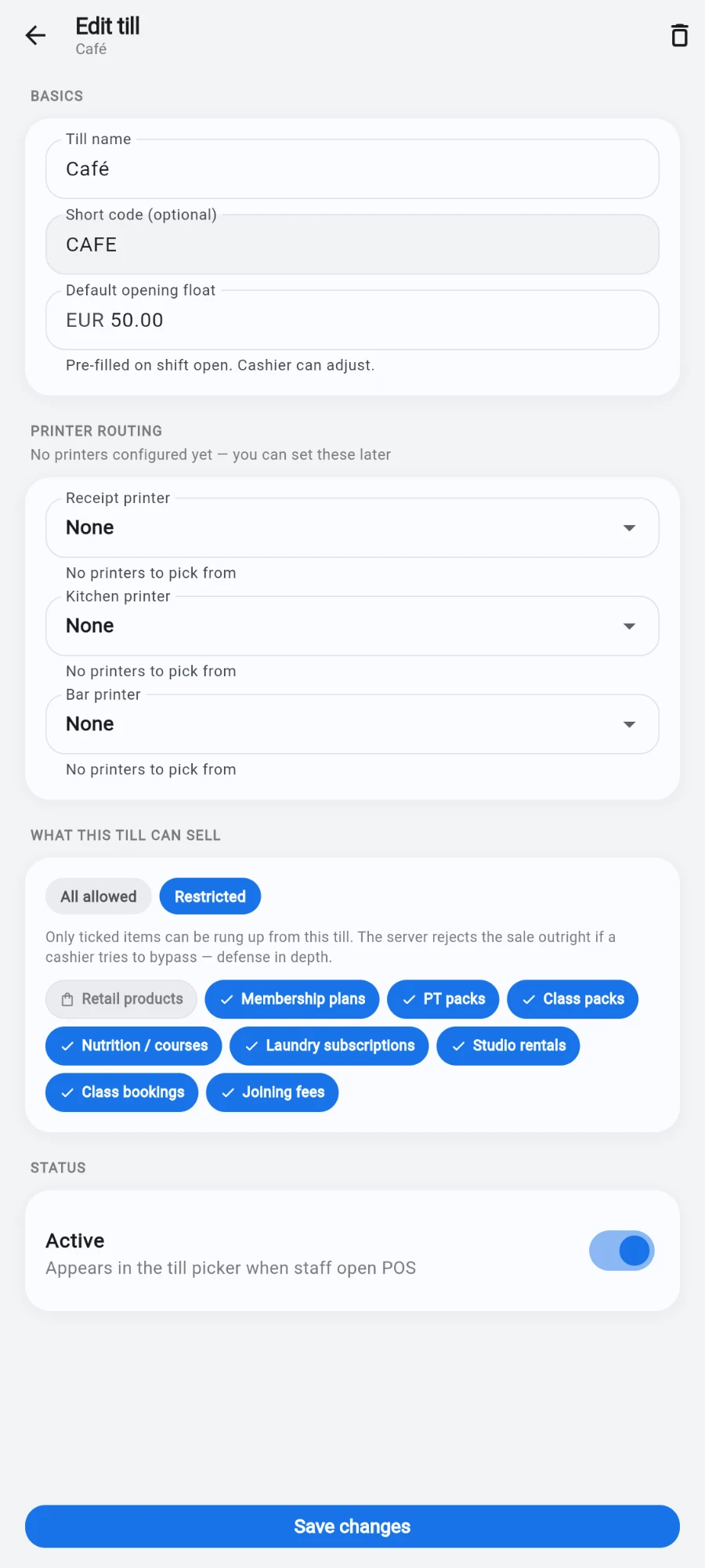
A till: basics and float up top, printer routing beneath. -
When editing a till, the What this till can sell section can restrict it: All allowed, or Restricted with a tick-list (retail products, membership plans, PT packs and so on). The restriction is enforced by the server on every sale line, not just hidden in the menus.
-
Daily open: the first person into the register on a device is asked Which till is this? — pick the till this device sits at. The device remembers it.
-
On the Open your shift screen, count the drawer and enter the Opening float — one field per accepted currency, pre-filled from the till's defaults — then tap Start shift.
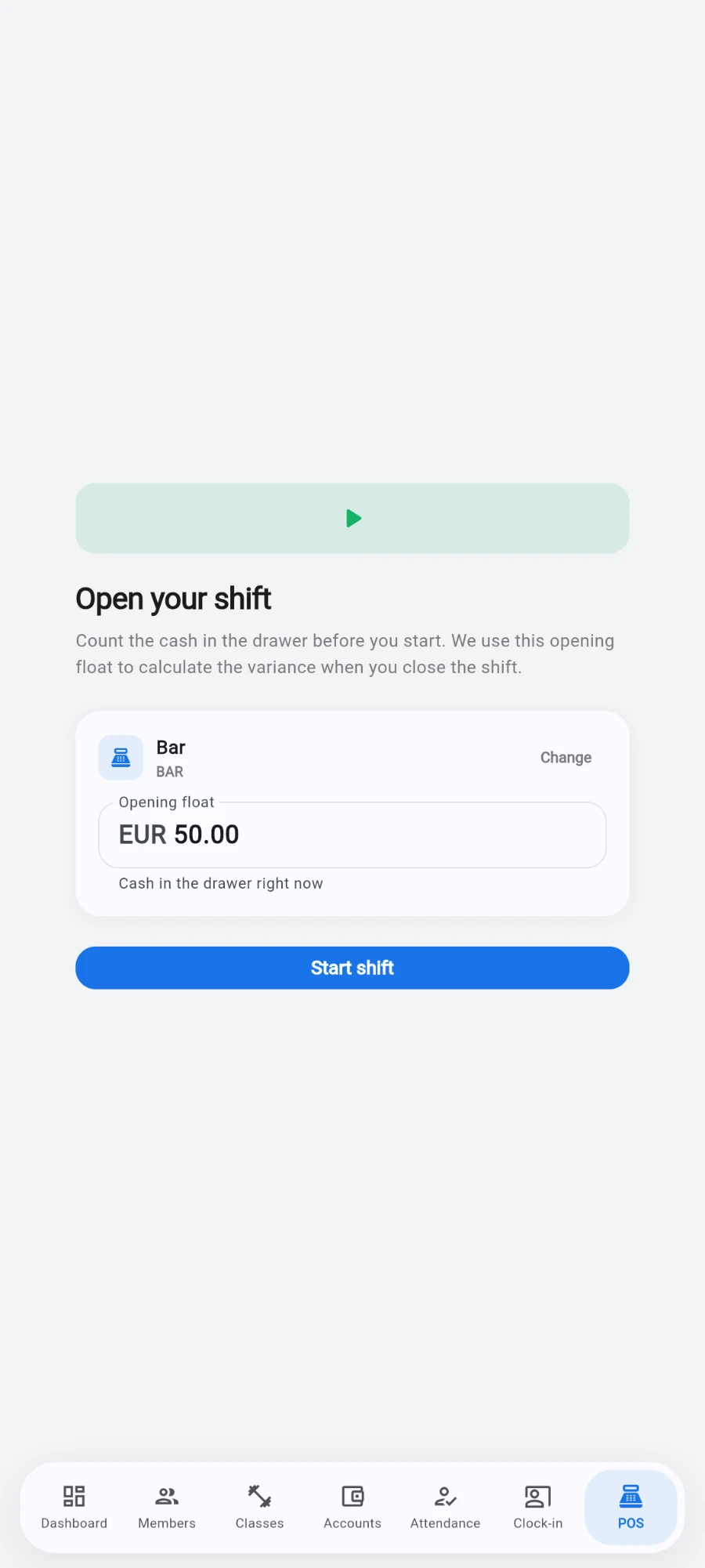
Open your shift — count the drawer, then start. -
Trade normally. The strip above the register shows the live shift — till, cashier and elapsed time — with an End shift action when the day is done.
-
Tap End shift to reach Close your shift. The screen shows the Expected cash in drawer (opening float plus cash sales, refunds excluded) and a counted-cash field per currency, each with its expected pile shown inline.
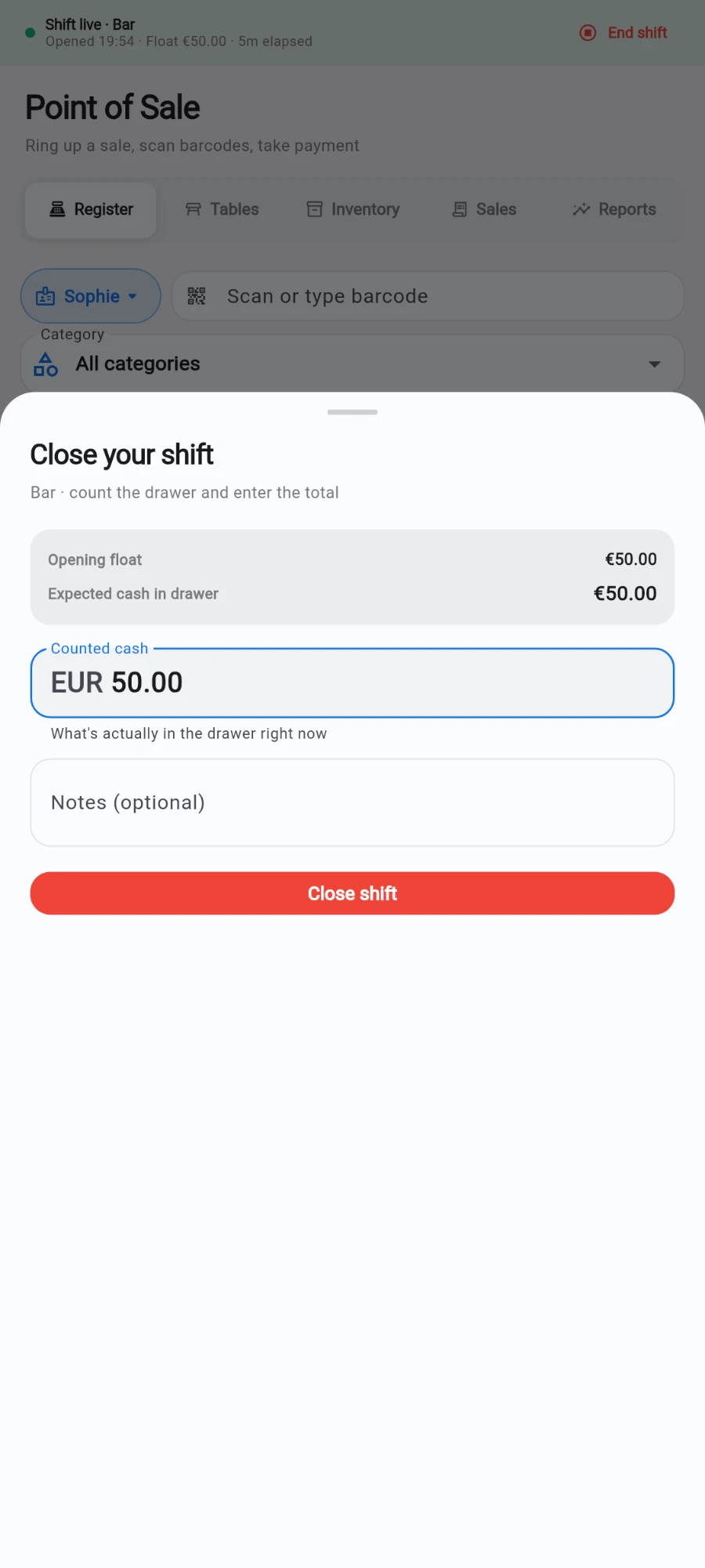
Close your shift — expected against what you actually counted. -
Count each currency separately and enter the totals. The headline goes Balanced, Short or Over, with a per-currency variance breakdown — a shortage in one currency is never masked by an overage in another.
-
Review the wallet section: top-ups taken this shift (deposits into the drawer, or listed separately when your gym banks top-up cash outside the till) and wallet-paid sales, which moved no drawer cash. Add Notes for any variance explanation, voids or drops.
-
Tap Print handover report if your supervisor signs against the cash — it lists every sale on the shift, the tender breakdown, the wallet block and the variance — then tap Close shift and Done on the Shift closed confirmation.
-
Managers review past shifts under Settings → Shift history: date-range filters, each shift's float, variance and cashier, and a printable period report.
What you should see
A green Balanced headline when the drawer matches, a signed handover report if you print one, and the shift listed in Shift history with its variance. The next cashier opens a fresh shift with a fresh float.
If something goes wrong
- "A shift is already open on this till — picking it up." — someone opened the shift from another device; that is normal, the register joins the existing shift rather than opening a twin.
- The device is bound to the wrong till — a manager can change the till from the register's admin action; the binding is per device and survives restarts.
- The drawer reads over by exactly the top-up cash — your gym banks top-up cash outside the till; check the wallet section of the close screen, which lists those top-ups separately below the expected total.
- A sale is missing from the count — look for the warning the cashier saw at sale time about missing shift details; the sale exists in the sales history and explains the variance note.
Still stuck? Email hello@prismgym.com — include your gym name, the device, and a photo of what you see.