Staff clock-in, schedules and timesheets
Staff punch in and out on the admin app's clock-in screen. Each punch can be checked two ways — is the device inside the gym's geofence, and does the selfie match the staff member — and the resulting shifts feed hourly wages, lateness deductions and the timesheet report.
What you'll do
Run day-to-day clock-in, set the geofence and attendance policy, give staff weekly schedules, and read the timesheet report.
You'll need: an owner account for the settings steps; any staff member can punch themselves in on the shared device.
Steps
-
Open the Clock-in tab. The Staff clock-in screen lists every active staff member, with a live on-shift strip for anyone currently working.
-
To start a shift, the staff member finds their card and taps Check in.
-
If face verification is on, the app asks them to Take selfie — it checks a face is visible on the device, then matches it against their photo in the cloud. The punch records with a verification badge.
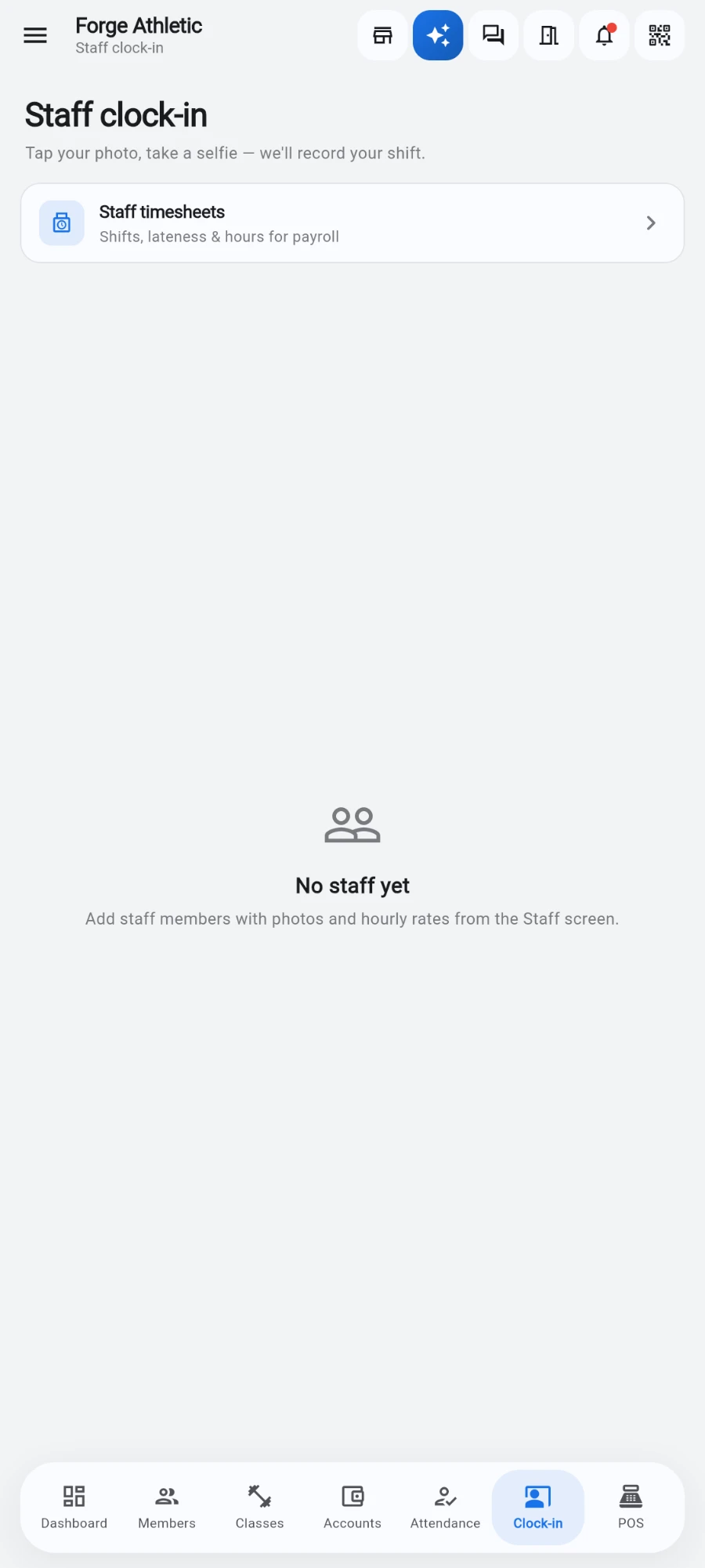
Tap your tile, take a selfie — the shift is recorded. -
At the end of the shift they tap Check out the same way.
-
To require staff to be physically present, open Settings → Staff clock-in geofence and turn on Require staff to be on-site to clock in.
-
Set the gym's location — Pick on map or Set coordinates manually — and a Radius (how far from the gym a punch is still accepted; the default is 150 metres).
-
Give each person a schedule: open Staff, open the staff member, and tap Work schedule.
-
Toggle their working days and hours — the Sat-Thu 8-5 preset matches the common six-day week, Mon-Fri 8-5 the five-day week — set any Unpaid break minutes, and tap Save schedule.
-
Decide how missed time affects salaried pay in Settings → Salaried-staff attendance: pick a Deduction mode — None — record only, Lateness + early-leave minutes, Pro-rata hours or Full-day write-off — set Lateness grace (per shift), Early-leave grace (per shift) and Dock full day after, check the Preview, then tap Save policy.
-
Review the results in Reports → Staff timesheets. Pick a date range: anomalies are surfaced at the top under Anomalies this period (someone still clocked in, very long shifts, lateness, absences), and each staff card shows scheduled versus worked hours with the Variance.
-
Tap a staff card for per-shift detail, and use Export PDF or Export CSV to take the report away.
Tasks, announcements and the league
The Staff tab has two more tabs alongside the team list: Tasks — recurring routines and one-time jobs, kept visually separate, with assignment, reminders and photo evidence (New task to create one) — and Announcements for pinned team notices. For motivation, open Reports → Staff rankings: a 30-day league built from tasks, shifts, sales, classes and reviews, with a top-three podium, an Add review dialog, a monthly appraisal PDF and an Employee of the month spotlight.
What you should see
Punches appear instantly on the clock-in screen with an on-shift timer, shifts land on the timesheet report with their verification badges, and hourly staff hours flow into payroll for the month automatically.
If something goes wrong
- "Outside the gym geofence." — the punch was made too far from the site. The staff member moves inside the radius, or an owner widens the Radius in the geofence settings.
- The selfie keeps failing — poor light or eyes closed are the usual causes; the screen says which. If the person's look has genuinely changed, update their staff photo.
- Punches show a warning badge instead of a green check — the cloud face match is not configured. Punches still record; ask your installer to set up face verification, or enable strict mode only after it works.
- Someone shows as still clocked in from yesterday — they forgot to check out. The anomaly is flagged at the top of the timesheet report so you can correct it before payroll.
Still stuck? Email hello@prismgym.com — include your gym name, the device, and a photo of what you see.