Book a class
The class schedule rolls 30 days ahead. Every card shows the day, time, trainer and live spots left, and booking is one tap — the wallet handles any class fee automatically.
What you'll do
Find a class, book it, join a waitlist for a full one, and cancel a booking you can't make.
You'll need: an active membership; wallet balance if the class is paid.
Steps
-
Open Train — the Classes pane is first. Filter with Today, This week or This month.
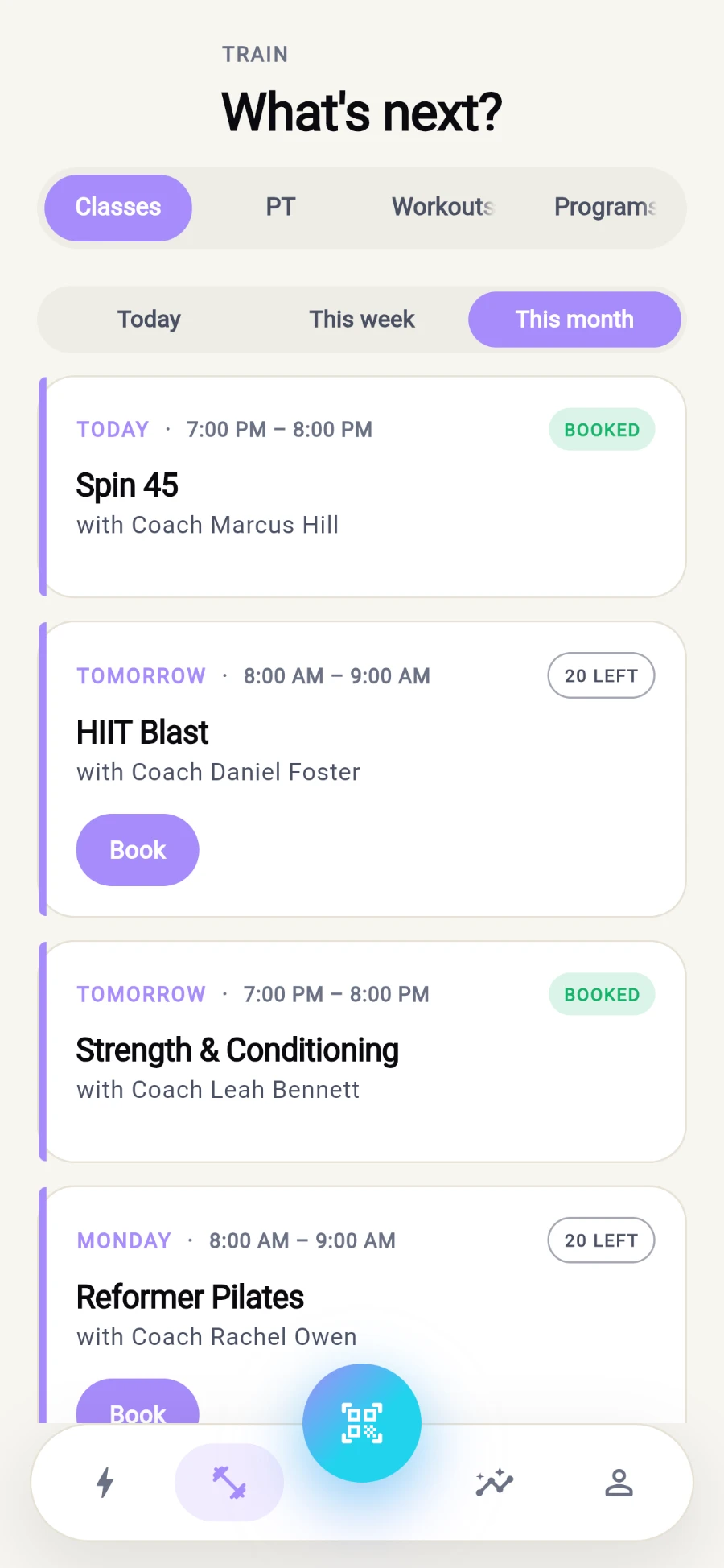
Filter chips at the top, then every class with its live status badge. -
Read the card badges: BOOKED (you're in), WAITLIST with your queue position, FULL, or the number of spots LEFT.
-
Tap Book on a card. If the class is paid, your wallet is charged as part of the tap — the toast confirms wallet charged. Quiet day? Empty states offer See this week or See this month to widen the search.
-
For a full class, tap Join waitlist. Your position shows on the badge; changed your mind, tap Leave waitlist.
-
Tap the card itself for the class detail: description, Time, Spots, Per seat price, Late-cancel fee, the cancellation window, and Livestream availability where offered.
-
Can't make it? Open the detail and tap Cancel booking, then confirm on the Cancel booking? dialog — or Keep to change your mind. The toast confirms Booking cancelled.
What you should see
The badge flips to BOOKED, the class lands on your Today card, and if it was paid the charge appears in your wallet's transaction ledger.
If something goes wrong
- "Class is full" — someone took the last spot while you looked. Join the waitlist; you'll move up automatically as people cancel.
- "Class already started" — booking closes at the start time; catch the next one.
- The booking fails on payment — a paid class needs the fee in your wallet; top up at reception and rebook.
- You cancelled but were still charged — you were inside the late-cancel window; the fee is shown on the class detail before you confirm.
Still stuck? Email hello@prismgym.com — include your gym name, the device, and a photo of what you see.