Add staff, roles and permissions
A staff member in Prism is two things: an HR record (identity, employment, pay, banking) and — once they sign up with the same email — a login with permissions. You create the record first; the login links itself when the person signs up.
What you'll do
Add a staff record, have the person claim it with their email, assign a role, adjust individual permissions, and understand how to end someone's access when they leave.
You'll need: an owner or manager account with staff management access, and the new hire's email address.
Steps
-
Open Staff and tap Add Staff.
-
Fill Identity — name, photo, National ID / passport, Date of birth. The email you enter matters: it is how the person's login will find this record later.
-
Fill Employment — Role / title is required; pick a Department (tap Manage departments to create one), an Employment type (Full-time, Part-time, Intern or Other), an Employee ID and the Hire date.
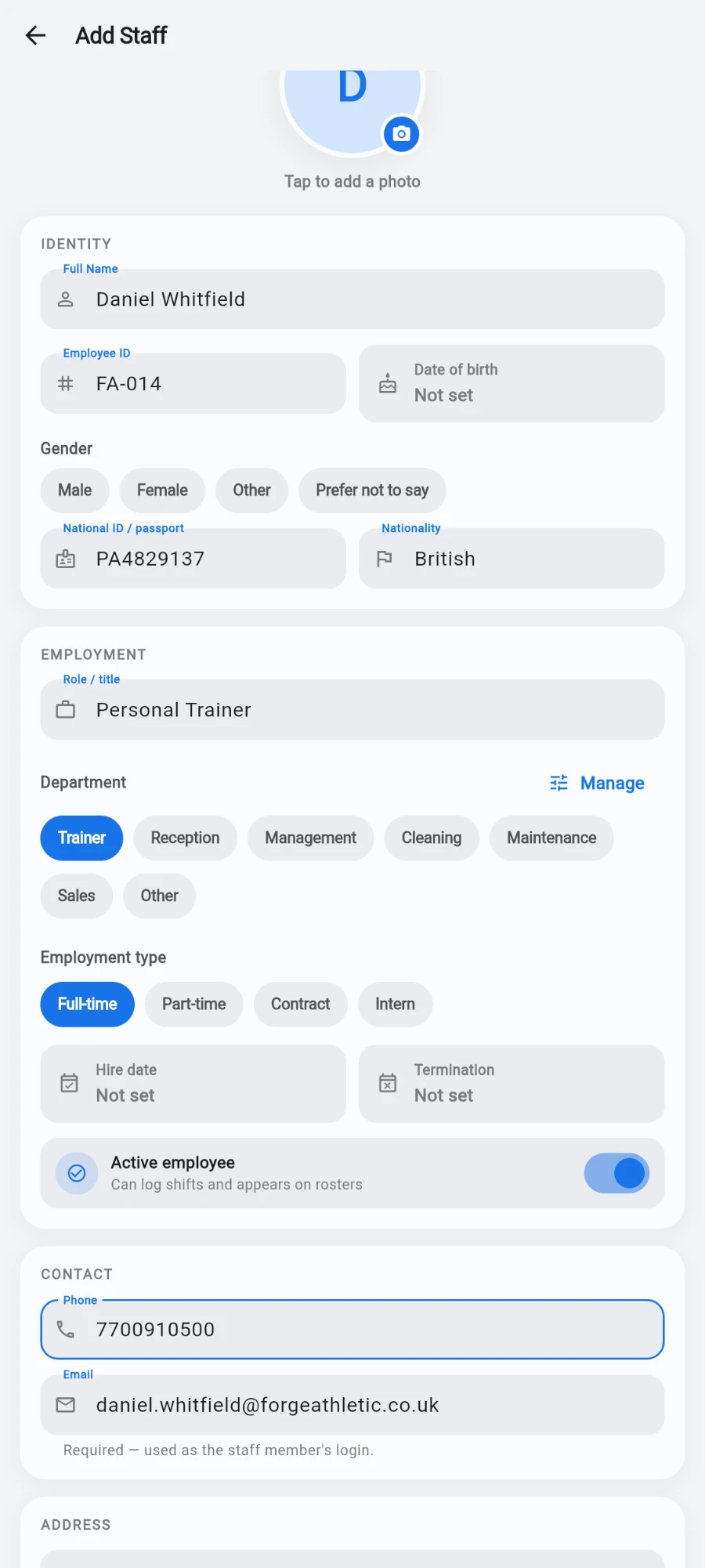
Identity and Employment — Role / title is the required one. -
Fill Compensation — a Monthly salary for salaried staff (it overrides hourly pay on payroll) or an Hourly rate for shift-paid staff, plus the Paid in currency.
-
Optionally complete Payroll & banking (bank name, account number, Tax ID). Under Access, set a 4–6 digit POS / till passcode if they will ring sales — this is the PIN they sign in to the till with (see Who's on the till). It is stored hashed and the field shows empty on later visits; type a new number to change it.
-
Add Contact, Next of kin and Skills & notes, then tap Save. The app confirms and reminds you to ask the person to sign up at the login screen using that same email.
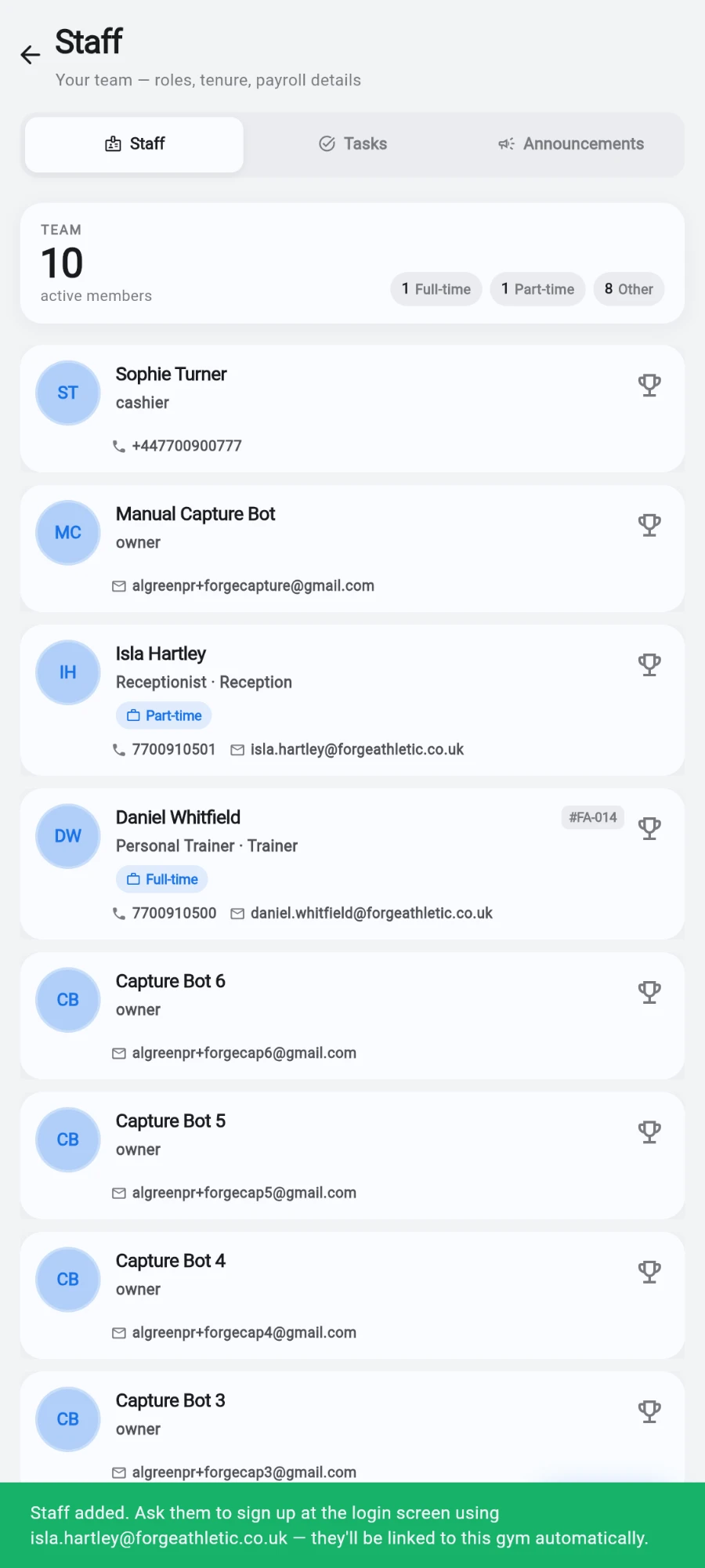
The confirmation tells you exactly which email the person must sign up with. -
Once they have signed up, open Settings → Users & permissions. Their account appears in the list of staff who can sign in.
-
Open the user and pick a Role — Manager, Accountant, Cashier, Coach, Receptionist or Custom. Each preset applies a sensible bundle of permissions; Custom starts empty.
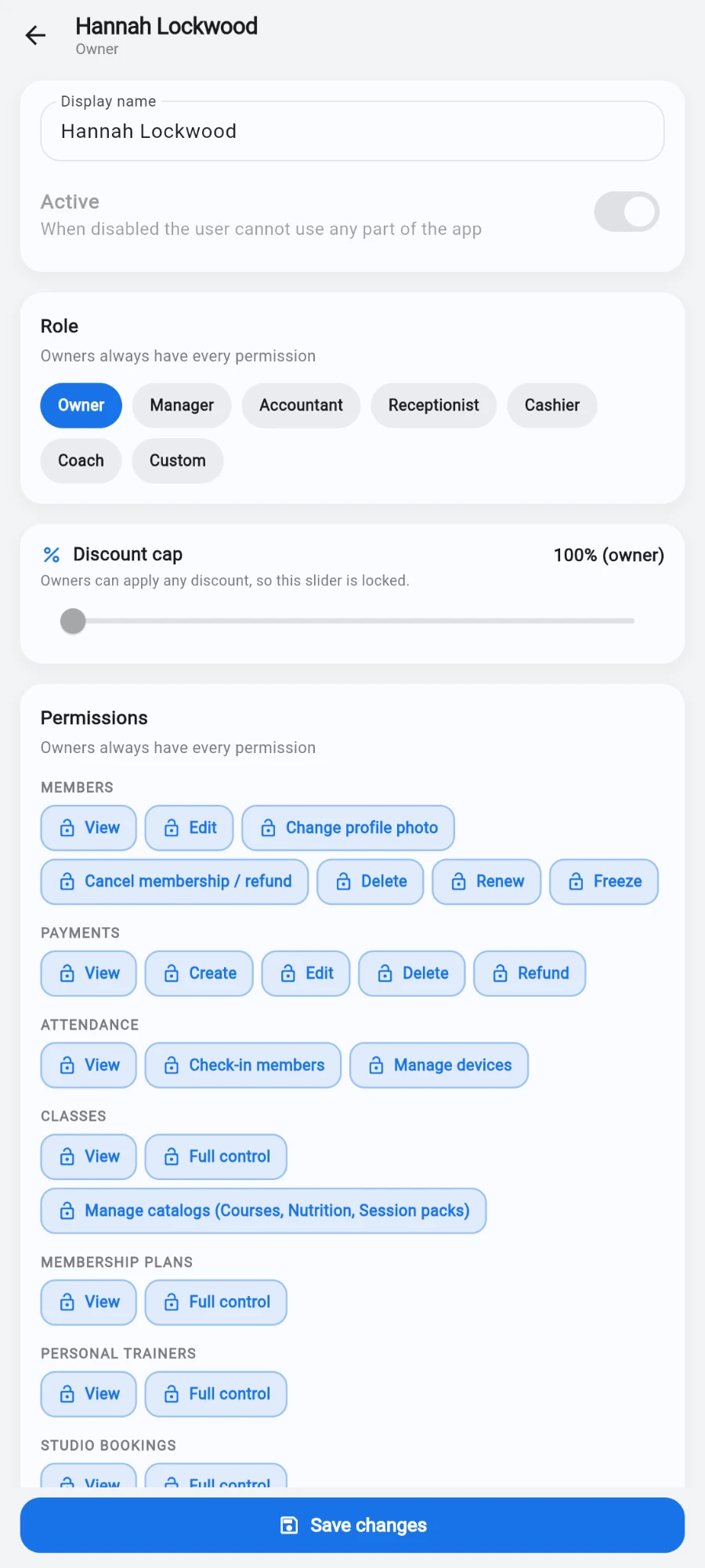
Role, discount cap and per-permission chips on one screen — an owner holds all of them. -
Fine-tune if needed: toggling any individual permission turns the user into a per-user override; otherwise they follow the role defaults and the screen says so.
-
Set the Discount cap — the largest discount this user can apply at the till. The server enforces it independently, so a modified app cannot exceed it.
-
Tap Apply changes.
-
To change what a role means for everyone who holds it, edit the defaults in Settings → Role permissions.
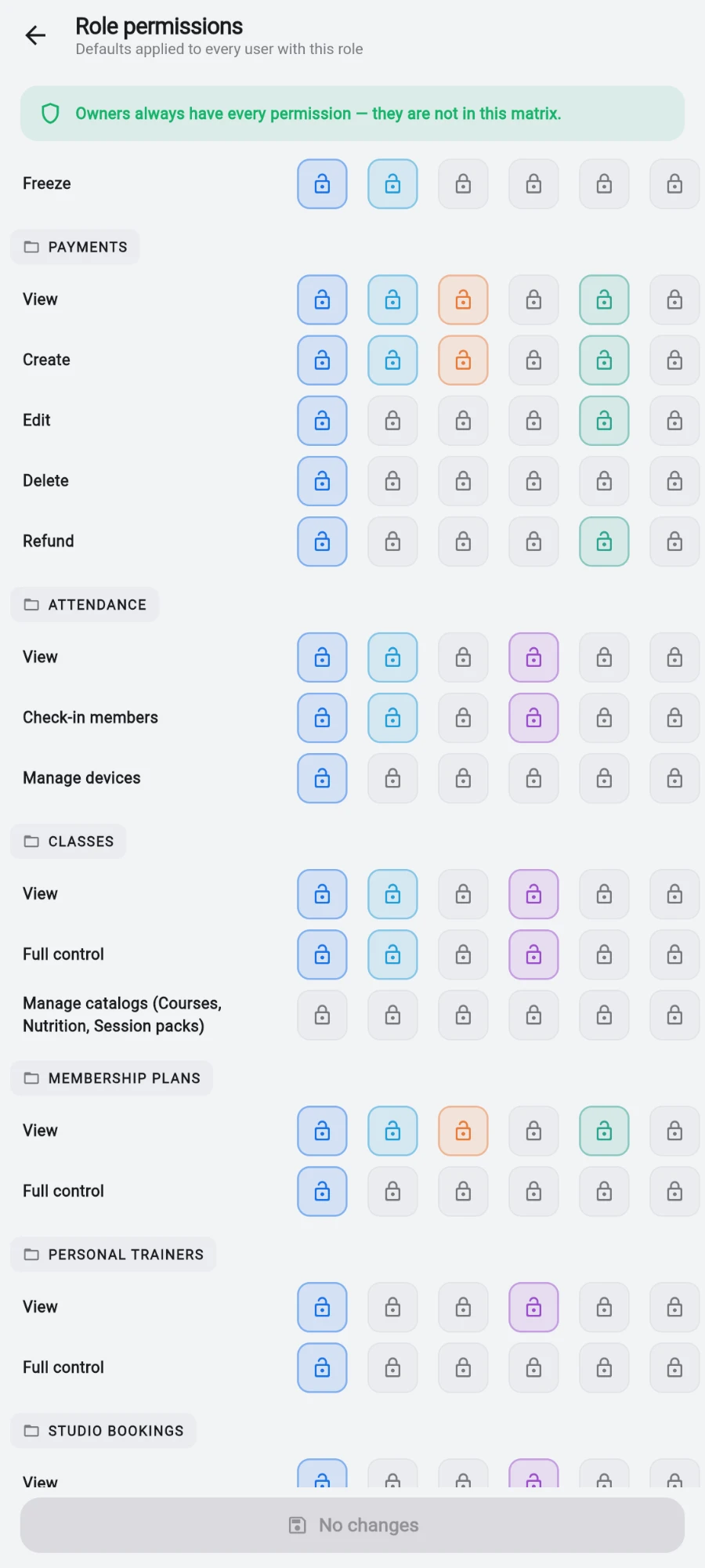
Editing a role here changes it for everyone who holds that role.
What you should see
The staff record shows on the Staff tab with role, tenure and payroll details. In Settings → Users & permissions the person appears with their role, and signing in they see exactly the tabs and actions their permissions allow — nothing more.
If something goes wrong
- They signed up but don't appear in Users & permissions — the sign-up email doesn't match the email on the staff record. Fix the record's email to match, or have them sign up again with the right address.
- Save does nothing on the staff form — a required field is empty; Role / title is the usual one.
- A staff member can't find a screen they need — their role or per-user override lacks that permission. Check the user in Settings → Users & permissions.
- An ex-employee can still sign in — they were only marked inactive. Open their record and use Delete staff to revoke the login as well.
Still stuck? Email hello@prismgym.com — include your gym name, the device, and a photo of what you see.